|
|
Polygons palette >
Wedge
|
Creating a Wedged Polygon
|
|
|
|
|
|
|

|
Wedge creates a wedge from a polygon.
How to Use
-
1
-
Select Wedge
from the Polygons menu, or click this icon.
-
The system prompts:
-
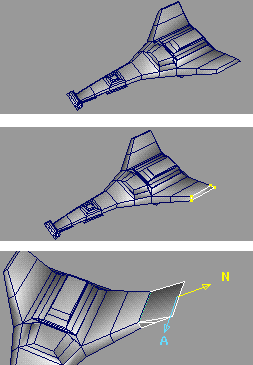
Select polygon to wedge.
|
|
|
-
2
-
Click on the polygon you want to wedge.
-
The system prompts:
-
Select wedge axis (edge on previously
selected polygon)
-
3
-
Click to select the wedge axis.
-
The system prompts:
-
Translate polygon using mouse, or change
number of segments (max=64, current #=2)
-
4
-
Click and drag to translate the polygon wedge. A local axis is displayed and the wedge is extruded along the N axis.
Mouse button interaction
- Use the left mouse button to translate the wedge points along the normal of the target polygon. The wedge rotation and scale pivots are also translated.
- Use the middle mouse button to rotate the wedge points about the rotation pivot. The translation direction is not rotated, although the scale pivot is.
- Use the right mouse button to scale the wedge points about the scale pivot.
Mousing Tips
- Shift-click with the right mouse button to repeat the last transformation you made to the currently selected wedge. An active wedge or a target polygon and a wedge axis must be selected.
- Shift-click with any mouse button to deselect it.
|
|
|
To change the number of segments from the keyboard
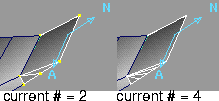
If you type a number other that the current # displayed on the prompt line and then press Enter, the extrusion is updated. In the side example, the current # was changed from the default 2 to 4.
|


