|

|
How to Use
-
1
-
Select Pick > Object and pick polyset objects whose polygons you want to count.
-
2
-
Select Polygons > Polygon stats from the tool palette or click on this icon.
The total polygon and vertex count for the picked objects are displayed on the prompt line.
Polygon Stats Options
Select Polygons > Polygon stats - to display this window. to display this window.
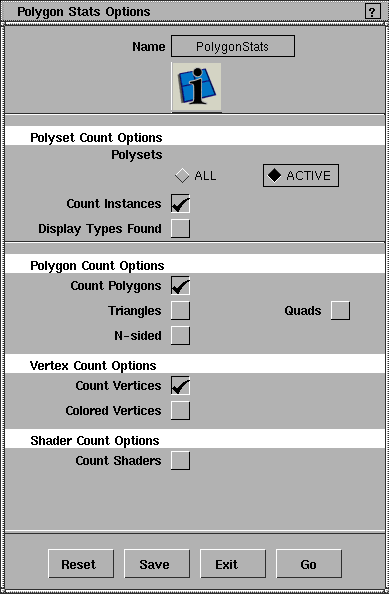
Polyset Count Options
Polysets
-
- Chooses whether to count all polysets in the model, or only selected (picked) polysets.
Count Instances
-
- Includes instances of polysets in the count.
Display Types Found
-
- Picks all of the sub-types that are checked below.
-
- For example, if you check the options to count triangles, quadrilaterals, and colored vertices, those objects will be picked after the count is displayed.
Polygon Count Options
Count Polygons
-
- Displays an overall polygon count.
Triangles, Quads, N-sided
-
- Displays separate counts of triangles, quadrilaterals, and/or N-sided polygons.
>
|
Note:
|
For this tool, N-sided means polygons other than triangles
and quadrilaterals.
|
Vertex Count Options
Count Vertices
-
- Displays an overall vertex count.
Colored Vertices
-
- Displays a separate count of vertices containing color information.
Shader Count Options
Count Shaders
-
- Displays an overall shader count.
Count Per-Poly Shaders, Colored Shaders
-
- Displays separate counts of colored shaders and/or shaders per polygon.
|


