Introduction |
|
||||||||||||
1 |
Introduction to the Alias Interface |
In this Section:
Introduction |
|||||||||||
|
| |||||||||||||
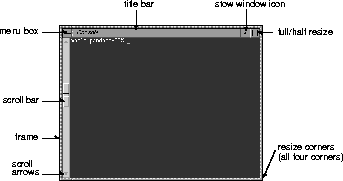
Alias is a complete system that gives you the tools necessary to quickly generate professional 3D models. Through on-screen windows, a Tool Palette and Tool Shelf, menus, marking menus, and control and option boxes, you have access to hundreds of tools to create, edit, color, light, animate, evaluate and present your work in an interactive 3D environment. This introduction describes some of the basic things you need to know, plus a few helpful hints and tips. Shell WindowsLogging into the system opens a UNIX console or shell window on the screen. | |||||||||||||
| |||||||||||||
>
Using the Console WindowYou can have many windows on the screen at once, and you can move them around as easily as moving pieces of paper on a desktop. You can stack windows, change their size, stow them as icons, scroll through them to review their contents, and make them disappear when you have finished. You may want to run shell windows to check the contents of a directory or run UNIX commands.
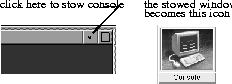
If you want to reduce the size of the console window, you can minimize it as an icon by clicking on the small dot icon that appears in a box in the upper right corner of the window.
Using Particular WindowsYou communicate with all windows through the keyboard or the mouse. Placing the cursor (mouse pointer) over the body of a window activates it (the title bar turns a darker gray), and lets the system know that you have chosen to communicate through this particular window. All of your input is then directed to this window. Note that you can communicate only with the active window at any given time. To communicate with another window, you must first make it active. How to Use the Mouse | |||||||||||||
|
|
The Alias system comes equipped with a mouse, which makes it easy to perform operations-it can be almost like sketching on a piece of paper. A small red arrow (the mouse pointer), otherwise known as the cursor, shows your current position on the screen at any time. When you move the mouse on the pad, the cursor moves in the same path on the screen. If you can't locate the cursor at any time, press the Home key on your keypad. This centers the cursor on the screen. However, if the cursor is (or last was) over another application window, this may not work. If you are having mouse trouble...>
Tablet/Mouse switchTo switch between using the tablet and mouse as your input device, use the F1 key. For more information on installing tablets, see the Release Notes and Installation Guide. Basic MousingThe left mouse button is the standard button for all interactions, and if a function does not support special mouse mapping, any mouse button can be used. Generally, the left mouse button gives you unrestricted control of a tool, and the middle and right mouse buttons let you control operations in horizontal and vertical space. The following is a list of techniques for using the mouse with common tools.
| More things you can do using mouse buttonsAt times, UNIX path names are too long to be displayed within a text box. To move these names back and forth to view and edit them, press down the Alt key and use the middle mouse button. You can copy the value in a field by click-dragging the left mouse button over the number, and then paste the value in another field by clicking the middle mouse button in front of the value to be replaced, and then pressing Enter. Click, click-dragClick means press a mouse button and release it immediately. Click-drag means press a mouse button and hold it down while moving the mouse to a new screen position. When the cursor is positioned at the new screen location, release the mouse button. Using the mouse with Xform functionsThe Xform functions transform objects that are currently picked. To change what is currently picked while in the Xform function, click on the object you want to pick. This unpicks everything that was picked, and picks only the object that you clicked. This can be useful if you need to move individual CVs on an object, since you can just click on the CV and Xform > Move it right away, then click and move the next CV without having to access the Pick menu. This click-pick functionality in Xform guarantees that only one item is picked, so if you have many CVs very close together and you want to move them all to a different position, use the click-pick in Xform to pick and move one CV at a time. To move, scale, or rotate an already picked item using the mouse, you don't have to actually click on the item. If you try to do so, you may accidentally de-select the item by selecting another item nearby. To work around this problem, place the cursor in an area of a modeling window that is clear of any geometry. While holding the left mouse button, drag to manipulate the active item, then release the mouse button. When dragging the cursor over another pickable object, it is important that you do not release the mouse button and then click again directly on that object. If this happens, all active geometry is de-selected and the item beneath the cursor is picked. The newly-active geometry would then be affected by the action you are trying to perform (such as move, scale, or rotate). Using the mouse to pick a curve-on-surface | |||||||||||
|
See The SBD Window on page 337 for more information on the SBD window. |
If you are using Pick > Object Types > Curve on surf, you can pick a curve-on-surface in the SBD window by clicking on the blue curve-on-surface geometry box. | ||||||||||||
|
See the NURBS Modeling manual for more information on curves-on- surface. |
To pick (or unpick) all the curves-on-surface of an object, click the blue geometry box for the surface in the SBD window. Tumbling, Dollying, TrackingThese basic viewing operations can be performed by holding down the Shift and the Alt keys, and using a mouse button as described on the prompt line.
Instead of using the mouse, you can use the arrow keys on your keyboard to manipulate objects, and also type values on the prompt line to specify absolute scale, rotation, or move values (among others). Using the arrow keys to transform objectsWhen using Xform > Move, Rotate or Scale, you can use the arrow keys to transform the selected objects by small amounts. Xform > Move
Xform > Rotate
Xform > Scale
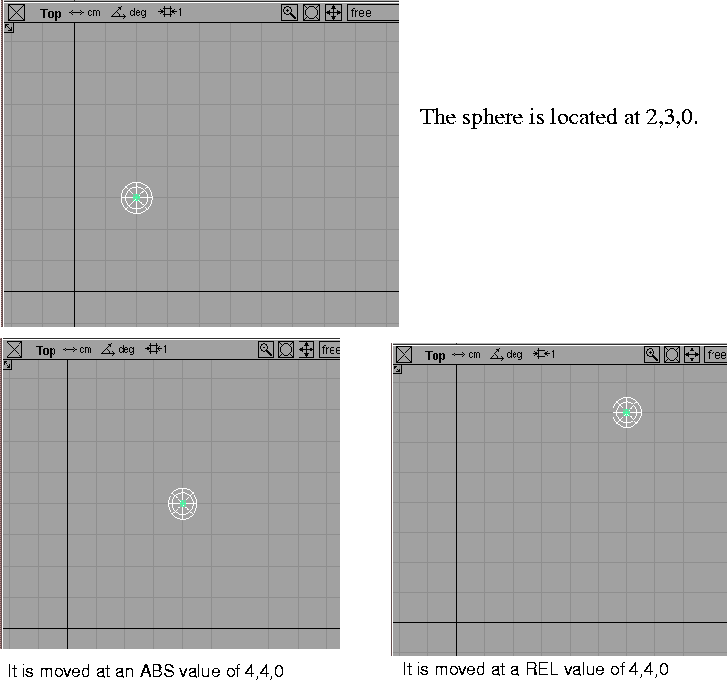
Typing values for Xform functionsEach value you type must be separated from the previous value by either a single space or a comma, and confirmed by pressing Enter. Enter MOVE amounts (x, y, z) (ABS): 2,3,0 MovingType a value to specify an absolute positional location or to specify a move amount relative to the current location of an object. Move amounts are expressed as x, y, z axes values. ScalingType a value to specify an absolute scale factor or to specify a scale factor relative to the current scale of the object. Scale factors can be specified for each of the three axes. RotatingType a value to specify an absolute angle of rotation or an angle of rotation relative to the current rotational position of the object. Rotation values can be specified for each of the three axes. Using Absolute and Relative Addressing ModesThe effect of the values you type in depends on the current addressing mode. Absolute addressing modeBy default, the system addresses view coordinates in Absolute mode, as indicated by the (ABS) notation on the prompt line: Enter MOVE amounts (x, y, z) (ABS): When in Absolute addressing mode, an object is moved or rotated to the absolute world-space coordinates that you type in, and an object is scaled to the absolute size value specified for each of the three axes. In the following, the Absolute move values 2,3,0 are typed. The prompt line reads: Enter MOVE amounts (x, y, z) (ABS): 2,3,0>
If you want to move or scale an object on only one or two of the axes without affecting the other axis, you must re-enter the current values you don't want to affect. For example, if you want to move an object from its location at 2,3,0 to 4,4,0, enter the absolute move values 4,4,0. To switch back to Absolute addressing mode at any time, type the lower case letter a at the prompt line and press Enter. Relative addressing modeYou can switch into relative addressing mode at any time by typing the lower case letter r, then pressing Enter . Enter MOVE amounts (x, y, z) (ABS): r The notation on the prompt line changes to (REL), indicating a relative addressing mode. Enter MOVE amounts (x, y, z) (REL): When in Relative addressing mode, objects are moved, scaled, or rotated to the specified amount on each axis, relative to the object's current position or scale factor. Example
The following illustrations show how the same sphere was moved in both Absolute and Relative addressing modes. | ||||||||||||
| |||||||||||||
Using the Pick WalkerIf you are working on many objects at once, you may want to quickly pick one, then unpick it and pick another, then unpick that one and pick another, to perform various operations on the different objects. Using Pick > Nothing, then picking the next object can be slow (not only because you have to access two popup menu items, but also because you must carefully select the next object to pick). The pick walker lets you quickly walk from object to object, unpicking one, then picking the next one. | |||||||||||||
|
See The SBD Window on page 337 for more information on the SBD window. |
To use the pick walker, you must work in the SBD window (Windows > SBD). To walk between DAG nodes and any other object that is represented as a box in the SBD window, press the Shift key and then the arrow keys to move up, down, left or right. To walk between CVs and edit points on a piece of geometry within a blue geometry box in the SBD window, press the Ctrl key, then use the arrow keys to move up, down, left, or right in your model. To pick objects and components... If you have a DAG node or an object picked: Shift - left arrow
Shift - right arrow
Shift - up arrow
Shift - down arrow
To pick curves-on-surfaces... If you have a curve-on-surface picked: Shift - left arrow
Shift - right arrow
Shift - up arrow
Shift - down arrow
To pick CVs and edit points... Ctrl - left arrow
Ctrl - right arrow
Ctrl - up arrow
Ctrl - down arrow
Using the Shift key and the Up arrow, you can pick the node or block above the CV or edit point. If you have an object selected, you can use the Down arrow to go to the first CV or edit point. Using the mag, grid, and crv buttons | ||||||||||||
|
|
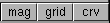
Operations such as Xform > Move, Curves > New curves, Objects > Primitives, the Polygons and Polygon Edit group of tools, and many others that involve positioning on the screen can have the positioning modified by the mag, grid , and crv modifier buttons. These buttons are located at the top right corner of your screen, just below the menu titles. >
Activating the mag, grid, and crv modifier buttons using the keyboardThe usual way to turn on a mag , grid , or crv modifier is to click on its button, then click the button again to turn it off. Instead of clicking on the modifier buttons, you can use the keyboard to temporarily turn the modifiers on or off (if a modifier button is on, using the keyboard turns the modifier off temporarily). >
mag
grid
crv
Using the Menu Bar | ||||||||||||
|
| |||||||||||||
The menu bar at the top of the window includes the following menu titles. | |||||||||||||

| |||||||||||||
If you click on the menu title and hold the mouse button, a menu is displayed from which you can select a variety of items. To select a menu item, hold the mouse button, move the cursor over the menu item, then release the mouse button. If you release the mouse button over the menu title, the menu will remain posted. Selection of a menu title whose menu is posted will result in the execution of the highlighted menu item. This selection of the highlighted item may be achieved on an unposted menu title by double-clicking on the menu title. Using the middle mouse button you may click down on a menu item and drag menu items from a posted menu to the Shelf. (See What is the Shelf? on page 24). >
The Pick Status Indicator | |||||||||||||
|
|
This icon shows the status of the current pick mode that is used by Pick and Xform. It is updated when a different pick tool is selected. The default is object . | ||||||||||||
|
|
For example, if you select Pick > Template, the pick mode in the title bar changes to reflect that templates are being picked. | ||||||||||||
|
|
If you select Pick > Component, the status area appears as a Pick Mask. For details on the usage of the pick mask, see "Pick Component Mask". The Prompt LineThe prompt line is located underneath the menu titles. This field displays error messages, warnings, and prompts for when you have to provide input. It is also referred to as the Information Line . | ||||||||||||

| |||||||||||||
Using the prompt line for picking-and using wildcardsWhen you are using Pick functions, you can type the names of the objects you want to pick in the prompt line. To pick multiple objects with similar names, you can use the same type of wildcard expressions that are available in UNIX. Tips:
Numerical feedback on prompt lineDuring functions that allow movement, scaling, or rotation, such as Xform or Curve Creation, the prompt line displays appropriate information. | |||||||||||||

| |||||||||||||
This information is only visible while the mouse button is pressed.g in Alias Entering numerical values on prompt line | |||||||||||||
|
See also How to use the keyboard on page 11. |
Several tools give you the option of entering exact values on the prompt line, rather than using the mouse. If you enter three (3) numbers separated by colons in the prompt line (for example 6:4:2), the first value represents the main units, the second the sub-units, and the third the positional units (a sub-level of the sub-units). The second and third values are optional. | ||||||||||||
|
For details on how to set units see Units in the NURBS Modeling book. |
You can specify which units are associated with these numbers (for example: millimeters, centimeters, etc.) by selecting Preferences > Construction options. You can also use these options to specify a scale factor for these values (for example: halves, quarters, or sixteenths).
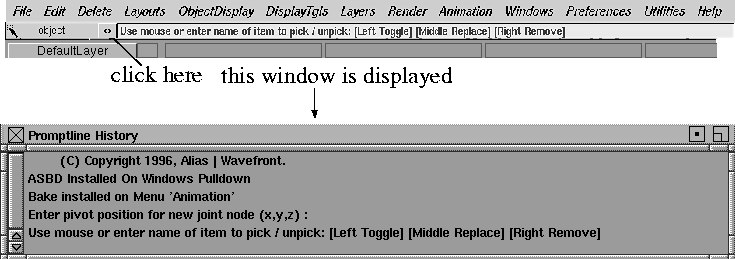
Promptline History WindowClicking the double arrow icon (<->) beside the prompt line displays a window that contains a scrollable list of the last fifty prompts or responses that were displayed. | ||||||||||||
| |||||||||||||
You can scroll through the list using the scroll bar at the left. The Promptline History window can be closed either by clicking the arrow icon next to the prompt line again, or by clicking the close box in the upper left corner of the window. You can also stow this window by clicking the stow button at the top right of the title bar (next to the enlarge window button) to make it an icon that you can access whenever you need it. Selecting Stage and Set Listers from the Layers Bar | |||||||||||||
|
|
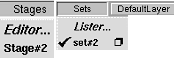
You can now pick stages and sets and invoke their respective editors from easily-accessible pull-down menus at the left end of the Layers Bar. This eliminates the need of having the listers up when working with stages or sets, thus eliminating annoying redraws caused by the overlapping windows. They will only appear if stages and/or sets have been created, which gives the added benefit of letting you know when you have sets or stages. Using the Tool Palette and the Shelf | ||||||||||||
|
| |||||||||||||
|
|
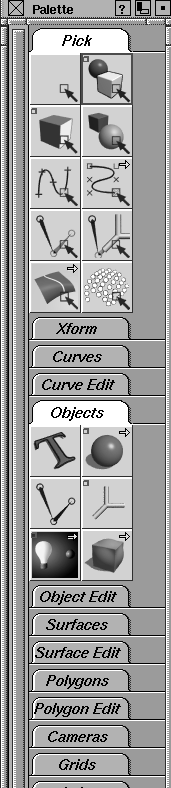
What is the Tool Palette?The Tool Palette organizes Alias tools into one window.
For a summary of the tools available from this window, see Summary of Alias Menus and Palettes on page 1.
Customizing the icon display
If you want to customize the display of your icons, open the Interface Options
box (Preferences>Interface>Interface options- Customizing the Palette and Shelf Layout
Select Preferences > Interface > Palette/Shelves layout-
Once you define your layout in the option box and turn on Keep Alias Window Size, you can move your Alias window and double-click the Preferences menu title to re-invoke the tiling. See Setting Palette and Shelf Layout on page 505 for more information on customizing the palette. Pull-out toolsIf an icon contains a small yellow arrow, click down and move to the right to display a pull-out of additional tools.
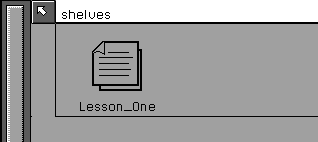
What is the Shelf?You can create your own custom tool box called a shelf. Shelf items, which are tools and menu items that you drag from the Tool Palette or the Menu bar, can be organized into multiple folder arrangements which can significantly improve your productivity. The following is an example of a typical shelf containing tools from the Tool Palette. | ||||||||||||

| |||||||||||||
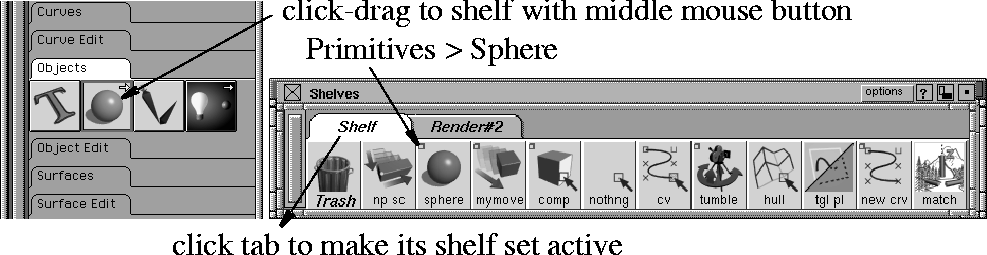
The shelf can be very useful since each time you exit Alias the arrangement you exited with is kept. For example, you can create separate folders for curve creation, editing, surfacing, and rendering functions and use them the next time you open Alias. To invoke a tool from the shelf, click the tool's icon. The tool is highlighted with a red border, indicating that it is active.You can also customize the options for a tool if it has an associated option box. You simply set the options in the option box (before dragging the tool to the shelf) and that tool will work with those settings by default. You can now assign hotkeys to items on your shelves using Preferences > Interface > Hotkeys/Menus. ( See Hotkeys on Shelf Items on page 556.) Dragging a tool to the ShelfYou can drag tools or tool folder tabs to the Shelf from the Tool Palette, the menus, or the tool's option box: From the Tool Palette-First select a shelf folder to make it active, then select the tool with the middle mouse button and drag it onto the shelf. | |||||||||||||
| |||||||||||||
From the Menu Bar-Click a menu title and let go of the mouse button to post the menu. Select a menu item using the middle mouse button, and drag to place it onto the shelf, or drag the menu itself to get its entire contents. From the Option Box-Each option box contains the tool's icon. Simply click the icon using the middle mouse button and drag the icon onto the shelf. Deleting shelf items and foldersTo delete an individual icon, using the middle mouse button, click and drag the icon over the trash can at the left. To delete a shelf folder, using the middle mouse button, click and drag the folder tab over the trash can at the left. Quickly opening a tool's option box | |||||||||||||
|
|
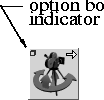
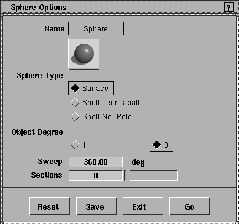
If an icon in either the Shelf or the Palette contains a small box in the upper left corner, there is an associated option box. Double-click or Shift-click on the icon to open its associated option box. The following is an example of an option box:
Each shelf item saves its own option settings. For example, you could have two spheres in a shelf folder and each one would contain different options depending on what you had set in their associated option box. Creating a New Shelf Folder | ||||||||||||
|
|
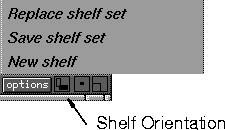
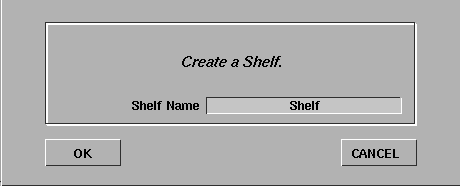
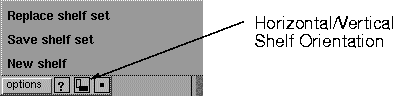
To create a new Shelf folder, click the options button at the top right of the Shelves title bar to display the following menu. Select New shelf. The following is displayed.
Type the name of the new shelf folder in the Shelf Name field and press Enter. Then click OK. The name of a shelf folder can later be changed by double-clicking on the shelf tab. Saving ShelvesSelect Save shelf set to save a particular set of shelves for future use. The Alias File Requestor is displayed. | ||||||||||||

| |||||||||||||
Type a name for the shelf set you want to save in the File field, then click Save Shelf Set. A new file is created in the ~/.Alias/Prefs.2/shelves directory. Retrieving ShelvesSelect Replace shelf set to retrieve a shelf set you saved. The Alias File Requestor is displayed. | |||||||||||||

| |||||||||||||
Type the name of the shelf set you want to retrieve in the File field, or click Show List and click to select the shelf from the File Lister.
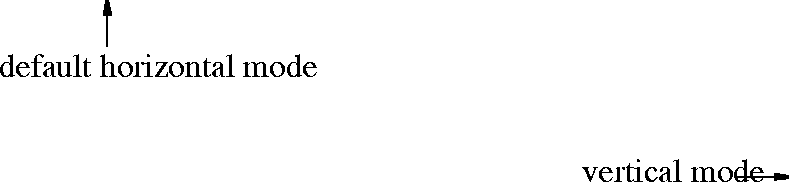
Click Replace Shelf Set to replace the current shelf set with the retrieved one. Changing the display of the shelfThere is a Horizontal/Vertical icon at the top right of the shelf's title bar. >
This icon is used to alter the display of the icons in the shelf. The default shelf mode is horizontal, but there may be times when you have created many shelf folders and expanding the horizontal shelf window may take up much needed screen space. In vertical mode, the shelves are stacked much like the default Tool Palette which makes it easy to drag it over to the side of your working area. See the following example. | |||||||||||||
| |||||||||||||
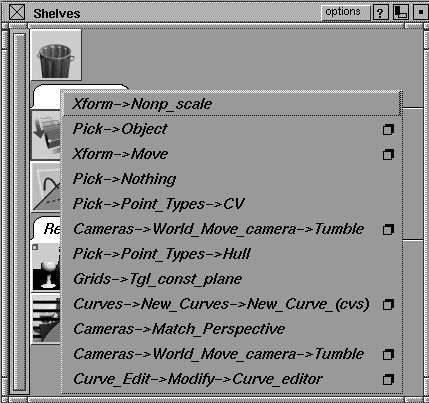
Keeping track of your shelf itemsTo display the items in your shelf folders as menus instead of icons, click anywhere in the shelf tab with the right mouse button. See the following example.
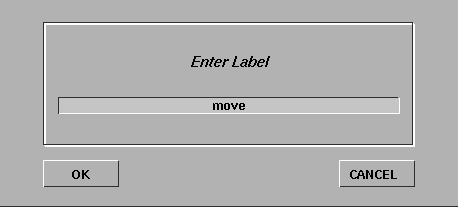
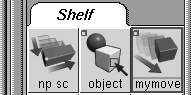
Customizing your IconsRenaming your IconsTo change the default name of an icon on the Shelf:
| |||||||||||||
|
|
How to modify the icon display | ||||||||||||
|
Xpaint is not a supported Alias product, and must be purchased separately. |
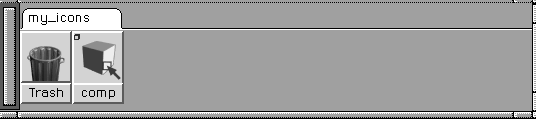
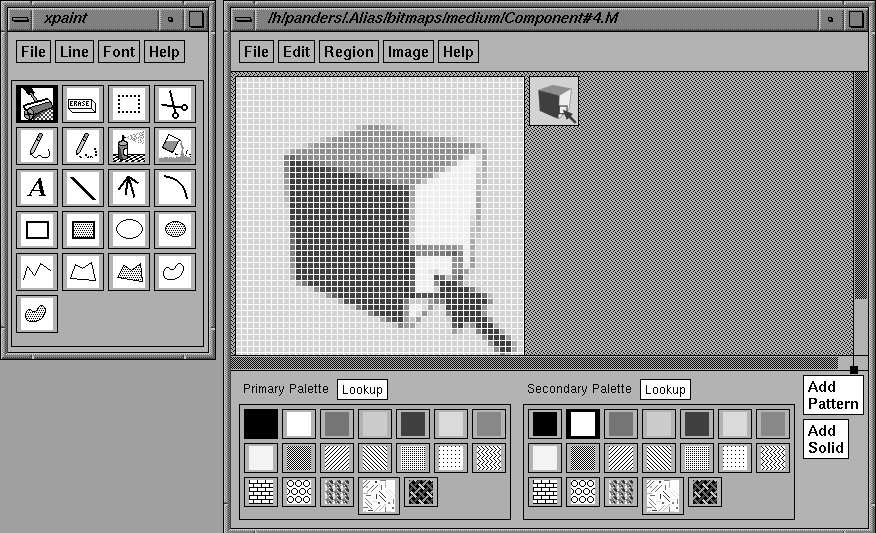
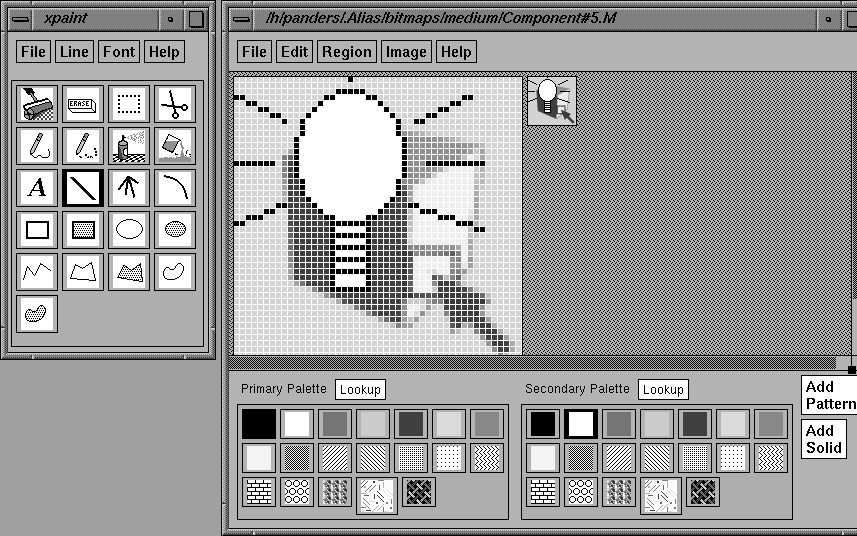
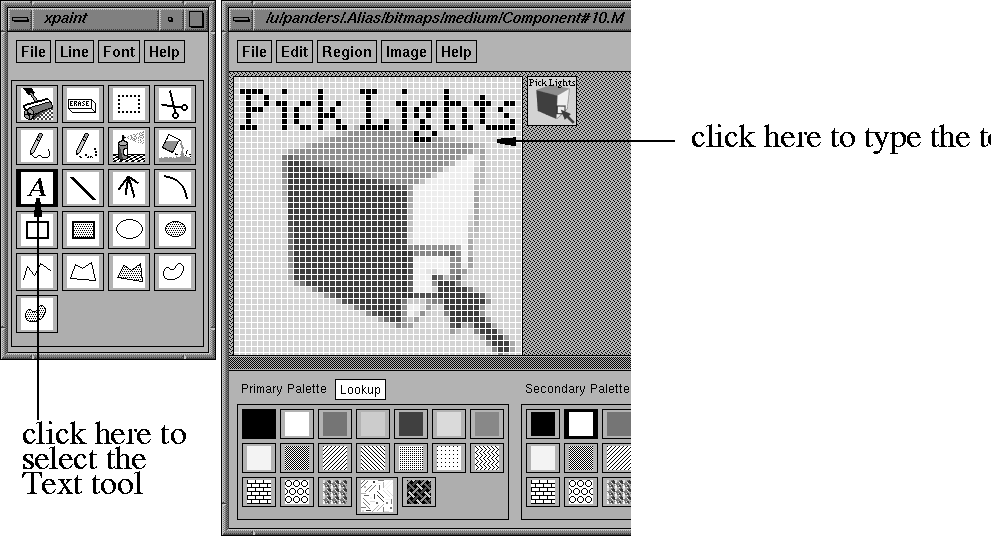
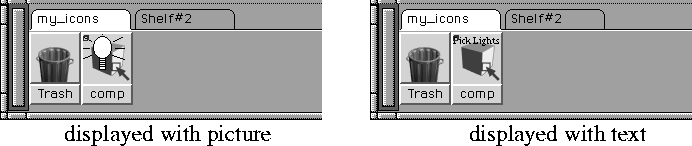
Alias also provides a way to drag icons to the Shelf and use the xpaint software to build your own icons. Example
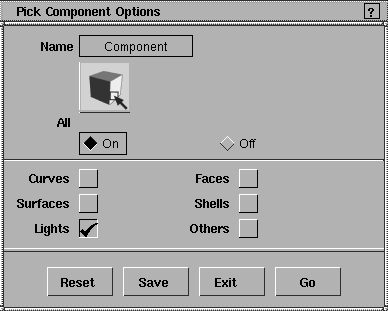
In the following, the Pick > Component icon is modified to reflect that only lights should be picked. If you open the option box (Pick > Component -
| ||||||||||||
| |||||||||||||
| |||||||||||||
| |||||||||||||
| |||||||||||||
| |||||||||||||
| |||||||||||||
| |||||||||||||
| Copyright © 1998, Alias|Wavefront, a division of Silicon Graphics Limited. All rights reserved. | Please send questions or comments regarding the documentation to: [email protected] |

 ).
).