|
Purpose
Quickly move the camera to preset locations. This panel is available in the Perspective window only, by holding down the Shift and Alt keys.
How To
To use the view panel buttons:
Hold down the Shift and Alt keys, and do the following:
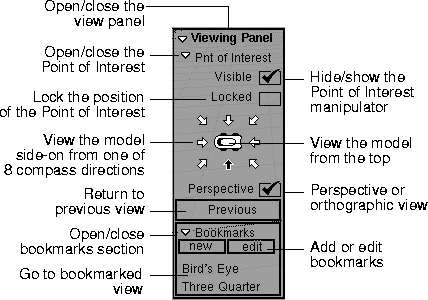
- The panel is divided into sections. Items with little arrows to the left are sections that can be opened or closed to save space.
- Click one of the arrows pointing at the model icon to view the model side-on from one of the 8 compass directions.
- Click the model icon (in the center of the arrows) to view the model from the top.
- Turn on the Perspective option to use the normal, perspective view.
-
Turn off the Perspective option to use an orthographic
view.
- Click the Previous button to return to the last view.
To add a bookmark:
Hold down the Shift and Alt keys, and do the following:
-
1
-
Tumble, track, and dolly the camera to the view you want to save.
-
2
-
Click the new button in Bookmarks section of the view panel to add a bookmark for the current view.
-
The new bookmark is added with a generic name. Use the
edit button to rename the new bookmark (see below).
-
You can now recall the bookmarked view by clicking its
name in the list of bookmarks.
To edit the bookmarks:
-
1
-
Hold down the Shift and Alt keys, then click the Edit button in the Bookmarks section of the view panel.
-
The Bookmarks window appears.
-
2
-
Let go of the Shift and Alt keys.
-
3
-
Do one of the following:
- Double click a bookmark to rename it. (Hit Enter after changing the name.)
- Click new to bookmark the view in the current perspective window.
- Click a bookmark, then press the Delete key to remove it from the bookmark list.
- Click a bookmark, then click Apply to go to the view in the current perspective window.
See Also
- Tumbling Around a Point of Interest on page 44
- Using the Control Panel on page 56
|


