How Use a Pattern to Fill Text |
|||
|
Remove Subject from Background
|
Either drag the lavender polka dotted background off the page and into PSP or save it to your computer and then open it up in PSP.
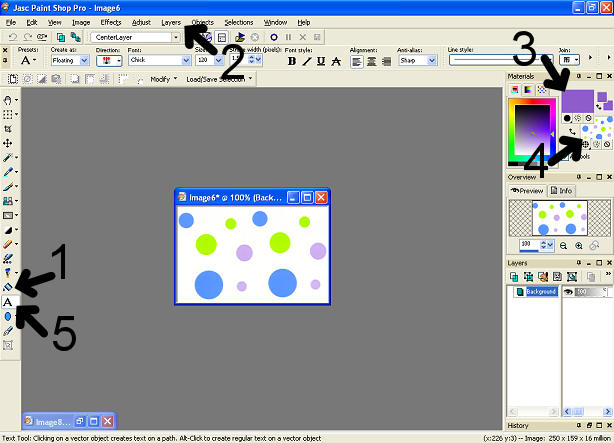
Minimize the polka dotted background. The areas we will be working with are:
Let's Get Started
Flood Fill with White. (see area 1 on the work station picture) Add New a New Layer (see area 2 on the work station picture)
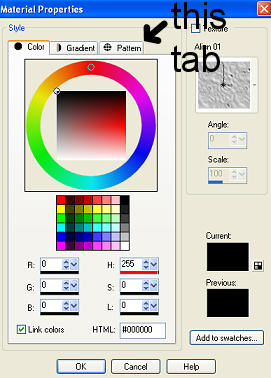
Now go to your top color square( Foreground Properties) See area 3 on the work station click the square and pick a color you would like to have your text outlined in. The example uses 8e5dcb. Click OK Now go to the bottom color square( background properties) Left click on the bottom color square a new window will open up.
Click on the Pattern tab.
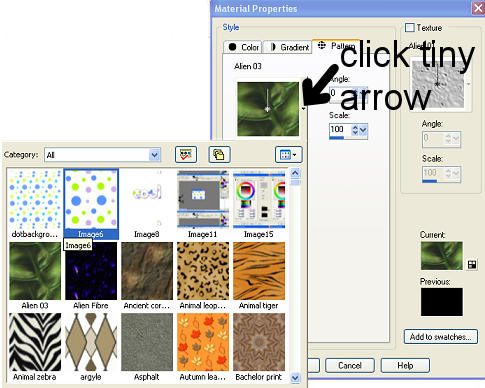
Then click on tiny arrow next to the color picture that appears so you can see the drop down menu. There will be lots of patterns there.
Go find the lavender polka dot pattern. To find the pattern you Usually you have to scroll all the way up to the top, but not always. Now click on your Polka Dotted Pattern. Now that we have choosen the pattern we want click the text button (It looks like an A) See area 5 in work area picture You can choose any font you would like. It works best if you choose a wide font. The example uses:
Here is my finished text:
|
||