Our Goal
To remove a white background from a picture.
I have provided a butterfly picture for you to work with. You can either right click and save the butterfly to your computer or you can pull the butterfly right off this page and into your Paint Shop Pro.

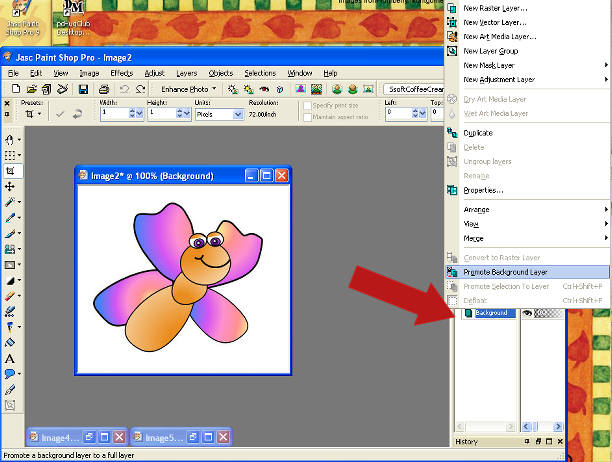
Open the butterfly image in PSP. Change the picture from a background image to a raster image. Do this by going to your layers palette and right clicking on the layer that says background. This will bring up a new window. Find where it reads promote background layer. Click on it.
Next go to your left side tool bars and activate your magic wand. You can activate it by choosing the selections tools ( a tiny box with dots around it.) and clicking on the tiny button right next to the selections tool. Click on your magic wand.
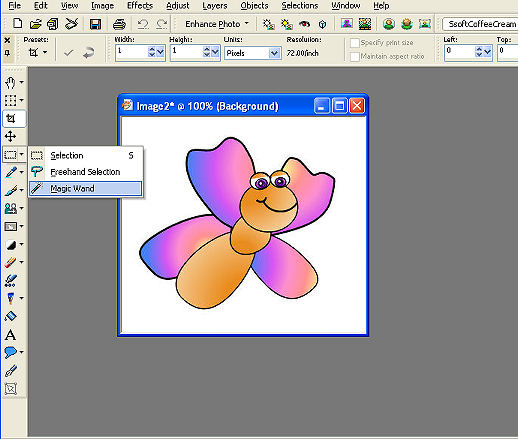
Now that your magic wand is active. You will see your magic wand tool bar settings appear across the top of your works station.

Make sure your setting match mine in the image above. You should have your
Mode..........Replace
MatchMode.....RBG Value
Tolerance.....30 (this one is most important)
Contiguous....is checked
Feather........0
Anit-alis......checked
outside
Now take your magic wand and click anywhere on the white background.Hit Delete on your key board button.
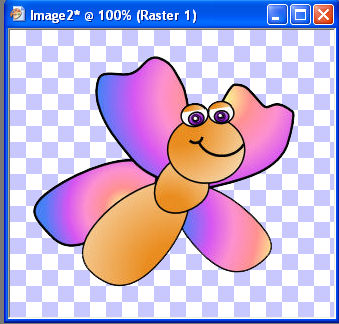
There you go your white backgound is removed. Now tube your image.
�DtsArts2005. Dardi Kemp retains all copyrights to this tutorial and images. Please do not remove, duplicate or copy this tutorial in whole or in part without permission.