Our Goal
To reset Paint Shop Pro so that all tools are visible and workspace is back to Default Configuration
If it hasn't happened to you yet, it will. If you don't know how to fix it you will get a sinking feeling in the bottom of your stomach that will grow to an ache the longer you fumble around in PSP trying to get back a tool bar that you accidentally closed. Is it gone, is it lost, why did I buy this program anyway. All these things will come to mind. Well I am going to tell you how to fix that ailing program of yours so your stomach stops aching. LOL!
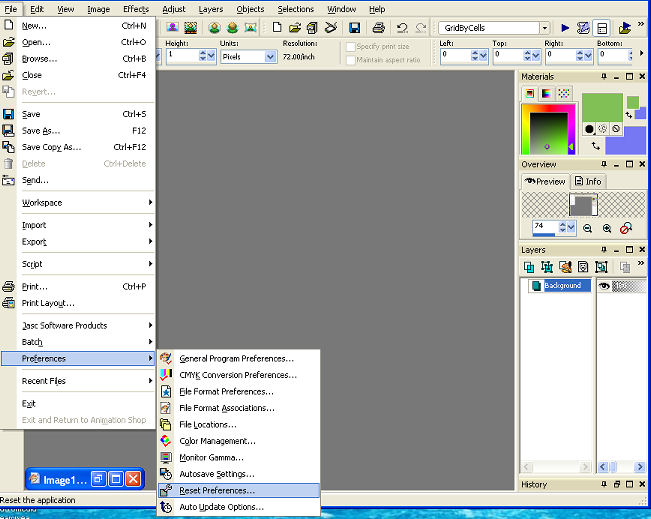
Click on File ( You are looking for a word. It is across the top of your workstation)
Move your mouse down to
Preferences
Reset Preferences
Click the Reset Preferences
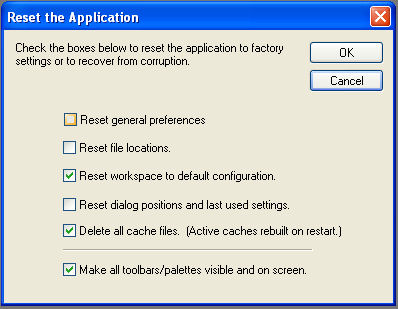
Because we don't want to loose all of our plug-ins, mask, etc. that we have worked so hard on we are only going to check some of the choice.
Put a check in
Reset Workspace to Default Configuration
Delete all cache files.(Active caches rebuilt on start.)
Make all toolbars/palettes visible on screen
Click OK.
Now things are going to start popping all over your screen. If you ever get PSP seriously messed up you might want to put checks in all of the boxes but usually things have just disappeared. When you go to use the tools for the first time after resetting your PSP it will take a little while for everything to load. But at least you have all your tools again. Whew!! Aren't you relieved?
�DtsArts2005. Dardi Kemp retains all copyrights to this tutorial and images. Please do not remove, duplicate or copy this tutorial in whole or in part without permission.