How to Organize Your Files for PSP and how to load a picture tube |
|||
|
Remove Subject from Background
|
If it hasn't happened to you yet it will, Paint Shop Pro at one time or another is going to crash and the only way you are going to be able to make it work is by uninstalling it and reinstalling it. When you uninstall it all your files, plug ins and tubes along with everything else you worked so hard to get is going to be gone if you have been saving everything to your" My PSP Files" folder that PSP writes for you upon installation. So let's just stop saving anything to that file right here and now. Instead let's make a new file to save everything to so when PSP crashes you won't loose everything.
Name the folder ~mypsp9 (choose the number to represent whatever PSP you have x for version 10, 8, 7 etc. also make sure that your file is also all lower case.) by adding the ~ to the front that will make the folder stay on top so you don't have to go hunt through all your folders to find it.
Now that you have your PSP folder made Click inside the folder and make another folder and name it tubes. Now make a folder for each of the following
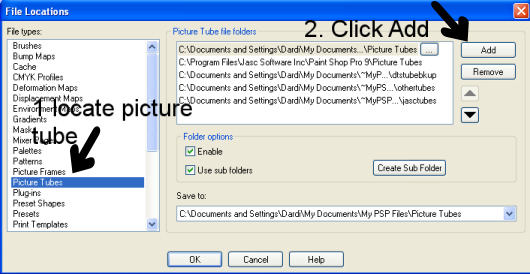
There are more that you will need to make as time goes on and you collect more items for PSP and you can make those folders as you go along. Do make sure you take the time to make a folder when you find you need a new one to keep things organized. Every time you download a new item download it to the appropriate folder, tubes, plug ins, preset shapes etc. Say you want to download the tube of the month from the board. Go into the tubes folder and make a new folder called pspabcstubes. After that make a new folder inside the tube of the month folder and call it Jan. Download all the tube of the month tubes in that folder. Now we will tell PSP how to find the tubes so you can use them How to install a Picture TubeClick
You will get a new pop up window
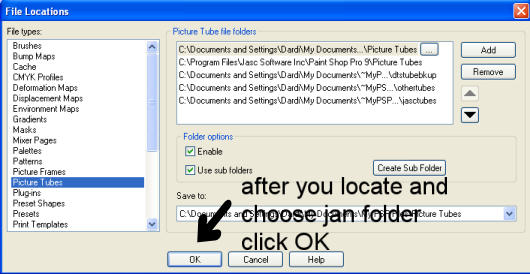
Find the folder that says My Document open by clicking on it open ~mypsp9 by clicking on it locate the tubes folder click Find pspabcstubes click finally click the jan folder. Once it is chosen click OK.
All the tubes that were in your jan folder are now installed in your PSP program. Now close down PSP reopen it and you will see all the tubes you just installed in your fly out menu when you choose your tube tool. In this example we used tubes as an example but this is how you organize, and install all item for PSP whether it is picture frames, plug ins, presets, etc. Now remember to save your individual files in your ~mypsp9 folder to a disc or an external hard drive so if your computer crashes you will still have everything to keep PSPing. |
||