|
Function:
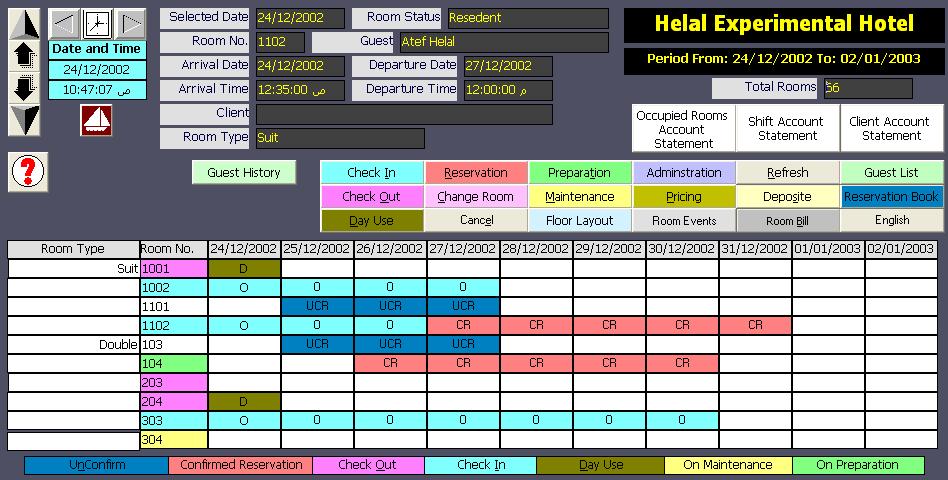
Front Office module has two alternative graphical interfaces. Room-Date layout is one of them.
It shows room status in 10 consecutive days starting from a date specified by the user. Through this page,
the user performs all front office functions like check in, reservation, day use, change Room, guest deposite, bill inquiry, check out, ... etc.
The Other interface is Floor-Room Layout which shows the status in one day only but displays the rooms in each floor.
Page Description:
Room-Date Matrix
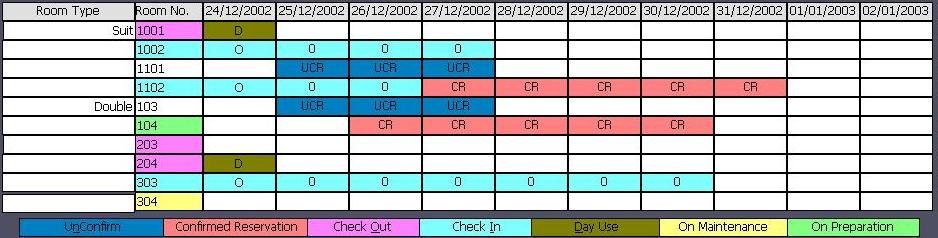
the first two columns show room type and room number. room numbers are sorted within room types.
The remaining 10 columns show the status of rooms in 10 consecutive days. each date cell shows the status at the corresponding date above it, and for the corresponding room to the left of it.
The status are shown on colors as explaned on the ledgent under the matrix. The current room status is shown on the room cell itself, the second column.
Browsing On the top left of the page, there are buttons and fields that help user brows through rooms and dates.
|
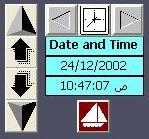
The page displays only ten rooms vertically and ten days horizontally. The time field shows the current time. It is a clock.
The user has no control over it. The date above the time field shows the start date. When the page is first opened, the start date is today date.
The user can change the start date by different means. Through the calendar, The clock picture over it, user may select any date from the calendar opened when he clicks on the clock.
The horizontal arrows around the clock picture increase or decrease the date by one day. Also, user can double click on the date field to write the date he wants.
Changing the start date re-loads the room status starting from the date selected.
Vertical arrows scroll through rooms up and down. Rooms are displayed sorted within their types.
The arrows from top to down perform the following functions: Display rooms starting from first room, Show previous hidden room (scroll up one room), Show next hidden room (scroll down one room), and the last arrow shows rooms until last room.
|
Room Selection
Rooms are selected by clicking on the room cell or the date cell cell. All operations are carried on the selected room, so you have to select the room before performing any function.
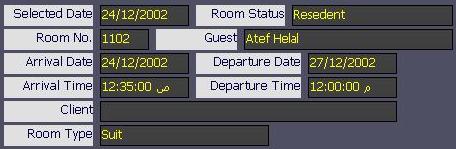
Information about the current selected room is shown on the top of the page.
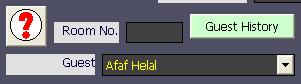
The search button is also used to select rooms. Clicking on the search button displays two fields: the Room No. Field and the guest field.
Writing the room No. Or selecting a guest from the guest list and then clicking again on the button select will Select the room written or the room of the guest selected.
Guest History button is used to show the history page of the guest selected.
|
|
Functional Buttons:
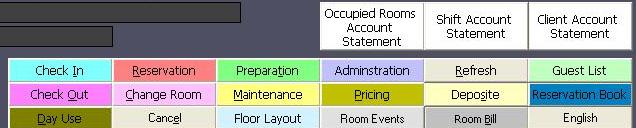
The function buttons include the following functions:
Check In Opens room occupancy page to check in a resident guest in the room selected and with the date selected as the arrival date.
Reservation To reserve the selected room for a guest. If a date selected, That date is considered as the arrival date of the guest, otherwise a calendar will be opened to select the arrival date. The room occupancy page is then opened to write down the reservation data.
Day Use Day use is similar to check in, but for guests, who require residence for part of day, so the duration is computed by hours and not nights.
Change Room Is used to move guests in the selected room to another room.
Pricing To change the room prices of rooms in check in status when the user selects an occupied room cell. It displays the residence cost for reserved room when the user selects a date cell of reserved room.
Deposit To accept down payments for checked in or reserved rooms.
Room Bill To display the bill of checked in rooms as of today. The user can change the up to date in the form to see the bill values as of the date required.
Room Events To display all operations carried out on rooms at any shift.
Guest List to display in-house guests.
Administration To open the administration menu for performing administration tasks like changing room billing, printing bills after check out, selecting front office cash book, ... etc.
Reservation Book To display a reservation list.
Bill Language To change the language of the bill. The system prints the bill in two languages. For example: Arabic and English. The language name written on the button is language used to print the bills. Clicking on the button will change the language.
Refresh Reloads the rooms status.
Preparation to clear the status of the rooms under cleaning and preparation for residence. After check out, the room status changed automatically to under preparation. This button is used to change its status to vacant.
Maintenance to change the status of a vacant or on preparation room to under maintenance. The maintenance status is not cleared under maintenance is done in the room service module.
Floor Layout switches to the alternative interface of the front office module.
Check out to check out checked in rooms (for residence or day use). The bill is printed and the room status is changed to on preparation.
Cancel to cancel the search operation and hide the search parameters.
Occupied Rooms Account Statement Prints Occupied rooms account as of today.
Shift Account Statement Prints all accounts of the shift to hands over the shift.
Client Account Statement Displays and prints the account statement of all rooms related to a specified client.
Function Keys/Short cuts
|
Function
|
Key
|
|
Exit
|
Alt-Q
|
|
Scroll to last room
|
End
|
|
Scroll to first room
|
Home
|
|
Scroll previous room
|
Up Arrow
|
|
Scroll to next room
|
Down Arrow
|
|
Shift Rooms one page up
|
Page Up
|
|
Shift Rooms one page down
|
Page Down
|
|
Show Dates starting from previous day
|
Left Arrow
|
|
Show dates starting from next day
|
Right Arrow
|
|
Open Calendar to select date
|
C
|
|
Change Start Date
|
F4
|
|
Search room and/or guest
|
F3
|
|
Select guest to display it's history
|
H
|
|
Cancel Search Room or Guest
|
Esc
|
|
Select Room Cell 0
|
Key 0 Or Numpad-0
|
|
Select Room Cell 1
|
Key 1 Or Numpad-1
|
|
Select Room Cell 2
|
Key 2 Or Numpad-2
|
|
Select Room Cell 3
|
Key 3 Or Numpad-3
|
|
Select Room Cell 4
|
Key 4 Or Numpad-4
|
|
Select Room Cell 5
|
Key 5 Or Numpad-5
|
|
Select Room Cell 6
|
Key 6 Or Numpad-6
|
|
Select Room Cell 7
|
Key 7 Or Numpad-7
|
|
Select Room Cell 8
|
Key 8 Or Numpad-8
|
|
Select Room Cell 9
|
Key 9 Or Numpad-9
|
|
Select Date Cell 0 for selected room
|
Alt+(Key 0 Or Numpad-0)
|
|
Select Date Cell 1 for selected room
|
Alt+(Key 1 Or Numpad-1)
|
|
Select Date Cell 2 for selected room
|
Alt+(Key 2 Or Numpad-2)
|
|
Select Date Cell 3 for selected room
|
Alt+(Key 3 Or Numpad-3)
|
|
Select Date Cell 4 for selected room
|
Alt+(Key 4 Or Numpad-4)
|
|
Select Date Cell 5 for selected room
|
Alt+(Key 5 Or Numpad-5)
|
|
Select Date Cell 6 for selected room
|
Alt+(Key 6 Or Numpad-6)
|
|
Select Date Cell 7 for selected room
|
Alt+(Key 7 Or Numpad-7)
|
|
Select Date Cell 8 for selected room
|
Alt+(Key 8 Or Numpad-8)
|
|
Select Date Cell 9 for selected room
|
Alt+(Key 9 Or Numpad-9)
|
|
Administration
|
Alt+A
|
|
Display Room Bill
|
Alt+B
|
|
Change Room
|
Alt+C
|
|
Day Use
|
Alt+D
|
|
Display Rom Events
|
Alt+E
|
|
Refresh
|
Alt+F
|
|
Switch Bill Language
|
Alt+G
|
|
Check In
|
Alt+I
|
|
Display Reservation Book
|
Alt+K
|
|
Display Guest List
|
Alt+L
|
|
Maintenance
|
Alt+M
|
|
Check Out
|
Alt+O
|
|
Change Room Pricing
|
Alt+P
|
|
Reservation
|
Alt+R
|
|
Guest Deposit
|
Alt+S
|
|
Room Preparation
|
Alt+T
|
|
Set Focus to another opened page
|
F5
|
|
Print Occupied Rooms Account Statement
|
F6
|
|
Print Shift Account Statement
|
F7
|
|
Display/Print Client Account Statement
|
F8
|
|