|
Srep 1: Select Source Room
Select room cell of status Check-In or Check-Out, or date cell of status Reserved.
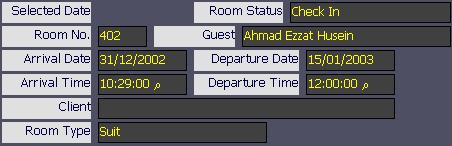
In the case of check out rooms, the guest must have a reservation starting from the date of departure which is today date. Otherwise, you have to extend the departure date to change the status to Check-In.
Step 2: Perform Change Room Function
Perform Change Room Function either by clicking on the button (Change Room) or by the short cut (Alt+C).
The button color changed from check-Out color  to Check-In color to Check-In color  . .
In the case of check out rooms, no need to the next two steps since the guest will automatically moved to the room resrved to him at the date of departure of the first room.
This feature is helpfull when a guest arrived at a time where his preferable room was not available. In this case, he may checked in a different room and resrve his pereferable room.
Step 3: Select Destination Room
Select room cell of status vacant to be the destination room.
Step 4: Perform Change Room Function
Perform Change Room Function again as in step 2. The button changed its color again to Check-Out color.
The old room status is changed to on preparation (OOO) and the new room status to check-in or reserved according the original status of the old room.
All guests, down payments, outlets, and open services are transfered to the new room. For Check-In status, the transfere starts from today date and for reservation status thr transfere starts from the arrival date.
|
