|
Function:
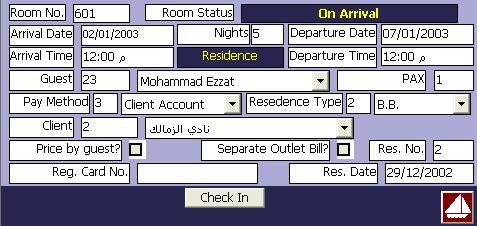
In this form users enter and update room occupancy data. Room Occupation modes are room reservation and room check in.
Room Check in is of two modes, Residence mode in which the period is computed by nights, and Day Use mode in which the period is computed by hours.
All actions on room occupation are performed in this form like changing departure date, changing guest, changing method of pay, ... etc.
Opening Page:
This form is opened from the main front office form (Room-Date Layout or Floor-Room Layout) to perform the functions of reservation, check in, or day use.
To enter new check in or new day use, the user selects a date cell in front of the desired room and then performs the check in or day use function.
To change the data of old check in or day use, the user selects an occupied room cell and then performs the function of check in or day use to change the check in or day use data.
To enter new reservation, the user selects a date cell in front of the desired room and performs the reservation function. if date cell is not selected, the program opens the callendar to select a date. The selected date is considered as the arrival date.
To change old reservation data, user selects a date cell marked as reserved and then performs the reservation function to open the form and change reservation data.
Data Fields:
All data fields in this form are set to default values for new entry of check in, day use, or reservation so that users may accept the default values and performs the desired action. In check in or day use, the guest must be selected or entered before taking the action.
Following are the form data fields:
Room No.: is selected before opening the form and the user is not allowed to change it. Changing reserved or occupied room is a function performed in the main front office form.
Room Status: is a display only field. it shows the current room status like vacant, un confirmed reservation, confirmed reservation, on arrival, check in, day use, or on departure.
Arrival date: Is selected before openning the form for new entry and the is allowed to change it in reservation mode only.
Nights: Represents the residence period in nights for reservation and check in. It is set to 1 for new entry. The user is allowed to change it to more than one. The changes in this field changes the departure date automaticaly.
Departure Date: For new check in or new reservation. it is set as one day after the arrival date. For new day use, it is the same as arrival date. User may change this fields in case of check in and resrvation (not day use). Consequently, the number of nights is recomputed.
Arrival Time: For new resrvation it is set to 12 noon. For new check in or day use, it is set to the computer time. The user is not allowed to change the arrival time. This field affects the bill where additional night is added if the arrival time is between midnight and the start time of hotel day defined in (Define Hotel Day). This extra night is not added automaticaly but the program give the choice to authorized users to accept or not.
Operation Type: is a display only field to show the operation performed on the form check in, day use, or reservation.
Departure Time: Is set to 12 noon for new check in or new reservation, and to an hour after the arrival time for day use. The user is allowed to change it in day use only. This field is changed automaticaly in check out. The arrival time will be the computer time when the user performs the check out function. If this time is after the end time of the hotel day defined in (Define Hotel Day) an extra night is added to the room bill. Authorized users has the right to stop the addition of this extra night.
Guest Name: It is obligatory only in check in and day use. The user may select a guest from the guest list or he may type the name of a new guest. In case of new guest, the program will add the new name to the list. Any corrections to the guest name is done in the guest form and not in this field since any changes to this field mean replacement of old guest by another one. The guest selected in this field is the principal room guest for which the bill is issued. Guest shares are added in Room Guest Form.
PAX: Is the number of guests in the room, i.e. the principal guest and guest shares. Guest shares are added in Room Guest Form. The default value is 1.
Method of pay: Is initialy set to Cash. The user has the right to change it to any one of the four pay methods in the list. The four pay methods are: Cash, Check/Credit Card, Client Account, and Client Account No Services.
Incase of chash payment, the bill value is posted to the cash book assigned to front office work station. Incase of Check/Credit Card, The program displays a form, at check out time, to enter check/credit card data to be stored in check/credir card file for further processing in General Accounting System.
Incase of Client Account, the bill value is posted to client account. Incase of client account no services method, the residence cost only posted to client account and outlets and variant expenses are posted to Cash Book. A client should be selected for the third and fourth pay method. This client should have a debit account. Clients are defined in General Accounting System
Resident Type: The default resident type is BB (Bed and Breakfast). The user may change it to any one of the allowed four types: BO (Bed Only), BB (Bed and Breakfast), HB (Half Board), and FB (Full Board).
Incase of BO, the program does not add any meal to the room account. Incase of BB, the program adds the breakfast meal only. In case og HB, the program adds two meals: the breakfast and Lunch or dinner. Incase of FB, the program adds the three meals.
Standard meals' prices are defined in the basic data module. Authorized users can change these standard prices in Pricing Form.
Client Name: Is selected from the list provided. Client is obligatory only when the method of pay is client account or client account without services, otherwise it is optional. Clients are defined in General Accounting system.
Price By Guest?: The default value of this field is NO. The user may change it to Yes. Yes in this field means that the room rate is per person so the room price will be the room rate mutiplied by pax (number of guests in room).
Separate Outlet Bill?: The default value of this field is NO. If the user changes it to YES, the program will print the outlet services in separate bill. The room bill normally include all the costs, residence cose and the cost of other services offered to guest during his stay in the hotel. Separate outlet bill means that the details of the outlet services are printed in separate sheet while the totals are still in the original room bill.
Reservation No.: Res. No. is a number generated by the program for reservation. It forms with reservation date a composite identifier field to reservation.
Resrvation Date: Is the date of entering the reservation. It has no meaning for check in without reservation. In this case the resrvation number is zero which means that there is no reservation done prior to check in.
Registration Card No.: Is a text field printed on the bill just for matching with other manual processing. It is up to user to enter any text in this field.
Function Buttons:
Different functional buttons are shown according to the type and status of room occupation record. They include the following:
Check In
New Check In - Residence or day use: Two buttons are valid in this case. The first is check in button to accept and save the record, and the other is Cancel button to cancel the action and return to main front office form. After accepting the check in, the record is considered to be in the state of old check in.
Old Check In:

This group of functions apears after accepting a new check in or when opening an old check in for updates. This group includes the following functions:
Pricing Opens Pricing Form for changing the standard room prices. Athorized users only can open this form. In resrvation state, this function displays the cost of residence without allowing the user to change them.
Deposit Open the Deposit Form to add and/or update guest down payment. thsi function is also available in reservation state.
Delete Deletes the record either in check in or reservation state. This function is allowed only for authorized users.
Expenses Opens Variant Expenses Form to add or update variant expenses. Variant expenses is different from outlet services. This is a free form in which users enters just the name of the item and its price to be added to the room bill.
Exceptions Opens Exceptions Form in which user can excludes some outlets or outlet items from the client account and paid by the guest. The function is available only for method of payment Client Account where the bill is paid by the client.
Edit Allows the user to change the fields of the form. Thsi function is also available in reservation state. Room No is not changed at all but selected befor opening the form. Arrival date could be changed in reservation state only. Arrival Time is not changed in any state. Departure time is changed only in Day use.
Departure Date is locked only in day use, otherwise user can change it. All other fields may be changed without any constraints.
Reservation
New Resrvation

Three buttons appear in this case, the first to Cancel the action (Cancel Button - see above), the other two buttons are used to accep the reservation either as confirmed (Confirm Button) or as unconfirmed (Un Confirm). Affter accepting the resrvation the status is transfered to old resrvation state.
Old Resrvation

Pricing Opens a Form to display the cost of residence without allowing the user to change them.
Deposit, Delete, and Edit are the same as above (old check in state).
In the case of unconfirmed resrvation the confirm button appears to change the status of the resrvation from unconfirmed to confirmed.
In addition to the above functional buttoms there exists and exit buttom (The button with the boat picture) to quit the room occupation form and all it's related forms. And Sail Out to Main Front office form.
Function/Short cut Keys:
|
Function
|
Key
|
|
Move between fields
|
tab
|
|
Update
|
Alt-U
|
|
Transfere focus between open forms
|
F5
|
|
Cancel
|
Esc Or Alt-C
|
|
Check In
|
Alt-I
|
|
Confirm Reservation
|
Alt-F
|
|
Delete Record
|
Alt-D
|
|
Edit Record
|
Alt-E
|
|
Exit
|
Alt-Q
|
|
Unconfirmed Reservation
|
Alt-N
|
|
Pricing
|
Alt-P
|
|
Down Payment (Deposit)
|
Alt-S
|
|
Variant Expenses
|
Alt-X
|
|
Outlets Exceptions
|
Alt-O
|
|
For Combo Box, select previous or next item
|
Down Arrow/Up Arrow
|
|
Open Combo Box
|
Alt-Down Arrow
|
|