|
Function:
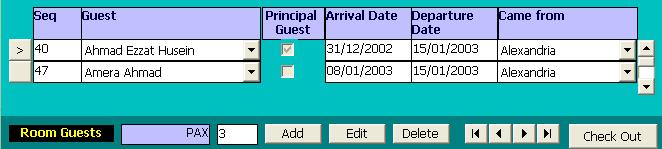
Add guest shares and update guest data, and departure of guest shares.
Opening Page:
The from is opened automaticaly, when a guest is added to for a new check in or new reservation in the room occupany form or when the room occupancy from is open for old check in or old reservation.
Data Fields:
This form include the following data fields:
ISN Is an internal Sequence Number of the guest selected from the list or added to it. It is not allowed to change it.
Guest Is a guest name selected from the list of guests or added to it.
Principal Guest? Is an informative field to indicate the guest to which the bill is issued. This field is changed in the room occupany form by changing the guest.
Arrival Date Is the arrival Date of the guest it must be between the arrival and departure dates of the room. The default value of this field is the room arrival date.
Departure Date Is the departure date of the guest. it is initially set to the departure date of the room and may changed by the user to a date between the arrival and departure dates of the room.
Came From Is the city from where the guest came. It is selected from the list of cities entered in basic data module.
The form also includes a field showing the number of guests defined. The program does not allow users to add guests more than the number defined in room occupancy form.
Function Buttons:
The form include the following functional buttons.
Add to Add new guest.
Edit to change the data fields of the current guest.
Delete to delete the current guest record.
Check Out To check out the current guest. This function is different from the deletion of the guest record. The departure of guest does not delete the record physically but the affect the calculation of bill only.
Function/Short cut Keys:
|
Function
|
Key
|
|
Move between fields
|
tab
|
|
Update
|
Alt-U
|
|
Transfere focus between open forms
|
F5
|
|
Cancel
|
Esc Or Alt-C
|
|
Delete Record
|
Alt-D
|
|
Edit Record
|
Alt-E
|
|
Guest Departure
|
Alt-O
|
|
Last Record
|
End
|
|
First Record
|
Home
|
|
Next Record
|
Down Arrow Or Page Down
|
|
Previous Record
|
Up Arrow Or Page Up
|
|
For Combo Box, select previous or next item
|
Down Arrow/Up Arrow
|
|
Open Combo Box
|
Alt-Down Arrow
|
|