|
Function:
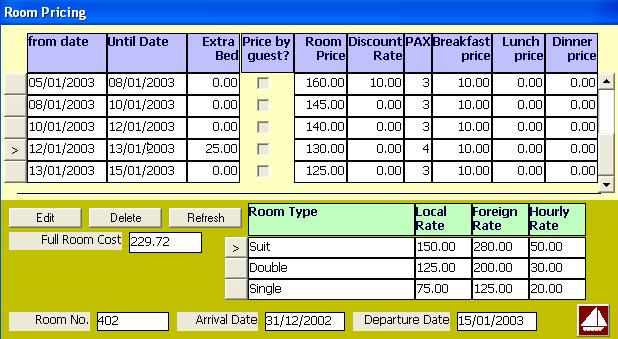
This form includes at least one pricing record. This record is added after accepting check in and include the standard prices defined in Basic Data module. The authorized users can open this form to change the standard prices and add more pricing records for the residence period of the guest. There are three methods to change the room rate, the first is to change the room rate fields directly, the second is to write a full accomodation price including meals and taxes and let the program compute the room rate, and the third method is to select a rate from the standard rates of all room types defined in the Basic Data module. A new pricing record is added automatically when the user changes the number of guests (PAX) or resident type in room occupancy form.
Opening Page:
This form is opened from Room Occupancy Form by clicking on the pricing button for a room of status check in. It is opend also from the main front office form by selecting occupied room cell and click on pricing button.
Data Fields:
At the top of the form the pricing records are displayed and have the following data fields:
From Date Is the start date for the application of the prices in the record. The start date must be greater or equal the arrival date of the room. It must be less than the departure date of the room.
Until Date Is the end date for the application of the prices in the record. The end date must not exceed the departure date of room. It must be greater than the arrival date of the room. Changing the end date, creates a new record of the same pricing data and started from the new end date and ended with the room departure date. This happened if we change the end date of the last record. If the record is not the last one, the program will modify the start date of the succeeding records or delete the invalid records. i.e. the program maintains the start and end dates of the pricing records.
Extra Bed Is the price of extra bed added to the room.
Price By Guest? If this field is checked, the room rate will be multiplied by the number of guests (PAX) to compute the rate per night (hour in case of Day use). Otherwise the rate is considerd per night regardless of the number of guests.
Room Rate Is the price of room per night (per hour incase of Day Use) if the price by guest field in NO, and per night per guest if the Price By Guest Field is YES.
Discount Ratio Is a percent ratio assigned by the program as the discount of the client and could be changed by the user.
PAX Number of guests. If PAX in Room Occupancy Form is changed after one night at least from the arrival date, a new pricing record is added with the new number of guests and same pricing data. The number of guests affects the computation of the meals prices. The total meal price is the meal price multiplied by pax. Also, a new pricing record is added when one of the guests check out.
Meals Prices Three fields for the three meals. They depend on the residence type. For Bed Only (BO) all fields are three and the user can not enter any value on them. For Bed and Breakfast (BB), the breakfast price is only price available. For Half Board (HB), the breakfast price plus either lunch or dinner are the prices available for modification by the user. For Full Boear (FB), all pricess are available. If Residence type in Room Occupancy Form is changed after one night at least from the arrival date, a new pricing record is added with the new valid meals and same pricing data.
On the bottom of the form there are display only fields like room no., arrival date and departure date. A table of the standard prices is shown to select from it the room rate (mouse double click) that replace the rate of the current pricing record. The form is transfered to Edit mode to allow user accept or cancel the change in room rate. This area includes also the full accomodation price per night, which is the room rate plus meals, service, and taxes. User can change this field to recompute the room rate according to the value entered.
Function Buttons:
The form includes the following functions:
Edit to change the fields of the current pricing record. It shows the cancel button to cancel changes, and Update button to accept and save changes.
Delete to delete current pricing record. The pricing period of the other records are changed to cover all the resident period from arrival to departure.
Function/Short cut Keys:
|
Function
|
Key
|
|
Move between fields
|
tab
|
|
Update
|
F2 Or Alt-U
|
|
Cancel
|
Esc Or Alt-C
|
|
Edit Record
|
Alt-E
|
|
Delete
|
Alt-D
|
|
Set Focus to pricing grid.
|
F4
|
|
Close
|
Alt+Q
|
|