|
|
File Operations in Alias
|
|
|
2
|
Importing Operations
|
|
In this Section:
|
File > Open
|
Importing CAD Data Files into Alias
|
|
|
|
|
The File > Open choice retrieves previously saved files, including wireframe models and foreign data formats. For more information on the basics of using this choice, see the Basic Tools in Alias book.
|
|
Filters are programs
that read in an
arbitrary file format,
perform data
manipulations as
required, and write out
the Alias WIRE file
format to standard
output.
|
File > Open automatically attempts to read in files. If the file is not a standard Data Transfer type, Alias tries to match the file extensions to an input filter. If a filter is available, it reads the file in through the filter for that particular file format, according to your specified options.
To view or change options that determine how files are retrieved:
-
1
-
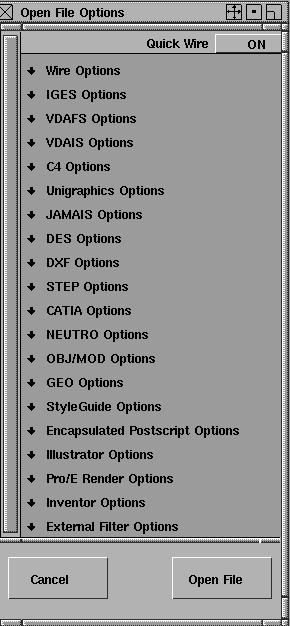
Select File > Open-
 . The Open File Options window is displayed. . The Open File Options window is displayed.
-
This window lets you set options for each of the different file
formats, including filters. The file format options that are
available depend on the file format you select.
-
2
-
To view or change the options for a specific file format, click on the arrow beside the File Format field.
-
The following summary points you to more information for
each of the file formats that may be available.
-
- Keep Unit/Tolerances
|
|
To set units, use
Preferences >
Construction options >
Units.
To set tolerances, use
Preferences >
Construction options-
.
|
-
- If ON, brings in units and tolerances from the wire file into the system, overriding the current settings.
-
- This option applies to files created in Version 7.0 or later. Its effect is similar to restoring options from an option file.
-
Summary of File Formats
|
|
|
|
|
|
|
.
|
The following table shows the types of file formats you can retrieve, and where you can find more information on them.
Notes
- For these options described in Basic Tools in Alias, see the table in the section "Opening Files".
- The following file formats may be purchasable options depending on the version of Alias you own: CATIA, C4, Unigraphics.
-
In addition, options for External Filters are provided to
extend support for currently unspecified file formats.
Trimmed Surface Optimization
|
|
|
|
|
(IGES, C4, JAMA-IS and VDAIS)
The trimmed surface optimizations options are available for the IGES, C4, JAMA-IS, or VDAIS file format options.

Shrink Surface
-
- When ON
, Alias detects trimmed surfaces whose trim boundaries are the same as, or iso-parametric to, the natural boundaries of the untrimmed surface. It then converts these surfaces into Alias surfaces by shrinking the untrimmed surface to the trim boundaries.
-
- When OFF
, Alias converts all trimmed surfaces of this type to Alias trimmed surfaces.
Planar to FACE
-
- When ON
, Alias detects trimmed surfaces that are planar and converts them to Alias faces from the model-space (3D) boundary curves of the trimmed surfaces.
-
- When OFF
, Alias converts all trimmed surfaces of this type to Alias trimmed surfaces.
Important Note
If you are using the Planar to FACE option in Alias when saving IGES, VDAIS, C4, or JAMA-IS files in the sending CAD system, ensure that the files contain model-space trim curves.
For example, ProEngineer has an IGES
output option where resulting files contain parameter-space (2D) trim curves, but not model-space trim curves. Usually, this kind of file is preferred because of its minimal file size. However, the Planar to FACE option has no effect on files that are missing 3D trim boundary curves, so this particular ProEngineer option must be turned off.
IGES File Format
|
|
|
|
|
|
|
IGES
stands for Initial
Graphics Exchange
Specification.
|
The first section of an IGES file typically describes the contents of a file. Each line of this section is displayed on the information line.
(If there is more than one line in the section, you can browse the contents of the section after file retrieval is complete by using the prompt history window, or by viewing the comments section of the IGES logfile created by the retrieve process.)
The IGES log file
|
|
For information on File >
Show > Errlog, see Basic Tools
in Alias.
|
The Alias errlog file and IGES logfile contain a specific error message for each problem encountered.
Each error message includes the IGES entity type number and a Directory Section line number where the entity occurs. The errlog file is located at /usr/a1demo/errlog; you can browse it with any UNIX text editor (for example, vi or jot). The IGES logfile is located in the same directory as the retrieved IGES file.
- IGES file retrieved successfully
-
Indicates retrieval is finished, without errors or
unsupported entities.
- Errors detected during translation
-
Errors were encountered while processing the file.
- Unsupported entities detected
-
Unsupported IGES
entities were found in the file.
(Displayed after errors were encountered.)
- IGES file retrieved: Refer to errlog file and/or IGES logfile for details of errors.
-
Errors or unsupported IGES
entities were found in the file.
IGES
entities supported on import by Alias are listed in the following table (along with their corresponding Alias entity). All other entities with an entity use flag value (Definition) are ignored by the input translator.
|
Type
|
Form
|
IGES Entity
|
Alias Entity
|
|
100
|
0
|
circular arc
|
B-spline curve
|
|
102
|
0
|
composite curve
|
B-spline curves (group)
|
|
104
|
0-3
|
conic arc
|
B-spline curve
|
|
106
|
1
|
copious data
|
B-spline curve
|
|
106
|
2
|
copious data
|
polyline
|
|
106
|
11
|
copious data
|
polyline
|
|
106
|
12
|
copious data
|
polyline
|
|
106
|
63
|
closed area
|
polygon of polyset
|
|
108*
|
0*
|
plane
|
B-spline surface, plane
|
|
108
|
1
|
plane
|
face
|
|
110
|
0
|
line
|
line
|
|
112
|
0
|
parametric curve
|
B-spline curve
|
|
114
|
0
|
parametric surface
|
B-spline surface
|
|
116
|
0
|
point
|
control vertex
|
|
118
|
0-1
|
ruled surface
|
B-spline surface
|
|
120
|
0
|
surface of revolution
|
B-spline surface
|
|
122
|
0
|
tabulated cylinder
|
B-spline surface
|
|
124
|
0
|
transformation matrix
|
|
|
126
|
0-5
|
rational B-spline curve
|
B-spline curve
|
|
128
|
0-9
|
rational B-spline surface
|
B-spline surface
|
|
130
|
0
|
offset curve
|
B-spline curve
|
|
140
|
0
|
offset surface
|
B-spline surface
|
|
141
|
0
|
boundary entity
|
trim curve
|
|
142
|
0
|
curve on surface
|
trim curve
|
|
143
|
0
|
bounded surface
|
trimmed surface
|
|
144
|
0
|
trimmed surface
|
trimmed surface
|
|
308
|
0
|
subfigure definition
|
instance geometry
|
|
402
|
7,9
|
associativity instance
|
group
|
|
406
|
1
|
property - definition levels
|
multi sets
|
|
408
|
0
|
singular subfigure instance
|
instance geometry
|
|
406
|
15
|
name
|
node name
|
IGES Levels
All supported geometric IGES entities that are associated with IGES level <n> are added to an Alias exclusive set called LEVEL<n>. For example, if a 126 B-spline entity's directory entry indicates that it is on level 42, then it is added to Alias as either Set 42, Layer 42, Layer 42 and Set 42, or as Level 42, depending on the setting in the Level Mapping section of IGES. (see IGES Options on page 23 for details).
An IGES 406 Form 1 Property Entity (Definition Levels) lists the IGES level numbers to which an associated entity belongs. An Alias multiset is created for each level number in the list, and the associated object is added to each of the sets. For example, if a 406 Definition Levels entity indicates that a particular surface is on IGES levels 13, 26 and 39, then the multisets LEVEL13, LEVEL26, and LEVEL39 are created and the surface is added to each of these sets.
The translator automatically creates a logfile using the user-defined filename with a default filename extension .iges2alias. See the following example.
--- Alias IGES POSTPROCESSOR REPORT ---
Translation summary of file:
/usr/u/bclinton/user_data/demo/wire/part.iges
Comments
********
IGES file from SDRC I-DEAS V6.1
System Information
*******************
|
Sending System:
|
SDRC I-DEAS VI.i
|
|
Preprocessor Version:
|
IGES 5.0
|
|
IGES Version:
|
5.0
|
Product Information
*******************
|
Product ID from Sender:
|
IGES
|
|
Product ID for Receiver:
|
SDRC I-DEAS VI.i
|
|
Model Space Scale:
|
1.000000
|
|
Units:
|
MM
|
|
Number of Line Thickness Gradations:
|
1
|
|
Width of Thickest Line:
|
1.000000 MM
|
|
Time File Generated:
|
931015.112821
|
|
Model Space Tolerance:
|
0.010000
|
|
Approximate Maximum Coordinate Value:
|
1170.41242123
|
|
Drafting Standard Code:
|
0
|
|
Author:
|
bclinton
|
|
Author's Organization:
|
White House CAD Inc.
|
|
Time Created or Last Modified:
|
<Not Specified>
|
IGES Entities Read
******************
Entity Form Description Count
Type Number
------ ------ ------------ -----
116 0 Point 25
126 0 Rational B-spline Curve 41
126 1 Rational B-spline Curve 41
126 2 Rational B-spline Curve 26
126 3 Rational B-spline Curve 15
128 0 Rational B-spline Surface 8
128 1 Rational B-spline Surface 10
128 11 Rational B-spline Surface 1
141 0 Boundary 22
143 0 Bounded Surface 19
---------------------------------------------------
Total: 208
IGES Entities Skipped
*********************
Entity Form Description Count Error
Type Number Description
------ ------ ----------- ----- -----------
314 0 Color Definition 2 Entity not
supported
--------------------------------------------------
Total: 2
Alias Entities Created
**********************
Alias Entity Name Count
----------------- -----
Control Vertex 25
Trimmed Surface 18
B-spline Surface 19
B-spline Curve 123
----------------------------------
Total: 185
IGES_IN: The following errors were found retrieving file:
/usr/u/bclinton/user_data/demo/wire/part.igs
An error occurred creating the bounded surface type
143 at DE 321.
Elapsed time (hh:mm:ss): 00:00:08
************ End of Log File *********************
The IGES
translator imports ASCII format IGES files with or without linefeed characters at the end of each record. Binary IGES files are not supported.
File Import Options
|
|
|
|
|
The following options are in the Open File Options window (File>Open).
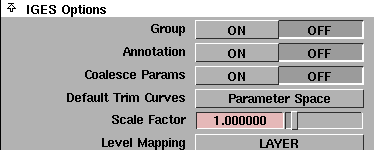
Group
-
- Determines how files stored in IGES
file format are retrieved. When ON
, objects are retrieved as a single group for easier manipulation.
Annotation
-
- Enables (ON
) or disables (OFF
) the processing of supported IGES
entities that have been flagged for use as annotation.
Coalesce Params
-
- Enables (ON
) or disables (OFF
) multiple knot removal in curve or surface geometry that is read from IGES
files containing parametric spline curves or surfaces.
-
- The default is OFF
.
Default Trim Curves
-
- Specifies the trim curves that the processor will use. You can select parameter space curves, model space curves, or use the flag that is present in the .IGES file. If for any reason the trimming fails, the translator will try and trim with the alternative curves.
|
|
See the description on
Trimmed Surface Optimization
on page 17 for more
information.
|
Scale Factor
-
- Changes the size of models stored in IGES
file format when you retrieve the file.
Level Mapping
-
- Determines how the level (layer) information associated with an IGES entity is mapped to Alias Set and Alias Layer information.
|
|
|
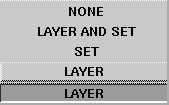
Level Mapping Options
-
- Specifies the IGES level. The following table provides more information, and compares the levels to Alias layers.
|
Layer
|
IGES Level (Layer)
|
Alias Layer
|
|
Set
|
IGES Level (Layer)
IGES 406 form 1, Property entity (Definition Levels)
|
Alias Set
Alias Multi-set
|
|
Layer and Set
|
IGES Level (Layer)
IGES Level (Layer)
IGES 406 form 1, Property entity (Definition Levels)
|
Alias Layer
Alias Set
Alias Multi-set
|
|
None
|
IGES Level (Layer)
IGES 406 form 1, Property entity (Definition Levels)
|
ignored
ignored
|
Trimmed Surface Optimization Options
-
- See Trimmed Surface Optimization on page 17.
Discrepancy in the Tolerances
If the linear units and tolerances stored in the STEP/IGES/VDAIS/C4X/JAMA-IS files will be different from ones used in the current Alias session, the user is notified with a warning window as follows based on the discrepancy in tolerance values.
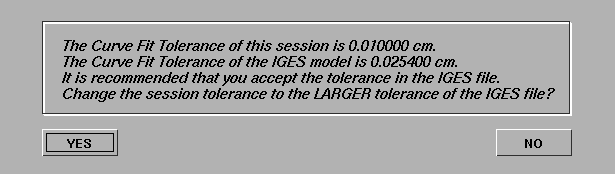
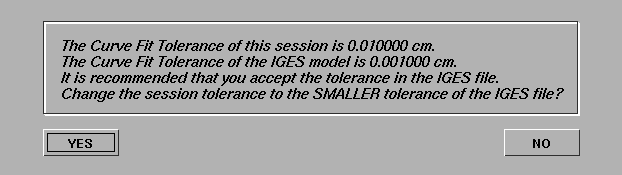
Both the current Alias Curve Fit Distance and the IGES Tolerance (called Minimum User-Intended Resolution (GP19) are shown in the current Alias linear units.
It is important to keep in mind that if you change the current Alias Curve Fit Distance to a smaller value, then geometry existing in the Alias model before the import, must be rebuilt to the new smaller tolerances. Otherwise, on re-export, this geometry will not conform to the new tolerance and you may later have problems with the geometry.
- If you select Yes, the current Alias Curve Fit Distance, as well as the Trim Curve Fit and the the Polyset Vertex tolerances are changed based on the tolerance value stored in the imported file.
- If you select No, the Alias tolerances are not changed.
C4 Options
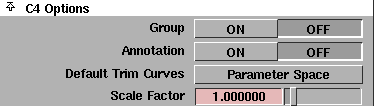
Group
-
- Determines how files stored in C4
file format are retrieved. When ON
, objects are retrieved as a single group for easier manipulation.
Annotation
-
- Enables (ON
) or disables (OFF
) the processing of supported C4
entities that have been flagged for use as annotation.
Default Trim Curves
-
- Selects the trim curves that the processor will use. You can select parameter space curves, model space curves, or use the flag that is present in the .VDAIS file. If for any reason the trimming fails, the translator will try to trim with the alternative curves.
Scale Factor
-
- Changes the size of models stored in C4
file format as you retrieve the file.
Trimmed Surface Optimization Options
-
- See Trimmed Surface Optimization on page 17.
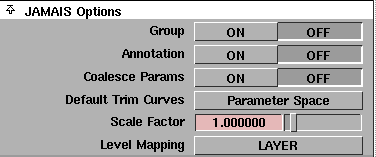
Group
-
- Determines how files stored in JAMA-IS
file format are retrieved. When ON
, objects are retrieved as a single group for easier manipulation.
Annotation
-
- Enables (ON
) or disables (OFF
) the processing of supported JAMA-IS
entities that have been flagged for use as annotation.
Coalesce Params
-
- Enables (ON
) or disables (OFF
) multiple knot removal in curve or surface geometry read from JAMA-IS
files containing parametric spline curves or surfaces. The default is OFF
.
|
|
If for any reason the
trimming fails, the translator
will try to trim with the
alternative curves.
|
Default Trim Curves
-
- Lets you specify the trim curves the processor will use. You can select parameter space curves, model space curves, or use the flag that is present in the .JAMA-IS file.
Scale Factor
-
- Changes the size of models stored in JAMA-IS
file format while you retrieve the file.
Level Mapping
-
- Determines how the level (layer) information associated with an JAMA-IS
entity is mapped to Alias Set and Alias Layer information.
Trimmed Surface Optimization Options
-
- See Trimmed Surface Optimization on page 17.
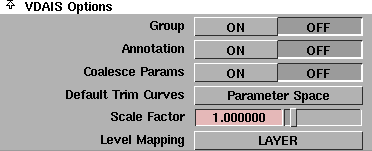
Group
-
- Determines how files stored in VDAIS
file format will be retrieved. When ON
, objects are retrieved as a single group for easier manipulation.
Annotation
-
- Enables (ON
) or disables (OFF
) the processing of supported VDAIS
entities that have been flagged for use as annotation.
Coalesce Params
-
- Enables (ON) or disables (OFF) multiple knot removal in curve or surface geometry read from VDAIS
files containing parametric spline curves or surfaces.
-
- The default is OFF
.
|
|
If for any reason the
trimming fails, the translator
will try to trim with the
alternative curves.
|
Default Trim Curves
-
- Selects the trim curves that the processor will use. You can select parameter space curves, model space curves, or use the flag that is present in the .VDAIS file.
Scale Factor
-
- Changes the size of models stored in VDAIS file formats as you retrieve the file.
Level Mapping
-
- Determines how the level (layer) information associated with an VDAIS
entity
is mapped to Alias Set and Alias Layer information.
Trimmed Surface Optimization Options
-
- See Trimmed Surface Optimization on page 17.
VDAFS Options
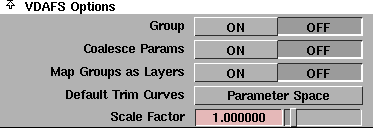
Items in VDAFS files that were grouped using BEGINSET/ENDSET are grouped in a hierarchy in Alias after retrieval. Entity names are preserved.
Group
-
- Determines how files stored in VDAFS file format are retrieved. When ON
, objects are retrieved as a single group for easier manipulation.
Coalesce Params
-
- Enables (when ON) or disables multiple knot removal in curve or surface geometry read from VDAFS
files containing parametric spline curves or surfaces. The default is OFF
.
Map Groups as Layers
-
- When ON,
VDAFS groups are mapped to Alias Layers. All items in the group are assigned to the created layer. The name of the group becomes the name of the layer.
Default Trim Curves
-
- Selects the curves that the processor will use to trim surfaces. You can select parameter space or model space curves. If for any reason the trimming fails, the translator will try to trim with the alternative curves.
Scale Factor
-
- Changes the size of models stored in VDAFS
file format when you retrieve the file.
-
-

Group
-
- Determines how files stored in DES
file format are retrieved. When ON
, objects are retrieved as a single group for easier manipulation.
Scale Factor
-
- Changes the size of models stored in DES
file formats as you retrieve the file.
STEP Format
STEP File Format
ISO10303 is a standard for exchange of product information. The standard is organized into a set of Application Protocols (AP). There are 2 APs that are supported in this release: ISO10303-203 (Configuration Controlled Design) conformance classes 1-4, and ISO10303-214 (Core Data for Automotive Mechanical Design Process) conformance classes 1-2. The import and export of this data is supported via ISO10303-21 Physical file exchange.
Application Protocol Support
The geometric descriptions contained within ISO10303-203 and ISO10303-214 are identical and comprises the core of the implementation of the translator.
The following table shows the mappings made by Alias.
|
STEP Entity
|
Alias Entity
|
|---|
|
Cartesian Point
|
Point
|
|
Line
|
B-spline Curve
|
|
Circle
|
B-spline Curve
|
|
Ellipse
|
B-spline Curve
|
|
Parabola
|
B-spline Curve
|
|
Hyperbola
|
B-spline Curve
|
|
PolyLine
|
B-spline Curve
|
|
Composite Curve
|
B-spline Curve (Grouped)
|
|
Trimmed Curve
|
B-spline Curve
|
|
B-spline Curve
|
B-spline Curve
|
|
Plane
|
B-spline Surface
|
|
Cylindrical Surface
|
B-spline Surface
|
|
Conical Surface
|
B-spline Surface
|
|
Spherical Surface
|
B-spline Surface
|
|
Toroidal Surface
|
B-spline Surface
|
|
Surface of Linear Extrusion
|
B-spline Surface
|
|
Surface of Revolution
|
B-spline Surface
|
|
B-spline Surface
|
B-spline Surface
|
|
Rectangular Trimmed Surface
|
Trimmed Surface
|
|
Curve Bounded Surface
|
Trimmed Surface
|
|
Offset Surface
|
B-spline Surface
|
|
Manifold Solid Brep
|
Shell (Closed)
|
|
Shell Based Surface Model
|
Shell (Open/Closed)
|
STEP Logfile
When retrieval is finished without errors, the following message is displayed:
STEP files retrieved successfully.
If there are errors in the retrieval, this message is displayed:
Problem Reading Step File, refer to log file and/or
errlog for details.
The Alias errlog file and STEP logfile contain a specific error message for each problem entity that is encountered, along with the entity's STEP ID and type.
Select File > Show > View errlog
to view these messages.
STEP Options

Auto Stitch
-
- If ON
and the model in the STEP file is a brep or surface shell, then the model will be imported stitched. If OFF,
the model is imported as a group of surfaces.
CATIA Options
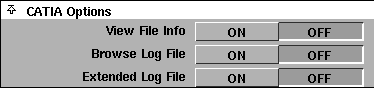
View File Info
-
- If ON
and the model is a .CAI
file, then the model will be imported with the capacity to view the file information. If OFF
, the model is imported without the ability to view the file information.
Browse Log File
-
- If ON
and the model is a .CAI
file, then the model will be imported with the capacity to browse the log file. If OFF
, the model is imported without the ability to browse the log file.
Extended Log File
-
- If ON
and the model is a .CAI
file, then the model will be imported with the capacity to view the extended log file. If OFF
, the model is imported without the ability to view the extended log file.
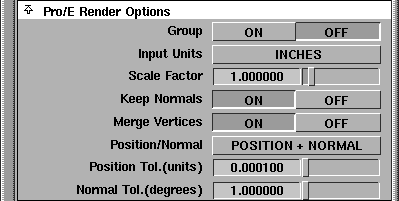
Pro/Engineer Render Format files can be imported into Alias. The translator converts the triangle data of the Pro/E Render
format into Alias Polysets. It is important that the Pro/E
designer assign each part of an assembly a different color, so that each part will become a separate Polyset in Alias. The colors are also translated into simple Alias shaders and these shaders are assigned to the appropriate objects.
Group
-
- Determines how files stored in the Pro/E Render
file format are retrieved. When ON
, objects are retrieved as a single group for easier manipulation.
Input Units
-
- If the units of the Pro/E Render
coordinate data is known, it can be set using one of the options in this popup menu so that the data is properly converted to the linear units set in Alias. The default is INCHES
.
Scale Factor
-
- Changes the size of models stored in the Pro/E Render
file format as you retrieve the file.
Keep Normals
-
- Vertex normals in Pro/E Render
files all point towards the inside of objects. For rendering purposes in Alias, these normals must point towards the outside of objects. Consequently, the translator flips all vertex normals during the translation.
-
- The vertex normals of polysets are usually recalculated by the Alias renderer before it renders polysets. By default, the normals assigned to vertices in the Pro/E Render
file are "frozen" so that they are used by the renderer rather than discarded and recalculated. This allows the renderer to produce a better quality rendering.
-
- To suppress this behavior, set Keep Normals OFF
so that the renderer will discard the Pro/E
assigned normals and recalculate them.
-
- Warning: If vertex normals are retrieved, they are considered "frozen" and they cannot be changed, so vertex level editing, such as moving one vertex in relation to its neighbors, may invalidate the vertex normal since it will not be updated, and subsequent renderings will not be correct.
-
- Object level editing, such as translation, rotation, proportional scaling, and deleting entire polysets are still valid operations on frozen normals.
Merge Vertices
-
- By default, the translator may merge the vertices of triangles along apparent shared edges. If two vertices have the same x,y,z position within a tolerance and have the same normal within angular tolerance, they are merged into one vertex. This allows Alias to do smooth shading across the edges. If two vertices have the same x,y,z position, but have different normals, then these vertices are not merged to maintain the hard edge.
-
- If set to OFF
, no vertex merging occurs and all edges are rendered "hard".
-
- If set to ON
, the POSITION/NORMAL
menu becomes available.
|
|
|
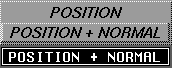
POSITION/NORMAL
-
- Determines how vertices and normals are merged.
|
List Item
|
Description
|
|---|
|
POSITION + NORMAL
|
vertices and normals are merged based on their x, y, z position.
|
|
POSITION
|
vertices only are merged based on their x, y, z position. Normals are not merged.
|
Position Tol. (units)
-
- The tolerance used for comparing vertex positions can be specified using the Input Units
option selected. The value specified is in the same units as the data. For example, if you specified 0.01 MILLIMETERS
from the Input Units
menu, the tolerance for comparing vertex positions is 0.01 millimeters.
-
- Note that if you change the units from the default inches, then the default tolerance of 0.0001 may have to be changed to make sense for the units specified.
Normal Tol. (degrees)
-
- The tolerance used for normal comparisons can be specified in degrees and is the angle between the normals of two vertices. The default is that two vertices will be merged if their positions are equal within tolerance and the angle between the normals is less than 1 degree.
Inventor Options
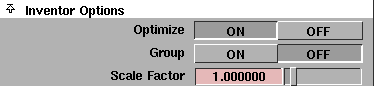
Optimize ON/OFF
-
- Optimizes the inventor file for improved retrieval and model performance within Alias. If model structure is important, switch this option OFF
.
Group
-
- Determines how files stored in Inventor
file format are retrieved. When ON
, objects are retrieved as a single group for easier manipulation.
Scale Factor
-
- Changes the size of models stored in Inventor
file format as you retrieve the file.
|


