|
|
File > Open
|
Opening Files
|
|
|
|
|
Purpose
Retrieves previously saved files, including wireframe models and foreign data formats.
If you have a file already open or have created a new file with modeling, animation, or other data, selecting this choice displays a dialog box asking if you want to delete all objects, shaders, views and actions before opening the file.
- To delete all items currently in your session and replace them with the file you're opening, select YES.
- To keep the items and place the file you're opening in a new stage, select NO.
|
|
To switch between or merge
stages, open the Stage Editor.
To add data to your model
without using stages, use
File > Import.
|
-
If you select NO
, all previously viewed models are shown
in a pale green and are in an inactive stage. The new
model is placed in the active stage.
- To cancel the operation, select CANCEL.
Overview
File > Open automatically attempts to read in files. If the file is not a standard Data Transfer type, Alias tries to match the file extensions to an input filter. If a filter is available, it reads the file in through the filter for that particular file format, according to your specified options.
|
|
See External Filter Options on
page 101.
|
Specify the mappings from file extensions to input filters in the External Filter Options section of the Open File Options window.
How to Use
-
1
-
Select
File > Open. The File Requestor is displayed.

-
2
-
Select the Show List button. The File Lister is displayed.
-
3
-
Select the file name or icon for the file you want to open. The file's name and path appear in the File Requestor. If you prefer, you can type the file's name and (if applicable) path in full without selecting anything in the File Lister.
-
4
-
Click the Retrieve button. The file is retrieved.
While a file is being read in, the following messages are displayed:
Retrieving [format] [filename]

[format] file retrieved successfully.
While these messages appear for each file being retrieved, the cursor appears as an hour glass and you must wait.
When the retrieving is finished, the following message is displayed, indicating that the objects in the retrieved file are added to the current scene:
Updating display...

Done retrieving.
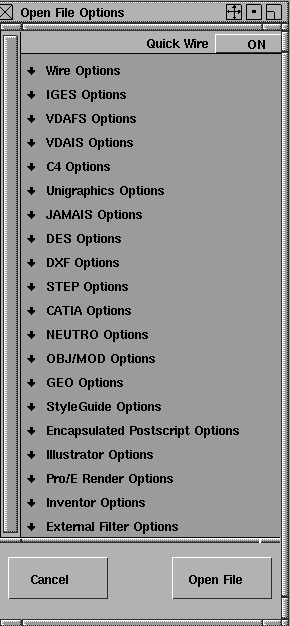
To view or change options that determine how files are retrieved, select File > Open- . The Open File Options window is displayed. . The Open File Options window is displayed.
|
|
Filters are programs that
read in an arbitrary file
format, perform data
manipulations as required,
and write out the Alias
WIRE file format to standard
output.
|
This window lets you set options for each of the different file formats, including filters. To view or change the options for a specific file format, click on the arrow beside the file format you want to work with. The options that are available depend on the file format you select.
|
|
|
Summary of File Formats
The following table shows the types of file formats you can retrieve, and where you can find more information on them.
Notes
|
|
For more information on
SLA, see the Data Transfer
for CAD and Solid Imaging
manual.
|
- There are no specific retrieve options for the following formats: Triangle, Quad, and SLA.
- The following file formats may be purchasable options depending on the version of Alias you own: CATIA, C4, Unigraphics.
-
In addition, options for External Filters are provided to
extend support for currently unspecified file formats.
Quick Wire Option
The Quick Wire option applies to all file formats.

It determines whether all retrieved objects are displayed in quick-wire mode or not. The default is OFF
, which means that for WIRE
files, only those objects that were stored in Quick Wire
mode are displayed that way when retrieved. For all other file types, none of the retrieved objects are displayed in quick-wire mode.
When this option is set to ON
, all objects retrieved from any file type, including WIRE
, are displayed in quick-wire mode.
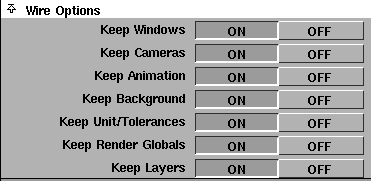
The following options are available for the Wire file format.
Keep Windows
-
- Controls whether or not windows are retrieved. ON
retrieves them-OFF
does not.
-
- The default is ON
.
Keep Cameras
-
- Controls whether or not cameras are retrieved. ON
retrieves them-OFF
does not.
-
- The default is ON
.
Keep Animation
-
- Determines whether to retrieve animations or only models. ON
retrieves both models and animation-OFF
retrieves only the model.
-
- If a window contains an animated camera and this option is ON
, then that window is retrieved.
-
- The default is ON.
Keep Background
-
- If ON, retrieves backgrounds contained in a wire file.
-
- The initial default is ON
.
|
|
To set units, use Preferences
> Construction options >
Units.
To set tolerances, use
Preferences > Construction
options-.
|
Keep Unit/Tolerances
-
- If ON, brings in units and tolerances from the wire file into the system, overriding the current settings.
-
- This option applies to files created in Version 7.0 or later. Its effect is similar to restoring options from an option file.
|
|
To set render globals, use
Render > Globals (see
Rendering in Alias).
|
Keep Render Globals
-
- If ON, brings in the render globals set for the wire file into the system, overriding the current settings.
-
- This option applies to files created in Version 7.0 or later.
Keep Layers
-
- If ON
, brings the layers you set in the wire file into the system, overriding the current settings.
-
- This option applies to files created in Version 8.0 or later.
|
|
See DXF Layers and Alias
Shaders on page 92 for more
information.
|
Load Shaders
-
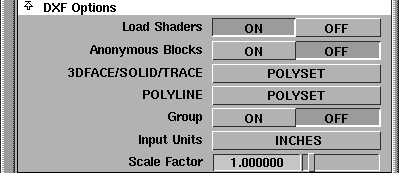
- Determines whether or not Alias shaders are to be loaded from the shader subdirectory of the current project.
|
|
See DXF Blocks on page 93
for more information.
|
Anonymous Blocks
-
- Determines whether DXF
BLOCK
entities that have been flagged anonymous are processed or ignored.
|
|
Click to the right of the
heading to display the
menu.
|
3DFACE/SOLID/TRACE
-
- Determines how DXF 3DFACE, SOLID
, and TRACE
entities are translated to Alias entities.
-
- If set to SURFACE
, each instance of these DXF
entity types is translated into an Alias bi-linear NURBS surface.
-
- If set to POLYSET
(the default), these entities form the polygons of Alias POLYSETS
.
POLYLINE
-
- Determines how DXF POLYLINE
and LINE
entities that describe surfaces are translated into Alias entities.
-
- If set to SURFACE
, DXF
entities are translated into bi-linear, bi-quadratic, or bi-cubic NURBS surfaces.
-
- If set to POLYSET
(the default), DXF
entities are translated into Alias POLYSETS
.
Group
-
- When ON
, objects are retrieved as a single group for easier manipulation. When OFF
(the default), objects are not grouped.
Input Units
-
- Sets the units of the DXF
coordinate data (if you know them), so that the data is correctly converted to the linear units set in Alias. The default is inches.
Scale Factor
-
- Changes the size of models stored in DXF
file formats as you retrieve the file.
DXF Entity Support
DXF
geometric entities supported by Alias are listed in the following table.
|
DXF Entity
|
Alias Entity
|
|---|
ARC no thickness
|
arc with keypoints
|
ARC with thickness
|
B-spline surface
|
CIRCLE no thickness
|
face
|
CIRCLE with thickness
|
1 B-spline surface and 2 faces (cylinder with endcaps)
|
POINT no thickness
|
control vertex
|
POINT with thickness
|
line with keypoints
|
LINE/3DLIN, no thickness
|
line with keypoints
|
LINE/3DLINE with thickness
|
SURFACE option: face
POLYSET option: one polygon of a polyset
|
3DFACE/SOLID/TRACE
|
SURFACE option: bi-linear B-spline surface
POLYSET option: polygon of a polyset
|
POLYLINE/3D open
|
B-spline curve
|
POLYLINE/3D closed
|
one polygon of a polyset
|
POLYLINE/3D with thickness
|
polygons of a polyset
|
POLYLINE/3D Mesh
|
SURFACE option: bi-linear, bi-quadratic, or bi-cubic surface
POLYSET option: polygons of a polyset
|
POLYLINE/Polyface Mesh
|
polygons of a polyset
|
BLOCK
|
group of Alias geometry
|
INSERT
|
instance of a group of Alias geometry
|
LAYER
|
multi set
|
DXF
polygonal entities are translated into Alias polyset objects using the color and layer information of the entities.
Polysets are created by color, within LAYER
and BLOCK
. That is, all DXF entities that are the same color and belong to the same LAYER
and BLOCK
are translated into one polyset.
For example, suppose all polygonal DXF
entities that belong to a DXF
LAYER
called PENCIL
are assigned the color 194 (in the purple section of the DXF
color wheel) and are then translated into one polyset whose node name is PENCIL_Purple194
. (This polyset could be the body of a pencil.) If other polygonal entities in the layer PENCIL
are assigned color 10, then a polyset called
PENCIL_Red1 is created from these entities. (This polyset might be the pencil's eraser.)
Note that corresponding shaders are created. A shader named Purple194 is assigned to the polyset PENCIL_Purple194, and a shader named Red10 is assigned to the polyset PENCIL_Red10.
DXF Color and Alias Shaders
DXF
has a standard color wheel of 256 colors referenced by number. The DXF
translator now creates, and assigns to objects, simple Lambert model shaders based on these colors. The name of the shader is based on a section of the color wheel and the color number.
|
|
For a detailed explanation of
DXF colors, see the AutoCAD
Reference Manual, Chapter 8,
pages 316 and 317.
|
For example, color number 125 is in the Aquamarine section of the color wheel, so a shader created to represent this color is called Aquamarine125
and is given an HSV color corresponding to the 125 position on the DXF
color wheel.
DXF Layers and Alias Shaders
The DXF translator always attempts to create and assign shaders to DXF geometry based on color information in the DXF file.
The Load Shaders option modifies this behavior to take advantage of any correspondence between the DXF LAYER name and the Alias Shader name.
If the Load Shaders option is turned ON
(the default), then shader assignment per object based on layers works as follows (assume that a DXF
object is in a DXF LAYER
called "GLASS")
:
-
1
-
If there is a shader in the Multi-lister
called
glass,
then this shader is assigned to the object.
-
2
-
If this shader does not exist, it looks for a shader called
glass in the shader subdirectory of the current project. If one is found, then this shader is loaded into the multi-lister and assigned to the object.
-
3
-
If no shader called glass
can be found, the object's DXF color assignment is checked. If it has one and a shader based on this color exists in the Multi-lister, then this shader is assigned to the object. If this shader does not exist, then it is created and assigned.
-
4
-
If there is no color DXF
assigned to the object or no color assigned to the LAYER to which the object belongs, the object is not assigned a shader.
Note in the above list that if Load Shaders is turned OFF, then only the last two points are applicable.
DXF Layers and Alias Sets
DXF entities processed from the ENTITIES section of the DXF file that belongs to a DXF
LAYER
are added to an Alias set whose name is based on the LAYER
name. For example, if an INSERT entity is on a LAYER
named PENCIL-CASE,
then it will be added to a multiset called
Pencil-case.
DXF Blocks
The first occurrence of an INSERT of a named BLOCK
causes a group of geometry representing the inserted block. It is visible, with a group node containing the INSERT transformation. Any subsequent INSERTs of the same block cause Alias instances of this group to be created. A BLOCK
entity that is not referenced by any INSERT entity is ignored. Anonymous BLOCK
s are automatically generated by the AutoCAD "HATCH"
command and represent the hatch lines used to pattern polygons. These BLOCK
s can represent a significant volume of geometry that will not be required if the polygons are to be subsequently shaded using an Alias shader.
|
Tip:
|
Anonymous BLOCK
s can also be generated by other
applications and may contain valuable geometry rather than
hatch lines. If you retrieve a DXF
file and find that some
geometry is missing, turn the Anonymous Blocks option ON
and then retrieve the file.
|
Naming Conventions used by the DXF Translator
LAYER
names are assumed to be in uppercase (and in fact are converted to uppercase when the DXF
file is retrieved). The uppercase version of the LAYER
name is used for the root of polyset names. The lowercase version is used to name shaders. Sets are named using the lowercase version, but the first letter is capitalized. If a LAYER
name is numeric, then the prefix "DXF-LAYER-"
is added. For example, LAYER "5"
generates an Alias set named "Dxf-layer-5."
Keep Normals
-
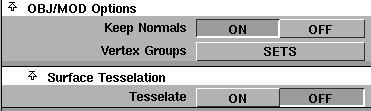
- Vertex normals contained in the OBJ
or MOD
file retrieved will be ignored if this option is set OFF
, which means that the Alias Renderer will recalculate them at render time. When set ON
(the default), vertex normals will be retrieved from the file and these normals will be used by the renderer.
-
- Warning: If vertex normals are retrieved, they are considered "frozen" and cannot be changed. Vertex level editing, such as moving one vertex in relation to its neighbors, may invalidate the vertex normal since it will not be updated, and subsequent renderings will not be correct. Object level editing, such as translation, rotation, proportional scaling, and deleting entire polysets are still valid operations on frozen normals.
Vertex Groups
|
|
|
-
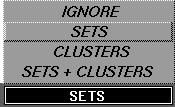
- This list of choices determines how vertex groups are converted. They can be converted to sets, clusters, both sets and clusters, or not converted at all.
|
List Item
|
Description
|
|---|
|
SETS + CLUSTERS
|
Vertex groups are converted to sets and clusters.
|
|
CLUSTERS
|
Vertex groups are converted to clusters.
|
|
SETS
|
OBJ/MOD
vertex groups are translated into sets.
|
|
IGNORE
|
Vertex groups in the file are not retrieved.
|
- To view and select clusters, use the Cluster Editor
(Windows > Edit > Clusters).
- To view and select sets, use Windows > Sets > Set lister.
- To edit sets, use
Windows > Sets > Edit sets.
Surface Tesselation
Expand this menu to define surface tesselation.

Tesselate
-
- When set ON
, retrieved surfaces are converted to polysets according to the method you specify in the Tesselation Method list.
-
- When set OFF
(the default), this conversion does not occur and the Tesselation Method list is ignored.
|
|
|
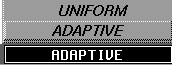
Tesselation Method
-
- Available when Tesselate
is set ON
.
-
- There are two types of surface tesselation:
- ADAPTIVE,
the default. (see the next section)
Adaptive Tesselation
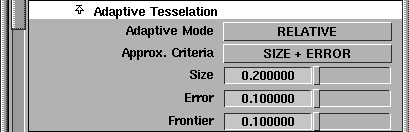
This is the default tesselation method. The following options control the adaptive subdivision process.
|
|
|
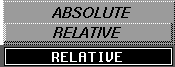
Adaptive Mode
-
- The values specified for Size
and Error
can be RELATIVE
or ABSOLUTE
.
|
List Item
|
Description
|
|---|
|
RELATIVE
|
The value indicates a percentage of the overall object size.
|
|
ABSOLUTE
|
The value is a real size measured in world coordinates.
|
|
|
|
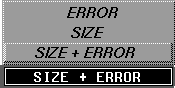
Approx. Criteria
-
- Surfaces are approximated by polysets using two different criteria: the maximum SIZE
of polygons created, and maximum ERROR
between created polygons and the actual surface.
|
List Item
|
Description
|
|---|
|
SIZE
|
Subdivides all patches in approximately equally sized polygons. Use this option if you want a conversion with a regular mesh of polygons.
|
|
ERROR
|
Creates polygons where needed. Use this option if you require accuracy: the more curved the surface, the more it will be subdivided.
|
|
SIZE +ERROR
|
Subdivides the patches equally AND creates polygons where necessary.
|
Size
-
- Specifies the maximum size of polygons. Smaller values create more equally-sized polygons.
Error
-
- Specifies how accurately a polyset approximates a surface. The smaller the value, the more accurate the result.
Frontier
-
- Specifies the maximum distance (frontier threshold) between created frontier edges (or borders) and actual surface frontier edges.
Uniform Tesselation
With the UNIFORM
tesselation method, the surface is approximated by a recursive subdivision with the same user-defined control over the entire surface, instead of the local-criteria controls of the ADAPTIVE
method.
The following options control the uniform subdivision process.

Along U
-
- specifies the uniform subdivision level to use along the U direction of the surface.
Along V
-
- specifies the uniform subdivision level to use along the V direction of the surface.
To be recognized as an OBJ format file, the filename must have a suffix of .obj or .OBJ.
To be recognized as an MOD format file, the filename must have a suffix of .mod or .MOD.
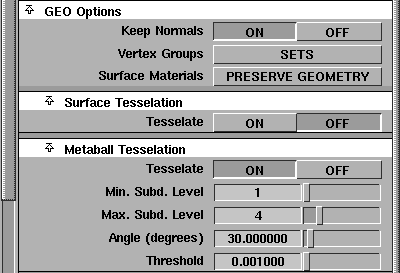
Keep Normals
-
- See the description in OBJ/MOD Options on page 93.
Vertex Groups
-
- See the description in OBJ/MOD Options on page 93.
|
|
|
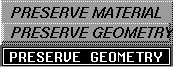
Surface Materials
-
- Determines how surfaces whose facets do not all belong to the same material group are treated.
|
List Item
|
Description
|
|---|
|
PRESERVE MATERIAL
|
The surfaces are subdivided so that all facets of every resulting surface belong to one material group.
|
|
PRESERVE GEOMETRY
|
The default. The surfaces remain intact, but all of their facets are assigned to one material group only. Other material groups are not translated.
This option has no effect on those surfaces whose facets all belong to the same material group.
|
Surface Tesselation

For details, see the description of Surface Tesselation on page 95 in the OBJ/MOD section.
Metaball Tessellation
>
|
Note:
|
The GEO
Metaball
object is not supported. It must either be
ignored when retrieving GEO
files, or must be converted to
a polyset via tesselation.
|
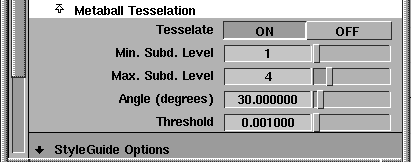
Tesselate
-
- When set OFF
, Metaball
geometry found in GEO
files is not retrieved.
-
- When set ON
, (the default), Metaball
geometry retrieved from GEO
files is tessellated based on the options in the rest of the Metaball Tesellation section.
Min. Subd. Level
-
- Specifies the minimum octree depth. The default is 1.
Max. Subd. Level
-
- Specifies the maximum octree depth. The default is 4.
Angle (degrees)
-
- Specifies the adaptive subdivision angle in degrees. Decreasing this value will increase the number of polygons. The default is 30 degrees.
-
- Note that if the angle specified is less than 30 degrees, then uniform subdivision will be used.
Threshold
-
- Specifies the triangle threshold as a percentage. It is the percentage of the length of the cube edge. The lower the threshold value, the better the approximation.
The conversion of Metaballs to polysets is performed by computing all intersections between the metaball skin and a 3D grid. The size of this grid affects the shape of the resulting facet. You can modify the size of this grid by specifying values for minimum and maximum adaptive subdivision levels, which refer to the number of times the grid is subdivided.
When the metaball skin is close to an intersection point on the grid, small polygons are created whereas neighboring polygons can be very large. Bending the 3D grid to make the polygon match the shape of the metaball can tune the tesselation to reduce the disparity in polygon size.
During conversion, the distance is calculated between a corner of a 3D grid cube and the metaball's surfaces. When the threshold value is less than this distance, the corner point is automatically relocated to the surface of the metaball.
When you define a threshold value, for example, 0.01, the 3D grid is automatically bent along the metaball skin so that all the resulting polygons do not have disparate sizes. A value of 0.05 would make the 3D grid bend less than a value of 0.01.
StyleGuide Options

Group
-
- Determines how files stored in StyleGuide
file format are retrieved. When ON
, objects are retrieved as a single group for easier manipulation.
Scale Factor
-
- Changes the size of models stored in StyleGuide
file format as you retrieve the file.
>
|
Note:
|
StyleGuides from Sketch! must be saved as StyleGuide
export. Normal StyleGuides will not be retrieved.
|

Group
-
- Determines how files stored in Encapsulated Postscript
file format are retrieved. When ON
, objects are retrieved as a single group for easier manipulation.
Scale Factor
-
- Changes the size of models stored in Encapsulated Postscript
file format as you retrieve the file.

Group
-
- Determines how files stored in Illustrator
file format are retrieved. When ON
, objects are retrieved as a single group for easier manipulation.
Scale Factor
-
- Changes the size of models stored in Illustrator
file format as you retrieve the file.
External Filter Options
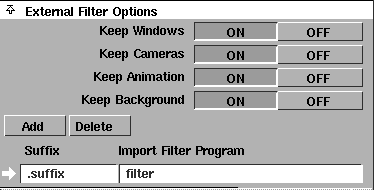
Keep Windows
-
- Controls retrieval of windows. ON retrieves them - OFF does not.
Keep Cameras
-
- Controls retrieval of cameras. ON retrieves them - OFF does not.
|
|
If a window contains an
animated camera and Keep
Animation is ON, then that
window is retrieved.
|
Keep Animation
-
- Determines whether to retrieve animations or only models. ON (the default) retrieves both models and animations - OFF retrieves only the models.
Keep Background
-
- Determines whether to retrieve backgrounds contained in a wire file. The default is ON
.
Filter programs are generally written by external software developers, so typically it's up to you to add new filter definitions to the system.
To add a filter, use the following one-time setup steps:
-
1
-
Click the Add button to add a row to the filters list.
-
2
-
Double-click in the Suffix entry of the new row, and type the file name extension associated with the filter program.
-
3
-
Double-click in the Import Filter Program box and type the path of the program (if any) to be used to convert the foreign file format to wire data.
|


