9 |
Unigraphics Data Transfer |
In This Section:
Unigrapics Direct Connect Overview |
|
|
| |||
PurposeAlias Unigrapics Direct Connect is a stand-alone utility that allows the exchange of 3D model data between Alias and Unigraphics. Software Requirements
WorkflowsBefore transferring geometry between Alias and Unigraphics , you should consider the purpose of the transfer in order to plan an appropriate workflow. Two common workflows are:
There are many variations on these two examples. Whatever the transfer scenario, you should carefully plan the transfer process, to ensure that the appropriate data is written out and is useful. Using Unigrapics Direct Connect: Alias To Unigraphics | |||
|
| |||
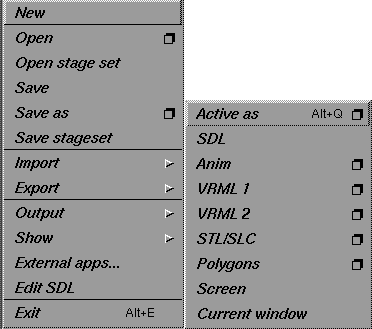
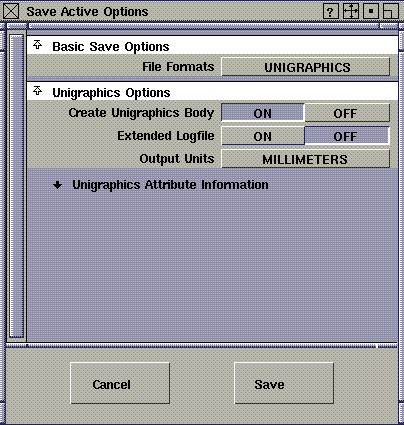
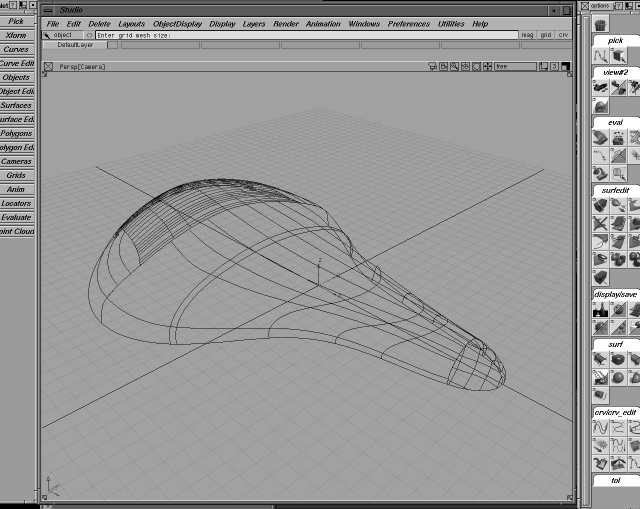
This section describes the process of transferring an Alias model to Unigraphics: Creating the Unigraphics Part File in AliasFollow these steps to create a Unigraphics part file in Alias for transfer to Unigraphics: | |||
| |||
|
Importing the Unigraphics Part File into UnigraphicsThe following sections describe how to import Unigraphics part files into Unigraphics, view them and prepare them to be used in downstream Unigraphics operations. To import a 3D Alias file into Unigraphics and create useful geometry for the Unigraphics engineer, you must follow two main steps:
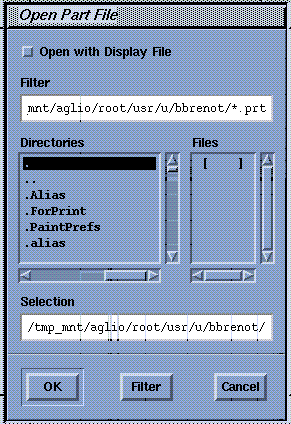
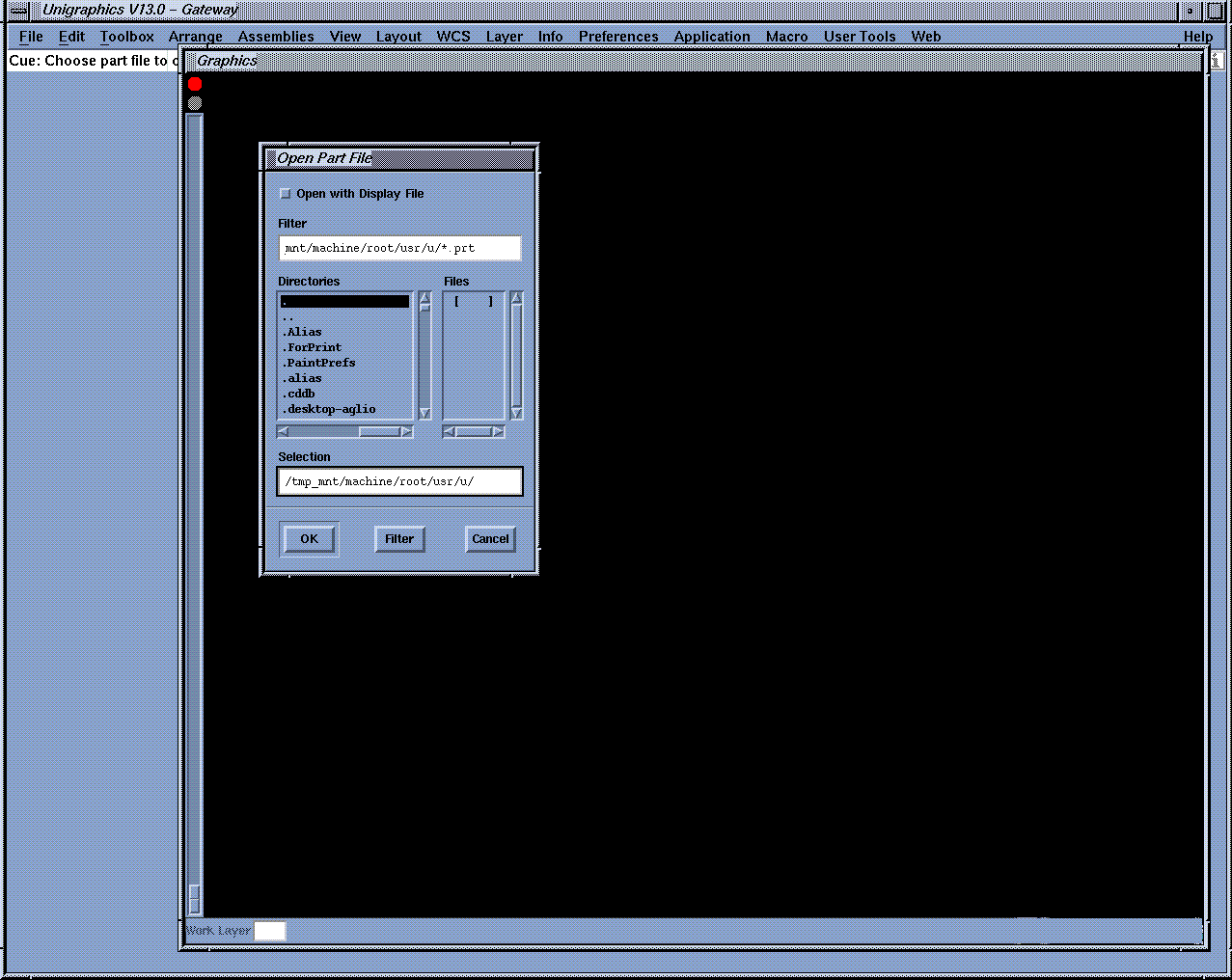
Step 1: Creating an Alias Unigraphics part fileCreate the Alias Unigraphics part file as described previously in the section Creating the Unigraphics Part File in Alias on page 185. Step 2: Creating a Unigraphics .prt fileEverything imported from the Alias Unigraphics part file will be transferred to make up the Unigraphics .prt file. Follow these steps to import the Alias Unigraphics part file into Unigraphics and create a .prt file: | |||
| |||
|
|
Step 3: Creating a SheetBefore using the imported Alias-created Unigraphics part file in many of the downstream Unigraphics operations, a sheet must be generated from Unigraphics face entities. A Unigraphics model file that has been created in Alias is made up of surfaces, curves and faces (trimmed surfaces). If, upon creation of the Unigraphics part file, the Alias user has selected to create a sheet from the Alias model, and the geometry has been exported successfully, then a Unigraphics sheet is automatically created. Getting a Unigraphics sheet: If the geometry in the Unigraphics part file does not describe a sheet, you can create the sheet from the imported faces. To join faces into a Unigraphics sheet, do the following:
Once you have created a sheet from the available geometry, you can then define the sheet as either a solid body (volume), or a sheet body.
Using a Sheet in UnigraphicsOnce the sheet has been created, it can then be used for a variety of downstream applications:
Creating a SolidFor some downstream operations (for example, FEA and the creation of 2D and 3D drawings) you may be required to create solid geometry from the Unigraphics sheet. This can be done using one of two techniques:
Assembling a SolidThe skin that has been created can be "capped" to define a solid. You can then use this solid in Boolean operations. Offsetting to Create a SolidYou can perform this operation using the Unigraphics offset functionality (Toolbox > FreeForm Feature > Thicken Sheet). There is no guarantee that the sheet will meet all Unigraphics prerequisites for an offset. Underlying adjacent faces (and by extension, the surfaces) must not self-intersect during the offset. As well, the continuity between faces must be of a certain standard in order for Unigraphics to successfully offset the eventual sheet. Creating a MeshFrom the sheet body or solid body the user can create a mesh which can be used for a varity of downstream operations in Unigraphics. Solid Imaging files (such as .stl) can be created from the Unigraphics sheet. Then, using the Unigraphics solid imaging functionality, the user can offset the mesh to create a solid mesh. You can then send this file to the solid imaging technology operator for creation of the physical part. Creating a ToolpathFrom the skin, you can generate a toolpath to send to a CNC milling machine. This is usually the way in which prototype tooling is analyzed. Working in Unigraphics with Geometry Imported from AliasThe following sections describe how to verify imported geometry for use in downstream processes such as offsetting and the creation of toolpaths. Confirming Topology StatusWhen the Studio-created Unigraphics part has been opened in Unigraphics, the user will want to confirm exactly what the status of the geometry is. Even though the Unigraphics user selected to have a sheet created from the Studio surfaces or shell, the actual status of the topology of the part can be confirmed in Unigraphics.
As the cursor is passed over the model in the geometry window, the geometry that falls into the category of the selection, in this case Sheet Body, will be highlighted. If the geometry class that was selected does not result in any geometry being highlighted, then the new model failed to describe that topology class. Confirming Geometry StatusTo confirm that the surface geometry imported from Alias exhibits a degree of curvature that allows it to be milled or offset, use the following two evaluation tools:
Using the Face Analysis functionality
The results of the investigation will be displayed as long as you remain in the Face Analysis mode of the Display modes. Using the Examine Geometry functionality
SummaryUse the following summarized list of modeling practices discussed in this section as a quick reference guide if problems arise. Before you create the model
In the Construction Settings window:
Tolerances should be set as follows:
While you create the model | ||
|
See NURBS Modeling in Alias for a description of these tools. |
Using Unigraphics Direct Connect: Unigraphics to Alias | ||
|
| |||
This section describes the process of reading aUnigraphics file into Studio. Creating the Unigraphics file in UnigraphicsFollow these steps to create a Unigraphics file in Unigraphics for transfer to Alias:
| |||
| Copyright © 1998, Alias|Wavefront, a division of Silicon Graphics Limited. All rights reserved. | Please send questions or comments regarding the documentation to: [email protected] |