|
|
8
|
I-DEAS Master Series (SDRC) Data Transfer
|
|
In this Section:
Transfering Alias to I-DEAS for Master Series 5
|
|
|
|
|
Software Requirements
- ALIAS SurfaceStudio, Designer, Studio or AutoStudio Version 9.0
Creating a Wire File in Alias
Follow these steps to create a wire file for I-DEAS Master Series:
-
1
-
Select the object you want to export to make it active.
-
2
-
Select File > Export > Active As-
 . .
-
3
-
Select Wire from the File Format menu under Basic Save Options.
-
4
-
Click Save and specify the wire file name. Make sure you add the .wir extension to the end of the file name.
-
By default the extension that will be be filtered in the
I-DEAS file lister will be .wir. Make sure that you have the
.wir extension on the name of the file being exported from
Studio.
-
The file is now ready to be read into I-DEAS Master Series.
>
|
Note:
|
The .wir extension is not automatically added to the file
name. Each Studio-created file you plan on opening in
I-DEAS Master Series must have an extension.
|
Exportable Alias Geometry
The following geometry types can be exported to Master Series using I-DEAS Direct Connect:
- All curves (with or without attributes): lines, polylines, and so on
- Trimmed surfaces with multiple trim regions
>
|
Note:
|
Polysets are the only geometry entities that are not
supported by Master Series.
|
Integrating Studio models in Master Series
Often the workflow will require that the designer send geometry over to the engineer using a CAD system, and the CAD operator will use the model to describe a solid part and then do other engineering process such as describe ribs, bosses and other mechanical details. At any point the designer may need to update the information in the CAD system by re-exporting changes made to the original model in Studio so that those changes can be integrated into the CAD database.
Shelling Imported Geometry
|
|
For information on how to
do shelling in Alias, see the
NURBS Modeling in Alias
book.
|
Shelling, or creating solid geometry from imported Alias models, is a common workflow in Alias and Master Series. When exporting a model from Alias, you must ensure that the geometry is built to the correct tolerance and that it can be stitched. The stitching process in Alias identifies gaps between surfaces so that you can repair the appropriate geometry before writing the file out to I-DEAS Master Series.
During stitching, the surfaces are twinned. This means that the surface boundaries may be split to accommodate adjacent surfaces, and periodic geometry is detached into multiple surfaces. For this reason, you should save the Alias wire file before stitching so that if further modifications are required to be made to the Studio model, the construction history will be intact. (Stitched geometry saved to an Alias wire file cannot be unstitched to its original state.)
A typical workflow is as follows:
-
1
-
Stitch the surfaces and carry out a visual check to confirm there are no gaps.
-
2
-
Undo the stitch operation (Edit > Undo or Ctrl-Z).
-
3
-
Save the Alias wire file.
-
4
-
Stitch the surfaces again and export the stitched object to a wire file.
Exporting Features from Alias
The term part in I-DEAS Master Series refers to geometry that has been saved out as a part. The term feature refers to any attribute that augments the basic shape of a part and distinguishes it from other parts that could be derived from the same basic shape. More precisely, features are objects whose key dimensions and orientations have been controlled, thus allowing you to control your design. You can bring in parts or features to replace existing features on the workbench.
Since I-DEAS Master Series creates each element of a model as a part or feature, it is useful to import components of the Alias model as individual Alias wire files that can be manipulated in I-DEAS Master Series as individual features. Major components of the Alias model can be transferred separately so that they can be used to construct individual features. The advantage of this technique is that individual features can be "replaced" to give added flexibility.
How to Replace Surfaces
-
In I-DEAS Master Series, operations such as shelling, adding
mechanical features, and adding ribs and bosses are
performed.While this is being done, the Alias model can be
further modified. The new Alias model can be imported and
will replace the original Orphan Node.
This technique can be very useful when the model is a mix of mechanical elements defined by an engineer and styling elements defined by an industrial designer.
|
|
|
-
1
-
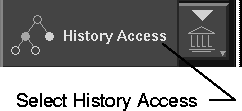
Select the History Access menu icon from the second section of the icon panel.
-
2
-
You are prompted to select the entity for which you want information.
-
3
-
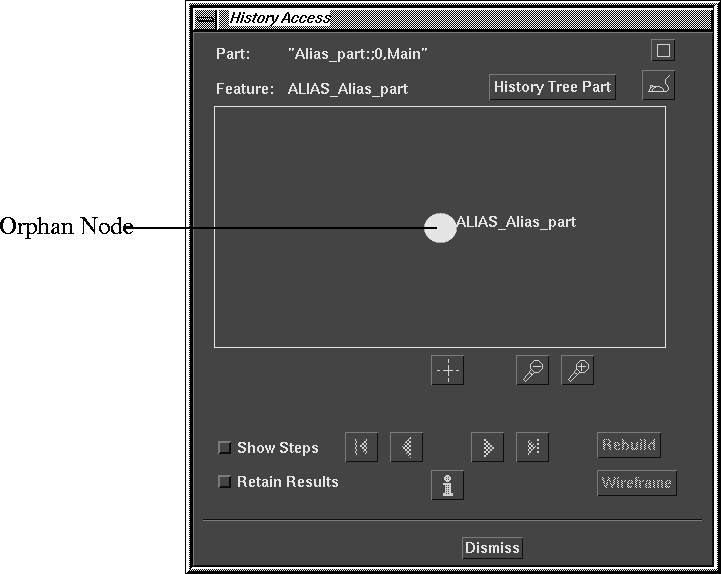
Accept (or click the middle mouse button) to display the History Access window.
|
|
|
-
4
-
Ensure that the Orphan Node of the original model is selected (active).
-
5
-
Import the Alias wire file that represents the modified Studio model.
-
6
-
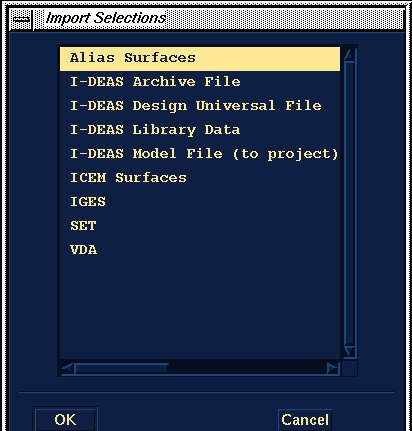
Select File > Import.
-
7
-
Select Alias Surfaces
and click OK
.
-
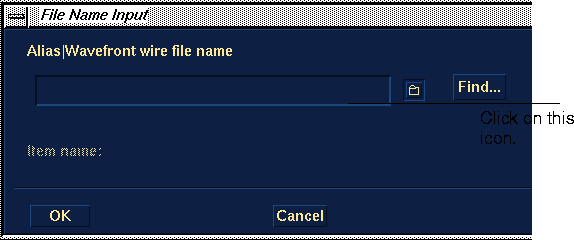
The File Name Input
window appears.
-
8
-
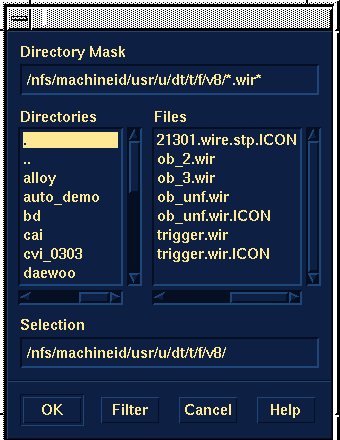
Click on the icon to the right of the File Name, and the File Lister appears:
-
If the file you want is displayed in the list, select the file
name and click OK
.
|
Tip:
|
You can also click the Filter
button to choose the UNIX file
name and path from a file lister.
|
-
When the Alias wire file processing is complete, the I-
DEAS List
window displays a message indicating the file's
process. The window also displays any problems, such as
unacceptable tolerances, that may have occurred.
-
Since geometry cannot exist in an I-DEAS model file
unless it is a part, you should create a part with the
geometry and topology deposited there. Any messages
describing geometry and topology errors are listed in the
error log. An error message indicates that an entity did not
go through and may need to be investigated depending on
the results of the translation.
-
The errlog file resides in the directory you ran the software
from (or your home directory).
>
|
Note:
|
You must be able to stitch together this surface geometry
once it is in I-DEAS Master Series to ensure its status as
either a closed or open solid. For information on creating
and confirming stitched geometry, see the Creating a Solid
section.
|
|
|
|
-
9
-
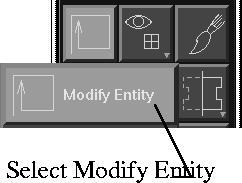
Select the Modify Entity icon from the second section in the icon panel.
-
10
-
A popup menu is displayed. Select Replace Feature.
-
You are prompted to select the geometry that will be used
to replace the original feature.
-
Once you select the feature, you are prompted whether or
not you want to control the associativity of mapping the
old and new geometry.
-
11
-
If you select Yes, the screen splits into two areas. You are prompted to map the any changed faces of the new model to the corresponding faces of the original model.
|
|
|
-
12
-
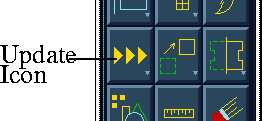
When the mapping has been completed, click the Update
icon from the second section of the icon panel.
The original feature is replaced by the imported geometry and a new feature exists with all the nodes acting upon the new Orphan Node.
|
|
This image shows the
original geometry.
|
|
|
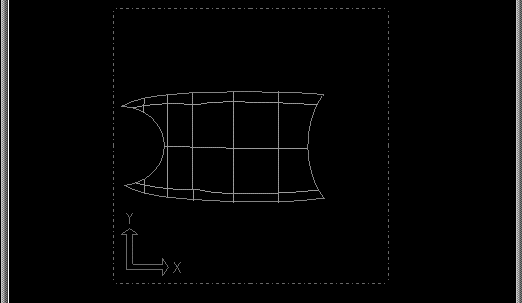
This image shows the new
model.
|
|
|
|
|
Summary
Use the following summarized list of modeling practices discussed in this section as a quick reference guide if problems arise.
Before you create the model
- Units should be set to mm.
- In the Construction Options window:
- The Modeling Modes should be set to NURBS
- The Construction Option preset should be set to SDRC. Tolerances should be set to the following values:
- Curve Fit Distance = 0.005 mm
- Maximum Gap Distance = 0.005 mm
- Curve Fit Checkpoints = 10
- Trim Curve Fit
= 0.001 mm
While you create the model
|
|
See NURBS Modeling in Alias
for descriptions of these
tools.
|
- Use degree 5 curves and surfaces to achieve curvature continuity between surfaces and successful data transfer.
-
Master Series I-DEAS does not support degree 7 geometry.
Geometry created in Studio which is degree 7 will be
rebuilt to degree 3 (cubic) upon import to I-DEAS.
Adjacent Studio surfaces which had been built with
continuity between them may no longer have that
continuity after they are rebuilt in I-DEAS.
- Use surface building tools such as Square and Birail that allow you to impose curvature continuity between adjacent surfaces. Also use the Rebuild option within these surfacing tools so that surfaces with interior multi-knots cannot be built.
- Surfaces should be overbuilt and trimmed back before export.
- Fillets and other detail geometry should be deleted from the Alias model before export. Fillets and detail geometry should ideally be built in I-DEAS Master Series to improve the success of the transfer and give you parametric control of the fillet and detail geometry while using I-DEAS Master Series.
- Models should be transferred periodically from Alias to Master Series during construction to manage the quality of the model being created.
- The Alias model must be successfully stitched before export, but you should also periodically stitch the geometry during model creation in Alias to ensure that the model meets all tolerance requirements.
- Avoid using Attach and Join Curve
since these functions create multi-knots in Alias geometry that are not supported by Master Series.
- Avoid using
Skin and Patch between trimmed surface boundaries since excessive amounts of data are created in the resulting surface.
- Use surface building tools such as Square and Birail, taking advantage of the Boundary Rebuild option, to control curvature continuity between surfaces and ensure surfaces do not contain multi-knots.
|


