|
|
Pick > Point types
|
|
|
|
|
|
Use the Pick > Point Types
tools to pick the following types of points:
To use one of these tools, select it from the Pick > Point Types
cascading menu in the Tool Palette, or click one of the icons.
|
|
Pick > Point types > CV

|
Picking CVs
Purpose
To pick one or more control vertices (CVs).
You can modify the picked CVs with any number of Xform functions to reshape a curve or surface.
How to Use
-
1
-
Select Pick > Point Types > CV from the Tool Palette, or click on its icon. The system prompts:
-
Use mouse or enter name of item to pick/
unpick: [Left Toggle][Middle Replace][Right
Remove]
-
2
-
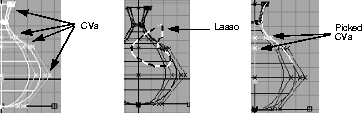
To pick one CV, click on the CV in the modeling window. Picked CVs become highlighted, indicating that they are active.
-
To pick multiple CVs, either:
- Drag a pick box around the objects that contain the CVs in the modeling window.
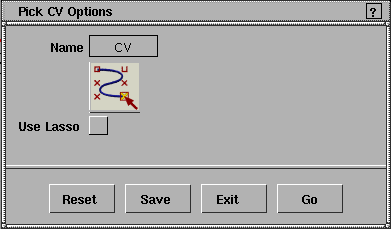
- Use the lasso function by opening the option box and turning on
Use Lasso. This lets you pick CVs by drawing a lasso around the ones that you want.
|
|
|
Notes
- To delete any active CV(s), use Delete > Del active.
- CVs cannot be picked by name.
|
|
For information, see Viewing
and Hiding Controls on
page 288.
|
- CVs can only be picked if they are visible. If the display of CVs has been set to OFF in the ObjectDisplay > Control-
 window, they are not pickable. To make CVs visible,in the Control window set Scope to ALL and click CVs on. window, they are not pickable. To make CVs visible,in the Control window set Scope to ALL and click CVs on.
See Also
|
|
Pick > Point types > Hull

|
Picking Control Hulls
Purpose
To pick one or more control hulls.
How to Use
-
1
-
Select Pick > Point Types > Hull
from the Tool Palette menu, or click its icon. The system prompts:
-
Use mouse or enter name of item to pick/
unpick: [Left Toggle][Middle Replace][Right
Remove]
-
2
-
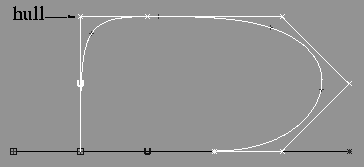
Using the mouse, click directly on the hull or hulls. Once selected, all CVs associated with the picked hull are automatically selected.
Notes
- Hulls cannot be picked by name. If you type a name in the information line, an error message is displayed.
|
|
For information, see Viewing
and Hiding Controls on
page 288.
|
- Hulls can only be picked if they are visible. If the display of edit points has been set to OFF in the ObjectDisplay > Contro-l window, they cannot be picked. To make hulls visible, in the Control window set Scope to ALL and click hulls on.
|
|
To activate all the CVs on a
hull if any one CV is already
active, use the middle mouse
button to select the CVs.
|
- When you pick a hull, the current status of the CVs on the hull is reversed; inactive CVs become active and active CVs become inactive. Therefore, it is not possible to activate all the CVs on a curve using Pick > Point types > Hull if any one CV is already active.
|
|
Pick > Point types > Cluster

|
Picking Clusters
Purpose
Lets you pick a cluster node from a modeling window.
|
|
A cluster is an entity that
logically groups an arbitrary
list of CVs and DAG nodes
so that they can be
transformed and
manipulated.
|
How to Use
-
1
-
Select Pick > Point Types > Cluster
from the Tool Palette, or click its icon. The system prompts:
-
Enter name of item to pick/unpick:
-
2
-
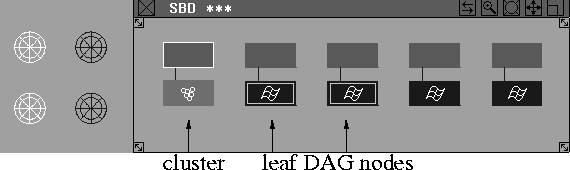
Type the name of the cluster at the keyboard (if you have named it) and press Enter, or click to select the cluster in the modeling or SBD window.
|
|
|
-
If you pick an item in a modeling window, every leaf level
DAG node above the cluster containing the item is picked.
-
You can also pick clusters using the mouse. Click on a CV
that is a member of the cluster, or click and drag to draw a
pick box around the elements that contain the cluster.
>
|
Note:
|
Picking clusters in the SBD window behaves a bit
differently, depending on the current pick mode:
|
|
|
For Pick > Point types > Cluster, clicking on the cluster node
picks the components the way they were assembled.
|
|
|
For Pick > Point types > CV, clicking on the cluster node
picks all the members of the cluster at the CV level. This
means that if an object was assembled into the cluster, the
CVs of the object are picked.
|
For More Information
|


