|
|
Pick > Object Types
|
Picking Various Types of Objects
|
|
|
|
|
Use the Pick > Object Types
tools to pick curve-on-surface elements, image planes, selection handles, and all objects and lights in a scene.
To use one of these tools, select it from the Pick > Object Types menu in the Tool Palette, or click its icon.
|
|
Pick > Object Types > Curve
on surf

|
Picking Curves-on-Surface
Purpose
To pick curves-on-surface.
|
|
The term curve-on-surface
refers to an independent
curve element that has been
either:
1. Constructed directly on a
surface using Curves >
Curves > New curve on
surface, or
2. Projected onto a surface
using Surface Edit > Create
CurvesOnSurface > Project,
Surface Edit > Create
CurvesOnSurface >
Intersect,
Surface Edit >
Create CurvesOnSurface >
Project normal or Surface
Edit > Create
CurvesOnSurface >
Geometry mapping.
The term curve-on-surface
does not refer to any other
curves that may be part of a
surface component, or to the
original construction curves
used to create a surface. A
curve-on-surface is easily
recognized by its distinctive
color in comparison to
regular curves.
|
>
|
Note:
|
When you pick a curve-on-surface, all other items that are not
curve-on-surface elements or edit points on a curve-on-
surface become unpicked.
|
How to Use
-
1
-
Select Pick > Object Types > Curve on surf from the Tool Palette, or click its icon.
-
The system prompts:
-
Use mouse to select curve on surface to
pick/unpick: [Left Toggle][Middle
Replace][Right Remove]
-
2
-
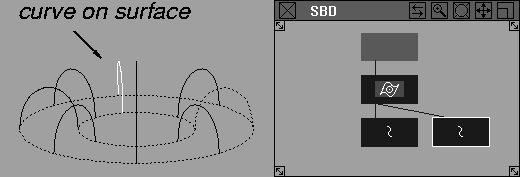
Click directly on the curve-on-surface in the modeling or SBD window.
-
Alternatively:
- Draw a pick box around the object that contains the curve-on-surface you want to pick.
- Use the Pick Walker with the keyboard. (See Using the Pick Walker on page 15.)
|
|
Pick > Object Types > Image
plane

|
Picking Image Planes
Purpose
To pick one or more image planes.
How to Use
-
1
-
Create an image plane in a window using File > Import > Image plane.
-
2
-
Select Pick > Object Types > Image plane from the Tool Palette, or click its icon.
-
3
-
Click on the image plane in the window.
-
Picked image planes are displayed in modeling windows
with a highlight around the border.
-
In the SBD window, picked image planes are displayed
with a highlighted border underneath the camera to
which they are attached.
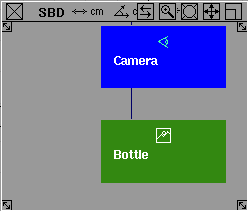
You can pick image planes in the SBD window using any of the following object picking modes:
- Pick > Object Types > Image plane
|
|
Pick > Object Types > All obj/
lights

|
Purpose
To pick all objects and lights in a scene.
How to Use
Select Pick > Object Types > All obj/lights
from the Tool Palette, or click its icon.
- All lights and objects in the scene become active, including any templated geometry.
- The current status of objects does not change. Objects that are active at the time the function is invoked remain active.
- Any geometry that is currently set to invisible is not selected.
- In the SBD window, items and groups are picked at the object level.
|
|
Pick > Object Types >
Selection handle

|
Picking Selection Handles
Purpose
Sets the pick mode to selection handles.
Overview
Selection handles are intended to make picking and manipulating objects or hierarchies of objects easier.
|
|
For more information, see
Creating Selection Handles on
page 229.
|
How to Use
-
1
-
Select Pick > Object Types > Selection handle from the Tool Palette or click its icon.
-
The system prompts:
-
Use mouse or enter name of item to pick/
unpick:
-
2
-
If you have named the object, type its name using the keyboard and press Enter, or click directly on the selection handle in the modeling or ASBD
window.
|
Tip:
|
You can also draw a pick box around the object that contains
the selection handle you want to pick.
|
Notes
- When you pick a selection handle, all other items that are not attached to the selection handle become unpicked.
- If you drag over part of an object that has a selection handle, the object is not picked unless the selection handle itself is included in the dag.
- When you pick the selection handle in the SBD or ASBD windows, any node can be picked, regardless of whether or not it has a selection handle.
Example
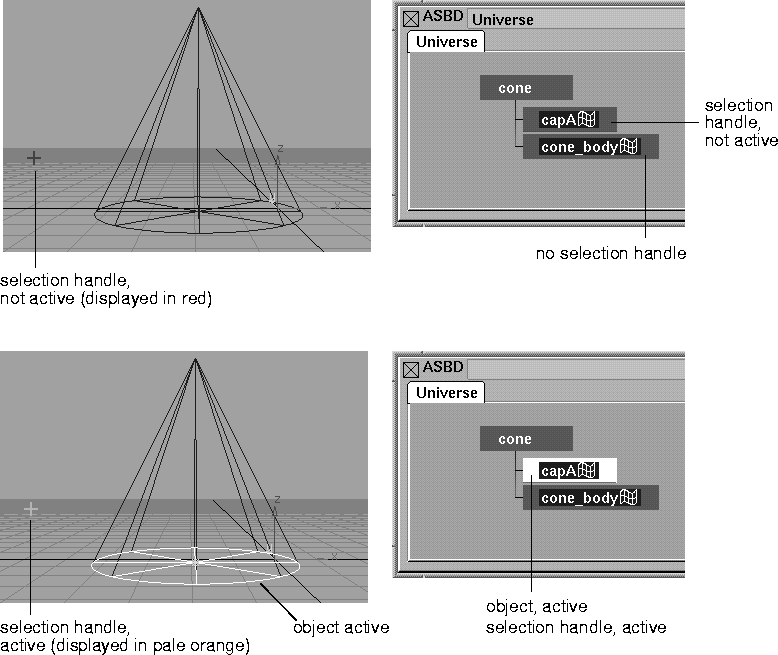
The following illustration shows how the pick mode of selection handles is displayed in the modeling and ASBD windows.
|
|
|
|


