|
|
Pick > Edit point
|
Picking Edit Points
|
|
|
|
|
Purpose
To pick one or more edit points.
You can modify the picked edit points with any number of Xform functions to reshape a curve.
|
|
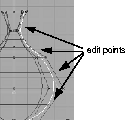
Edit points are the small
crosses that lie on a curve.
They are not displayed on
surfaces.
|
How to Use
-
1
-
Select Edit point from the Pick menu, or click the icon.
-
The system prompts:
|
|
|
-
Use mouse or enter name of item to pick/
unpick: [Left Toggle][Middle Replace][Right
Remove]
-
2
-
To pick one edit point, click on the individual edit point in the modeling window. Picked edit points become highlighted, indicating that they are active.
-
To pick multiple edit points, either:
- Drag a pick box around the objects that contain the edit points in the modeling window.
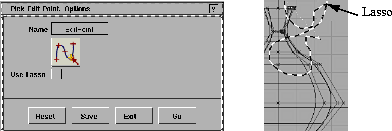
- Open the option box and turn on Use Lasso.
This lets you pick edit points by drawing a lasso around the ones that you want.
|
|
|
Notes
- You can delete any active edit points by using Delete > Del active.
- Edit points cannot be picked by name.
|
|
See
Viewing and Hiding
Controls on page 288
.
|
- Edit points can only be picked if they are visible. If the display of edit points has been set to OFF (using Object Display > Control-
 ), they cannot be picked. ), they cannot be picked.
See Also
- For more information on edit points see Understanding Curves in the NURBS Modeling book.
|


