|
Interpolation is
the process by which the software resample the image data to
determine values between defined pixels. For example, if you
resize an image so it contains more pixels than it did
originally, the software obtains values for the additional
pixels through interpolation. The image image processing
toolbox provides three interpolation methods.
Interpolation methods
Task 1
Describe
above interpolation methods.
Solution
Nearest Neighbor Interpolation
In
this the value of the intermediate pixel is determined by
averaging out the value of the neighbors. In MATLAB this
method is taken by default in imresize.
Example:
im =
imread('zeya.tif');
imshow(im)
imr
= imresize(im,2);
figure;
imshow(imr)
Bilinear and Bicubic Interpolation
When imresize is used with 'bilinear' or 'bicubic',
interpolation specified in the method option than it applies a
low-pass filter before interpolation in order to reduce
aliasing. The default filter size is 11 by 11. This is true
when the factor for resizing is less than 1.
Example:
im = imread('zeya.tif');
bic = imresize(im,0.5,'bicubic');
figure;
imshow(bic)
bic2 = imresize(im,2,'bicubic')
figure;
imshow(bic2)
Note: using factor '0.5' image was shrinked and
using factor '2' image was observed as enlarged.
Nearest Neighbor
Interpolation
Task 2
If we use nearest neighbor interpolation
on binary images than what will be the resulting image? either
binary or grayscale and why?
Solution
Using nearest neighbor interpolation on
binary images causes resulting image as binary because this
method calculates intermediate pixel values based on
neighbors.
Nearest Neighbor
Interpolation
Task 3
Use images like "ic.tif", "testpat1.tif",
"saturn.tif" and your own image and perform follwing.
1) Enlarge it twice time of original.
2) Reduce it by 50%.
3) Make it of 100 by 100, what results do you
observe.
Solution
a = imread('zeya.tif');
imshow(a)
b = imresize(a,2);
figure, imshow(b)
c = imresize(a,0.5);
figure, imshow(c)
d = imresize(a,[100 100]);
figure, imshow(d)
Result
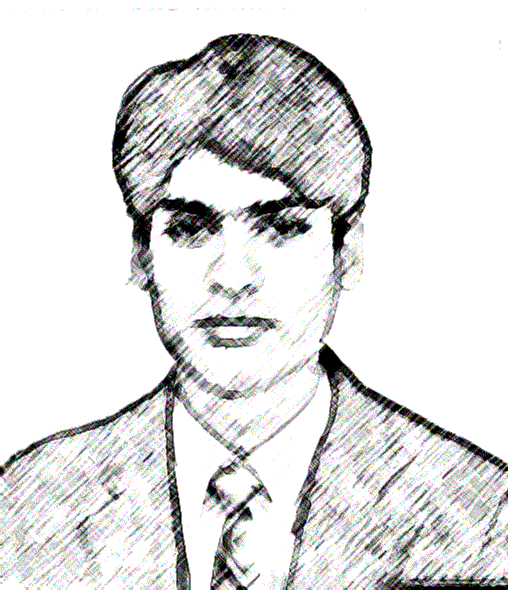
1) imshow (a) produced original image
.
2) b= imresize(a,2) produced
enlarge (twice image) image.
3) c=imresize(a,0.5) produced shrink
(reduced by 50%) image.
4) d=imresize(a,[100 100]) produced much
smaller image.
Image Cropping
Task 4
Perform cropping for various images
described above.
Solution
a = imread('zeyajpg.jpg');
imshow(a)
b = imcrop(a);
figure, imshow(b)
c = imcrop(a,[70 80 110 80]);
figure, imshow(c)
Result
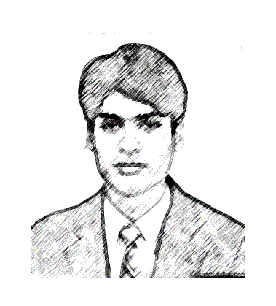
Cropped with the help of mouse
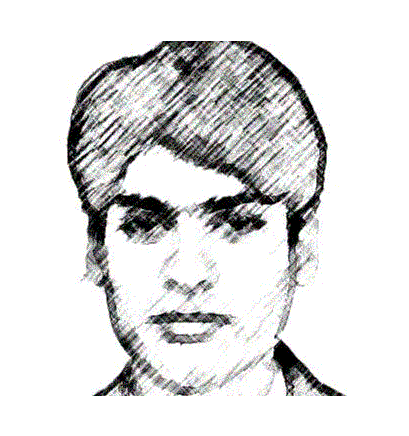
Cropped with assigned values
HELP
IMRESIZE
IMRESIZE Resize image.
IMRESIZE resizes an image of any type using the specified
interpolation method. Supported interpolation methods include:
'nearest' (default) nearest neighbor interpolation
'bilinear' bilinear interpolation
'bicubic' bicubic interpolation
B = IMRESIZE(A,M,METHOD) returns an image that is M times the
size of A. If M is between 0 and 1.0, B is smaller than A. If
M is greater than 1.0, B is larger than A. If METHOD is
omitted, IMRESIZE uses nearest neighbor interpolation.
B = IMRESIZE(A,[MROWS MCOLS],METHOD) returns an image of size
MROWS-by-MCOLS. If the specified size does not produce the
same aspect ratio as the input image has, the output image is
distorted.
When the specified output size is smaller than the size of the
input image, and METHOD is 'bilinear' or 'bicubic', IMRESIZE
applies a lowpass filter before interpolation to reduce
aliasing. The default filter size is 11-by-11.
You can specify a different order for the default filter
using:
[...] = IMRESIZE(...,METHOD,N)
N is an integer scalar specifying the size of the filter,
which is N-by-N. If N is 0, IMRESIZE omits the filtering
step.
You can also specify your own filter H using:
[...] = IMRESIZE(...,METHOD,H)
H is any two-dimensional FIR filter (such as those returned by
FTRANS2, FWIND1, FWIND2, or FSAMP2).
Class Support
The input image can be of class uint8, uint16, or double. The
output image is of the same class as the input
image.
IMCROP
IMCROP Crop image.
IMCROP crops an image to a specified rectangle. In the
syntaxes below, IMCROP displays the input image and waits for
you to specify the crop rectangle with the mouse:
I2 = IMCROP(I)
X2 = IMCROP(X,MAP)
RGB2 = IMCROP(RGB)
If you omit the input arguments, IMCROP operates on the image
in the current axes.
To specify the rectangle:
- For a single-button mouse, press the mouse button and drag
to define the crop rectangle. Finish by releasing the mouse
button.
- For a 2- or 3-button mouse, press the left mouse button and
drag to define the crop rectangle. Finish by releasing the
mouse button.
If you hold down the SHIFT key while dragging, or if you press
the right mouse button on a 2- or 3-button mouse,
IMCROP constrains the bounding rectangle to be
a square.
When you release the mouse button, IMCROP returns the cropped
image in the supplied output argument. If you do not supply an
output argument, IMCROP displays the output image in a new
figure.
You can also specify the cropping rectangle non interactively,
using these syntaxes:
I2 = IMCROP(I,RECT)
X2 = IMCROP(X,MAP,RECT)
RGB2 = IMCROP(RGB,RECT)
RECT is a 4-element vector with the form [XMIN YMIN WIDTH
HEIGHT]; these values are specified in spatial coordinates.
To specify a nondefault spatial coordinate system for the
input image, precede the other input arguments with two
2-element vectors specifying the XData and YData:
[...] = IMCROP(X,Y,...)
If you supply additional output arguments, IMCROP returns
information about the selected rectangle and the coordinate
system of the input image:
[A,RECT] = IMCROP(...)
[X,Y,A,RECT] = IMCROP(...)
A is the output image. X and Y are the XData and YData of the
input image.
Remarks
Because RECT is specified in terms of spatial coordinates,
the WIDTH and HEIGHT of RECT do not always correspond exactly
with the size of the output image. For example, suppose RECT
is [20 20 40 30], using the default spatial coordinate system.
The upper left corner of the specified rectangle is the center
of the pixel (20,20) and the lower right corner is the center
of the pixel (50,60). The resulting output image is 31-by-41,
not 30-by-40, because the output image includes all pixels in
the input that are completely or partially enclosed by the
rectangle.
Class Support
The input image A can be of class uint8, uint16, or double.
The output image B is of the same class as A. RECT is alwaysof
class double.
Example
I = imread('ic.tif');
I2 = imcrop(I,[60 40 100 90]);
imshow(I), figure, imshow(I2)
CV
Lab 1 CV
Lab2
CV
Lab 3
CV Lab4
CV
Lab 5
CV
Lab 6
CV
Lab7 CV
Lab8
Other
material
|