 |
Adding Text to Your Campaign
Text messages that explain to the player what is happening in the campaign are essential. Each message that your campaign will use needs to be saved as a distinct text file. These files must be plain ASCII text files. You could use a fancy word processor like Microsoft Word to create them, but you might end up saving a file in the wrong format. There's no need to use anything other than Windows Notepad.
When you want to show the player a text message, add a text-node to the relevant location in your campaign map. At the bare minimum, you should have a text-node before the first mission that explains the scenario to the player and one before each end-node which explains why the campaign has ended and whether the player has won.
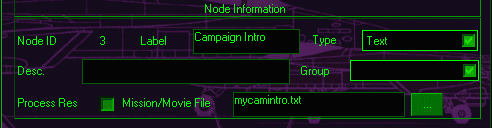
In each text node, type the full filename into the box provided. Make sure that you include the TXT file extension:
|
Finally, no campaign is complete without a text file that gives a description of the campaign in the campaign-loading screen. This is essential. Without this file, when the player selects your campaign, the description from the last campaign selected will still be displayed. This is very confusing to the player and should be avoided. Add the name of the text file for your description to the campaign setup page in the following way:
1. Click on the 'campaign setup' button:
 |
2. Enter the filename in the box provided:
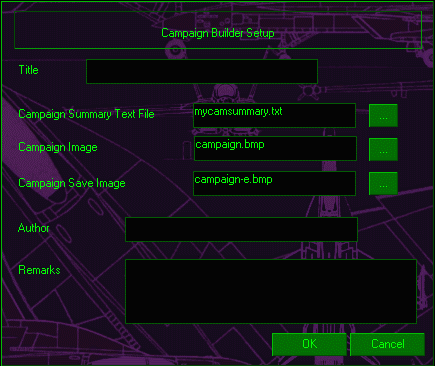 |
You should also add the filenames of the images you want to be displayed in the campaign-loading screen. When these images are placed in the FA18\RESOURCES\IMAGES folder, they will be incorporated into the campaign file.
The final step in adding text to your campaign is to compress the text files you will be using into a catalog. For the English version of F/A-18, the text catalog is named CTEXTE.CMP and is found in the FA18\CAMPAIGN\DATA folder. A new CTEXTE.CMP file needs to be created to accomodate each new campaign. If you only include the text for YOUR campaign in this file, the player will have to swap your text catalog each time he or she wants to play your campaign. As a courtesy to the player, I recommend that when you create the new CTEXTE.CMP file for your campaign, you include the text files for as many other campaigns as you can. It is advisable to distribute the text files with your finished campaign, so that future campaign builders can incorporate them into their own catalogs. At the very least, you should include the text from the campaign that comes with the game and the text from Matt Wagner's Valhalla campaign.
The text-compression utility is a program called 'MAKECAT.EXE'. Use it to make a text catalog as follows:
1. Place all the text files you wish to compress in their own folder.
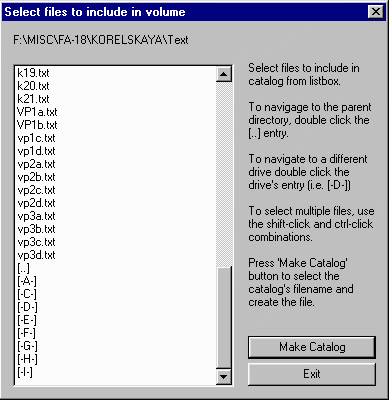
2. Run MAKECAT.EXE. Navigate to the folder containing the text files to compress:
 |
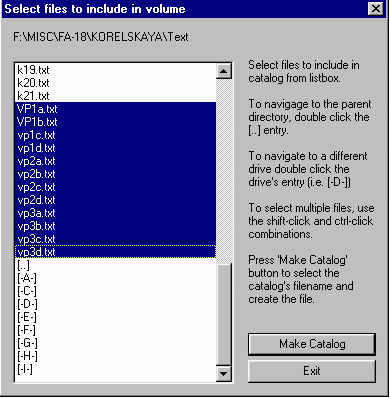
3. Select the files to be compressed by clicking and dragging:
 |
4. Click on the 'Make Catalog' button. The select-name window will open. If you are making an English catalog, enter 'CTEXTE.CMP' in the space for the file name.
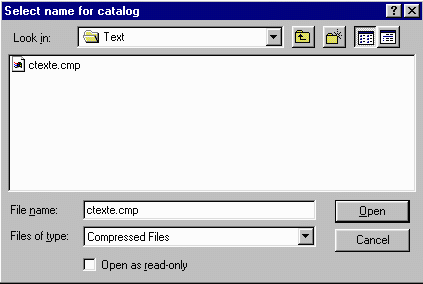 |
5. Click on the 'open' button. The new catalog will be created in the folder containing the text files, and MAKECAT.EXE will close.
Summary
Save each text message for your campaign as a separate plain-text file. Compress these files together with the text files for as many other campaigns that you can find using MAKECAT.EXE. Name the finished file CTEXTE.CMP (for English) and place in the FA18\CAMPAIGN\DATA folder.
Questions or comments should be directed to [email protected]