Campaign variables
Campaign variables are a way of setting conditions for following links that do not depend on the results of the current mission. As the debrief variables are reset to 0 every time a new node is processed, the campaign does not remember the results of previous missions. The debrief variables only apply to the mission that has just been played. If you want the results of a particular mission to affect not only the immediately subsequent mission but missions further down the path, you must set the debrief variables to alter the values of the campaign variables.
Open the campaign-variable window by clicking on the 'campaign variable' button:
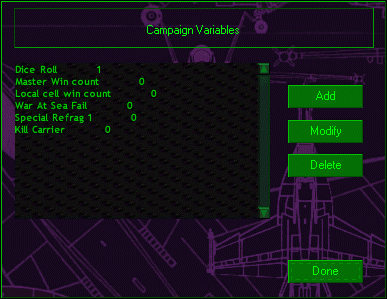
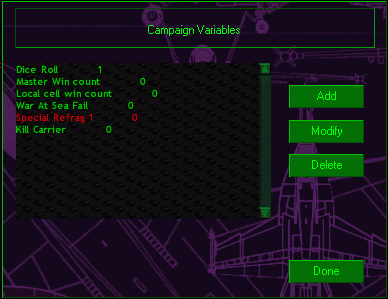
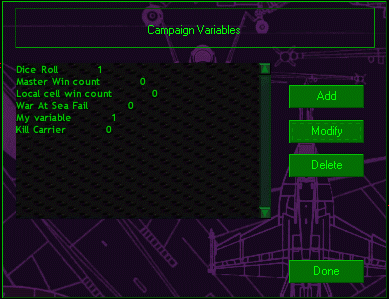
The campaign-variable window will open:
This window displays all the campaign variables for this campaign file and their default values. You can use these variables if you wish or add new ones. If you don't think you will need any more than the six variables that come with the campaign template, you can change their names using the 'modify' button:
 |
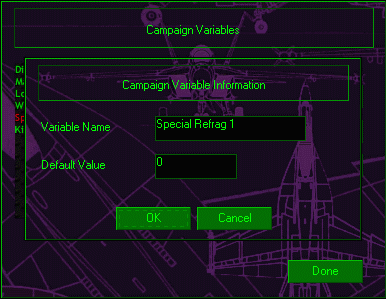 |
1. Select a campaign variable and click on the 'modify' button in
the campaign-variable window. |
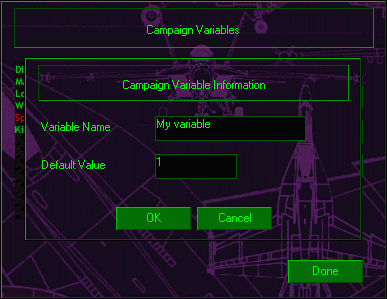
2. The campaign-variable information window will open for
that variable. |
 |
 |
3. Enter the name and default value of your variable in
the spaces provided. |
4. Click 'OK' and you will be returned to the campaign-variable
window. Your new variable is now entered. |
The procedure for entering an entirely new variable is very similar. Just click the 'add' button in the campaign-variable window and follow the same steps. Do NOT attempt to add more than one variable at once. If you want to enter more than one new variable, close the campaign-variable window after each new entry and re-open the window for the next entry. If you do not do this, the new variables will not be properly registered and cannot be used by links.
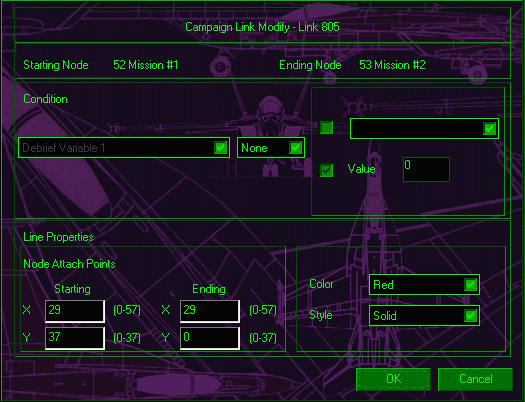
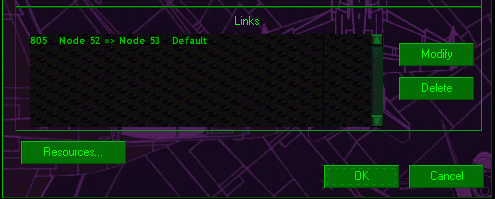
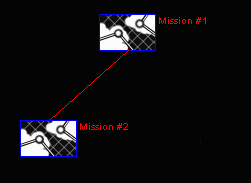
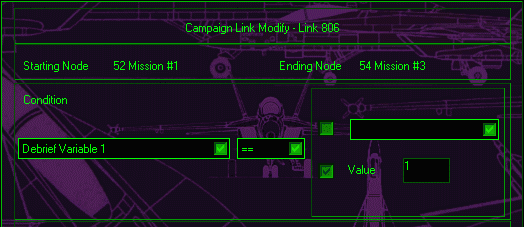
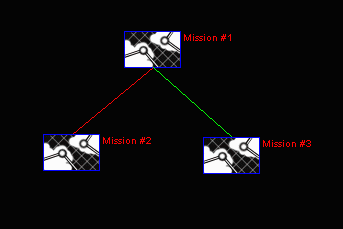
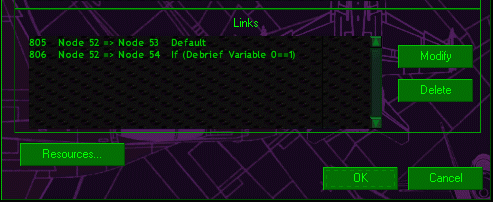
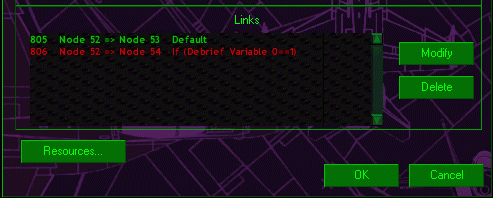
You can set the link conditions so that a link is followed when a campaign variable has a certain value. To modify the links in the node for Mission #1, right-click on that node. The node-information window will open. Select the second link in the list to be modified:
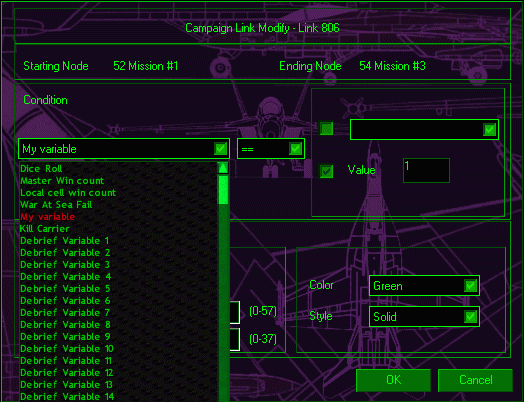
When you click on the 'modify' button, the link-modify window will open for this link. This link is currently set to be followed on the condition that debrief variable 1 has the value 1. To change this, click on the drop-box on the left and select 'My variable' from the list:
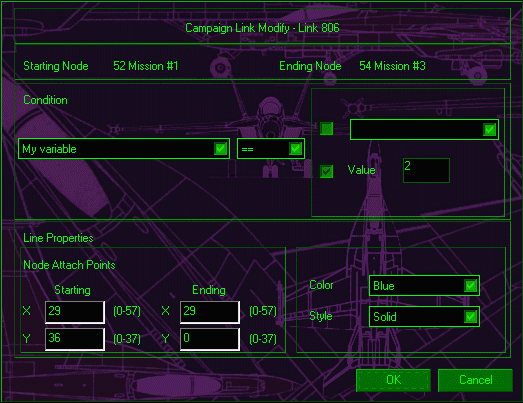
Set the value for 'My variable' on which the link will be followed to 2:
As the link condition now depends on the value of a campaign variable rather than a debrief variable, you may also wish to change the color of the link. Modifying links sometimes causes F/A-18 to crash back to the desktop. If you find this happens to you a lot, you can change a node's links by deleting the old ones and adding new ones with the conditions you want.
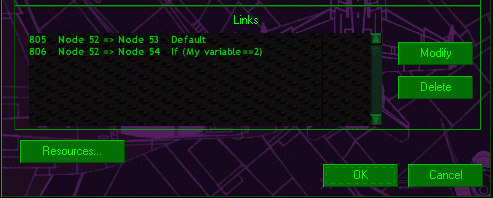
When you close the link-modify window and return to the node-information window, you will see that the information for the link has been updated:
As things stand, the game will always follow the default node from Mission #1 to Mission #2, no matter what the results of Mission #1 are. This is because the default value of 'My variable' is 1 and the link to Mission #3 will only be followed if the value of 'My variable' is 2. To get the game to follow the link to Mission #3, you must add a condition to the variables panel of the node-information window for Mission #1.
1. Right-click on the node for Mission #1
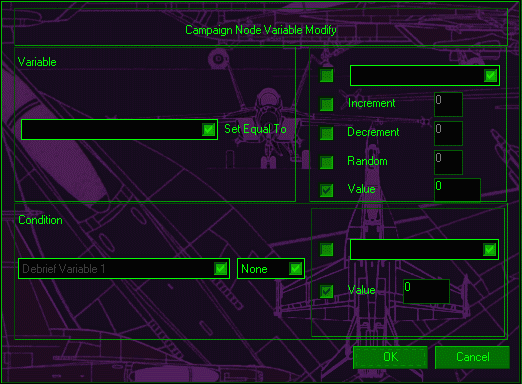
2. When the node-information window opens, click on the 'add' button in the variables panel. This will open the variable-modify window:
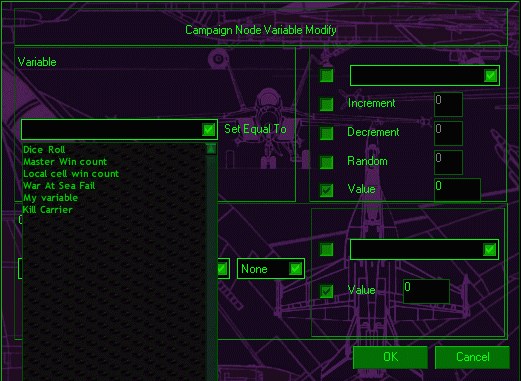
3. Click on the drop-box in the 'variable' panel on the left, and select 'My variable' from the list:
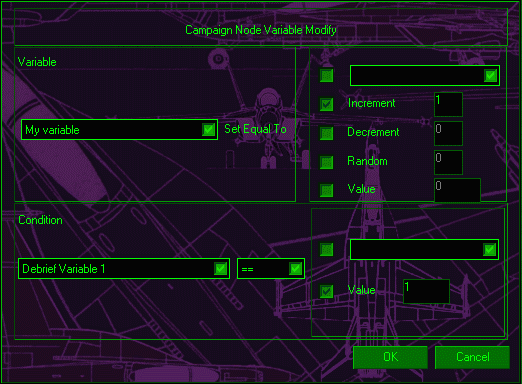
Set 'My variable' to increment by one. You now have to specify the condition under which this change in 'My variable' will take place. Click on the 'none' drop-box in the condition panel. Select the identity sign (= =). This activates the drop-box on the left. From the list, choose 'Debrief variable 1'. Check the 'value' box in the lower-right panel and enter the numeral '1' in the space provided. The variable-modify window will now look like this:
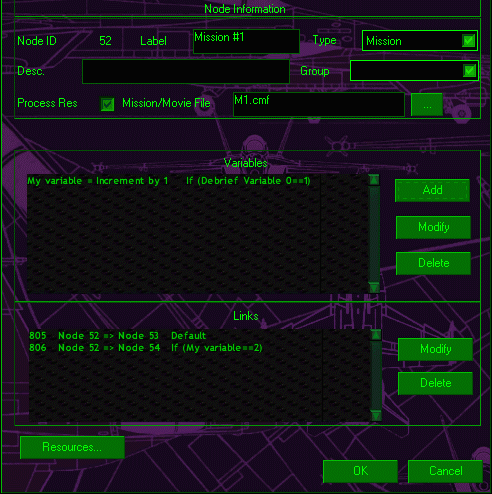
Click 'OK' and you will be returned to the node-information window:
Once again, the node-information window identifies debrief variable 1 as 'debrief variable 0'. Keep remembering to mentally add 1 to the debrief variable designations in the node-information window.
Now, when Mission #1 is successful and debrief variable 1 is set to 1, the value of 'My variable' will be incremented by 1 to 2. The default link to Mission #2 will be ignored and the game will play Mission #3 next. This assumes that the summary debriefing group for success in Mission #1 has been assigned as campaign goal 1 in the mission builder.
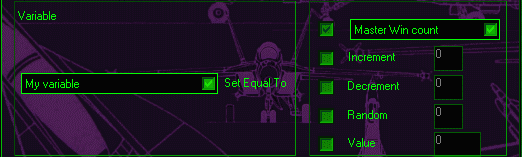
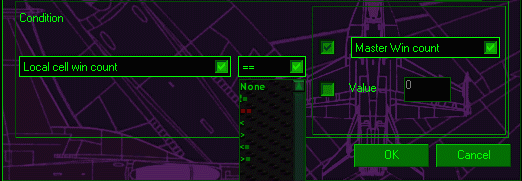
It is possible to set a campaign variable to the value of another variable in the variable-modify window. It is also possible to set a condition on modifying the value of a campaign variable that one variable should stand in some arithmetical relation to another. Simply check the box on the right of the window and select the variables you want from the list.
In the above example, when the node is processed 'My variable' will be set to have the same value as Master Win Count.
'!=' means 'not equal to', '= =' means 'equal to', '<' means 'less than', '>' means 'greater than', '<=' means 'less than or equal to' and '>=' means 'greater than or equal to'.
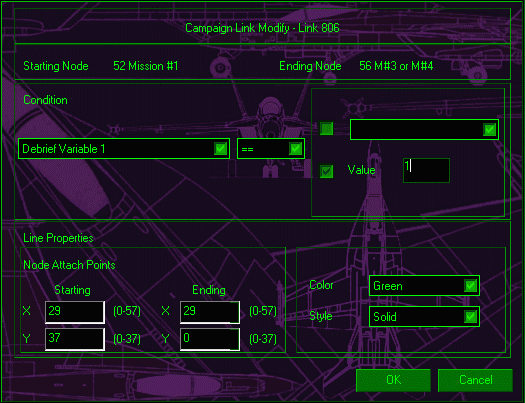
It is also possible to set as a condition on following a link that one variable have the same value as another. Check the box on the right of the link-modify window and select the variable you want from the list.
State-nodes
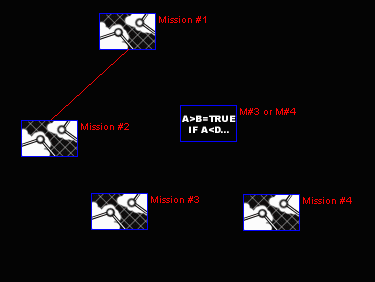
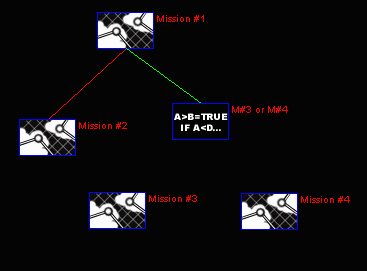
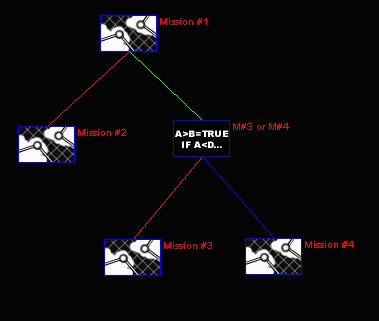
When you want a link to be followed on conditions that depend upon more than one variable, you must use state-nodes. Suppose, for example, that if Mission #1 is successful, you want the player to be given either Mission #3 or Mission #4.
1. Insert a state-node between the node for Mission #1 and the nodes for Mission #3 and #4.
2. Add a link from the node for Mission #1 to the new state-node. Make the condition for this link that debrief variable 1 has the value 1.
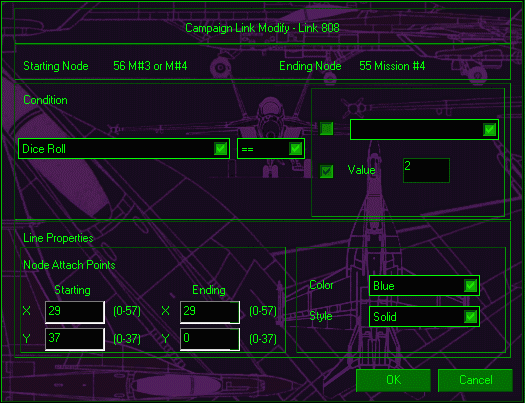
3. Add links from the state node to the nodes for Mission #3 and Mission #4. One of these should be a default link. If the choice between Mission #3 and #4 is going to be random, the condition for the other link should be that the campaign variable 'Dice Roll' has the value 2.
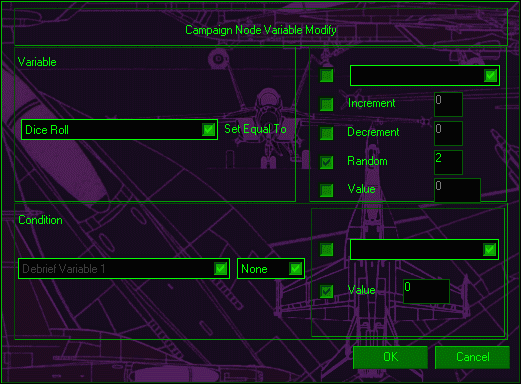
4. Now the state-node has to be told to produce a random number in order to make the choice between going to Mission #3 and going to Mission #4. Right-click on the state-node to open its node-information window. From the node-information window, click on the 'add' button in the variables panel. This opens the variable-modify window. Click on the drop-box to the left and select 'Dice Roll' from the list. Check the box on the right marked 'random' and enter the numeral '2' into the space provided.
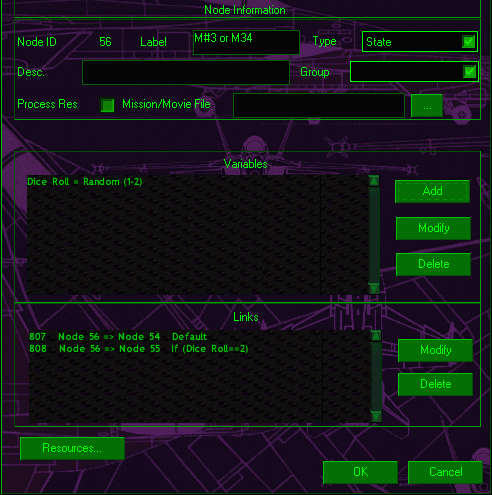
Click 'OK' to return to the node-information window.
When the state-node is processed, the variable 'Dice Roll' is assigned the value of 1 or 2 at random. When it takes the value 2, the game goes to Mission #4. Otherwise, the game goes to Mission #3.
End-nodes
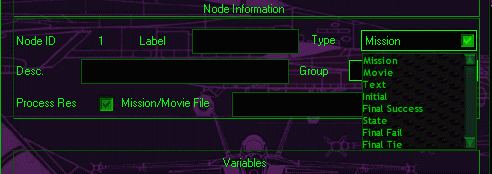
There must be at least one end-node in each campaign file. There will most likely be more than one, however. Each path through the campaign needs to terminate in an end node. There are three types of end-node: final fail, final success and final tie. All these nodes look the same on the campaign map. When you place a new node onto the map, you can select which type of end-node it will be from the drop-box at the top of the node-information window:
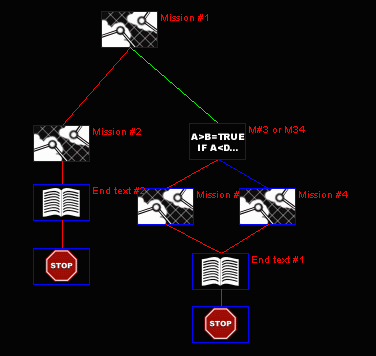
It is highly recommended that you place a text node immediately before each end-node. This text node has the function of informing the player why the campaign is about to end. If you do not include such a node, the campaign will end abruptly with the player wondering what happened.
A campaign map with text-nodes before its end-nodes.
You will also probably want to insert a state-node between the last mission in each path and the text/end-nodes. This is for calculating whether the player has won the campaign. For example, if you have been using the 'Master Win Count' variable for keeping a running total of the player's successful missions, you may want the campaign to fail if this total is too low.
Summary
There are basically three kinds of links. Default links where no condition is specified for following the link, links which use a debrief variable for their condition and links which use a campaign variable. Clicking on the 'add-link' button followed by the node you are linking from and then the node you are linking to will open the link-modify window. Leave the settings alone to create a default link. To create a link that uses a variable, select a variable from the drop-box.
- Introduction
- Preparing campaign missions
- Inserting nodes
- Linking nodes together
- Global links
- Campaign resources
- Compressing text files
- Non-linear campaigns
- Download files
F/A-18 campaign main page
Questions or comments should be directed to [email protected]