MS Excel Spreadsheet
Online Module
Lesson 3: Modifying the Appearance of a Worksheet
Section 3.5 - Renaming and Coloring the Worksheet Tab
Renaming the Worksheet Tab
Microsoft Excel automatically names worksheets as Sheet1, Sheet2, Sheet3 and so on. You can replace it with a more appropriate name. You have to follow this simple process.
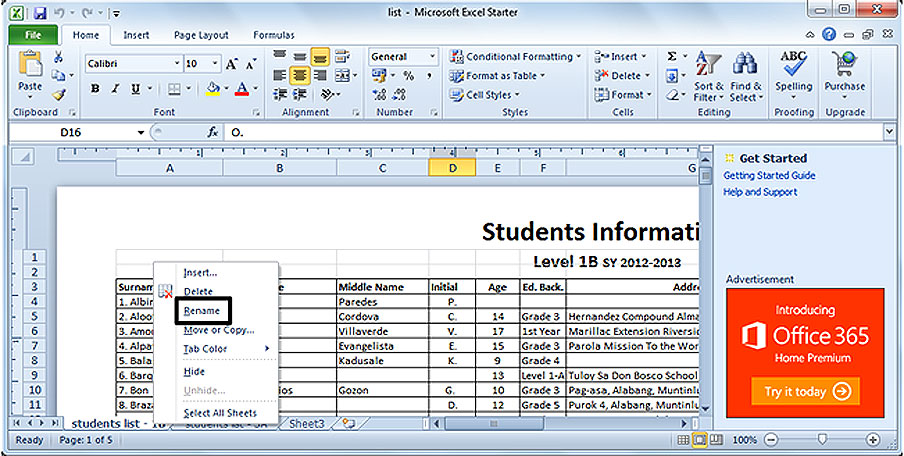
- Step 1.Right click the mouse on the sheet tab.
- Step 2.On the Context menu, click Rename.
- Step 3.Type the new name in the sheet tab.
- Step 4.Click the pointer to any blank space in the worksheet to deselect the command.
Coloring the Worksheet Tab
You can also place different colors on each worksheet tabs.
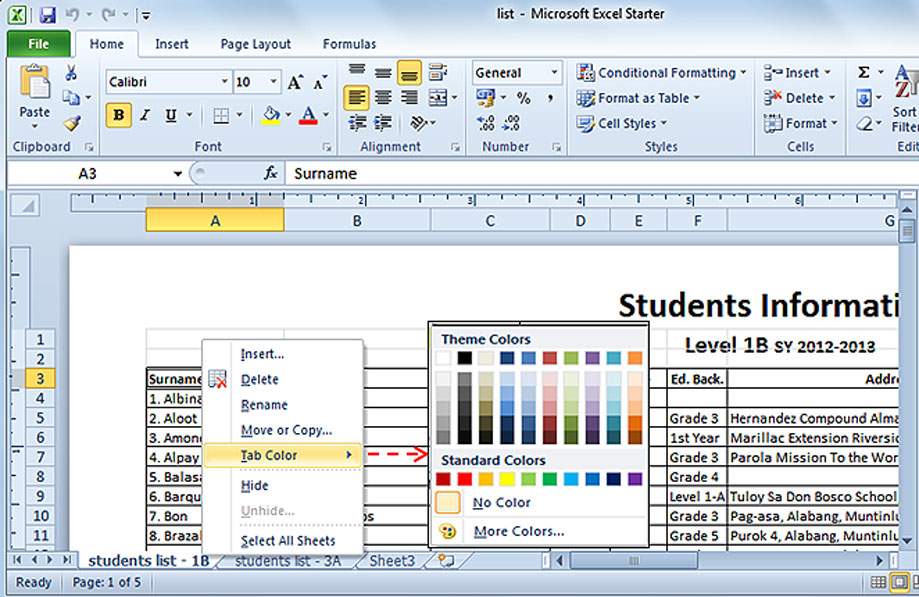
- Step 1. Right click the mouse on the sheet tab.
- Step 2. Click Tab Color and the color palette will appear.
- Step 3. Choose the color and the sheet tab will automatically change its color.