|
Preferences > Command stepper |
Creating Custom Shelves and Menus | ||||
|
| |||||
Lets you create or change custom shelves of tools and menu items that you can repeatedly use in a specific order. Overview | |||||
|
For information on shelves, see Using the Tool Palette and the Shelf on page 23. |
If you regularly use the same sets of tools and menu items in the same order, you can simplify your workflow by setting up shelves that contain these tools and menu items in the order you use them. The Command stepper lets you proceed through the set of commands in forward or backward order, restarting whenever you want.
How to Use | ||||
|
|
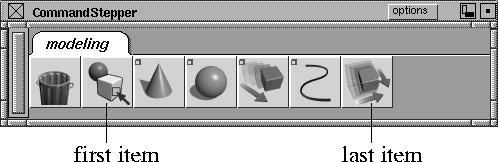
Select Preferences > Command stepper menu > Edit command set, or click its icon. The Command Stepper shelf is displayed: | ||||
| |||||
Command Stepper Options Menu | |||||
|
|
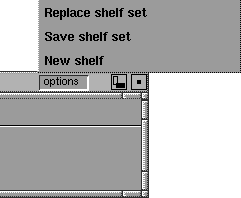
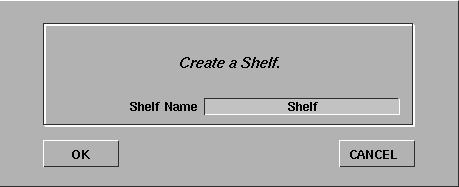
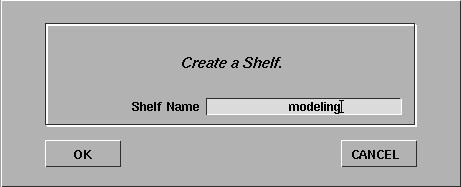
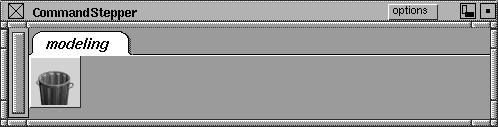
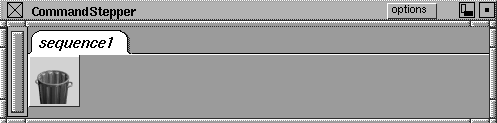
Click the options button in the Command stepper. The options menu appears. New shelfThe New Shelf option lets you create a different tab for each series of commands that you use.
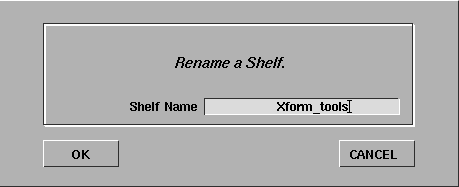
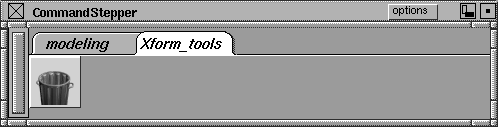
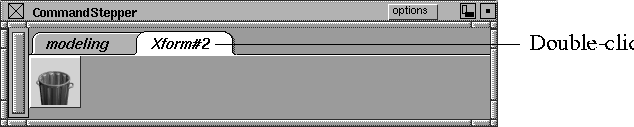
Renaming an Existing ShelfTo rename an existing shelf: | ||||
| |||||
Save shelf setTo save a customized shelf under a different name, select Save shelf set from the options menu. Type the name of the shelf set in the File box and click the Save Shelf Set button. | |||||

| |||||
Replace shelf setTo replace the current shelf set with one of the customized shelves you have saved, select Replace shelf set from the options menu. The following File Requestor is displayed: | |||||

| |||||
Type the name of the shelf set that you are retrieving in the File box and click the Replace Shelf Set button.
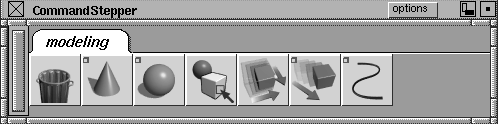
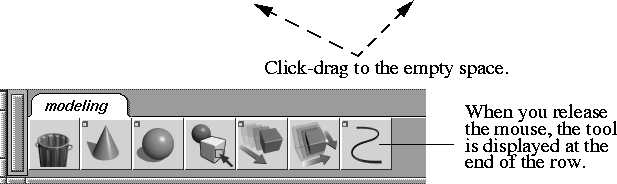
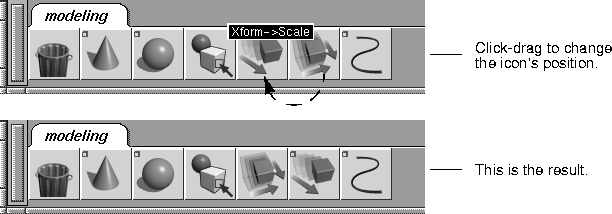
Moving Icons in the Command Stepper ShelfThe Edit command set function can also be used to edit existing Command Stepper shelves. Once you have placed the icons in the new Command Stepper tab, position them in the sequence that you typically use them so that you can step through them whenever you want. The following series of pictures shows how to move icons. Example | |||||
| |||||

| |||||
| |||||
| |||||
Notes
| |||||
| Copyright © 1998, Alias|Wavefront, a division of Silicon Graphics Limited. All rights reserved. | Please send questions or comments regarding the documentation to: [email protected] |