|
|
Preferences >
Command Stepper >
Step backward
|
|
|
|
|
|
Move backward to the previous tool icon or menu command in the Command Stepper
shelf.
For information on the Command Stepper, see Creating Custom Shelves and Menus on page 564.
How to Use
|
|

|
-
1
-
Select Preferences > Command Stepper > Step backward or click the following icon to move backward in the Command Stepper to the previous tool or menu command.
-
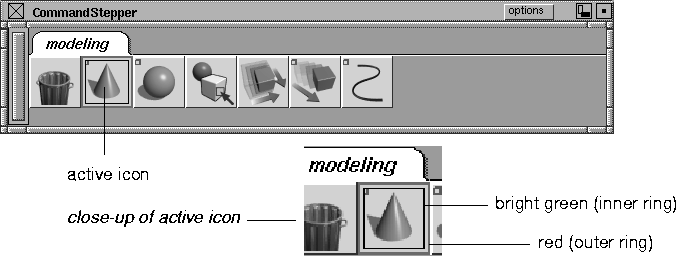
The active icon in the Command Stepper shelf is displayed
with a bright green inner ring and a red outer ring:
|
|
|
|
Tip:
|
You can also use hotkeys or marking menus to step
backward through the commands in the Command Stepper.
To learn how to set up hotkeys, see Preferences > Edit
Menus/Hotkeys. To learn how to define a marking menu, see
Preferences > Edit marking menus.
|
-
2
-
Use the active command or tool as you normally would.
Notes
- If you select another tool or menu command from outside the Command Stepper, the ring around the last used Command Stepper item changes to a thick green ring. This is to remind you where you left off in your sequence of commands.
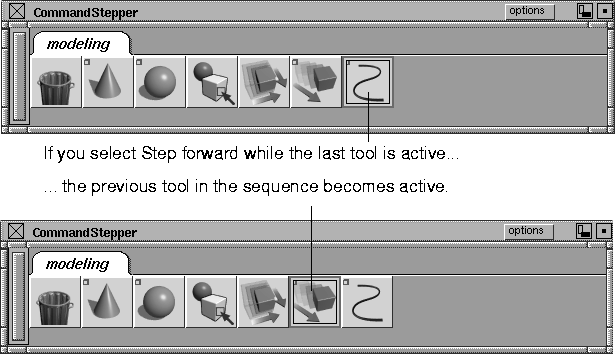
- If the last tool in the sequence is active, the next Step backward command moves you back to the previous tool in the sequence. See the following example.
|
|
|
|


