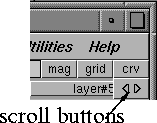
The Layers Bar | |||||||
|
| |||||||
PurposeTo perform the following layer functions:
OverviewThe Layers Bar contains layer buttons that represent each layer. All the layers associated with your model appear in the Layers Bar. Each layer button contains a pull-down menu with a series of attributes, and some frequently used functions. | |||||||
|
See also Layer Categories on page 249. |
You can also select several of these layer buttons at a time by holding the Shift key and clicking on the layer buttons. The attributes of selected layers can then be changed simultaneously using tools in the Layers menu. How to Use | ||||||

| |||||||
|
|
>
| ||||||
| |||||||
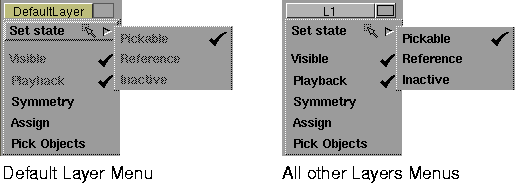
Layers Bar Pull-down Menu Descriptions | |||||||
|
For more information on states, see Setting the Layer State on page 259. |
Set StateSets the picking and snapping state of the layers. Pickable
Reference
Inactive
VisibleYou can toggle all items within a layer visible or invisible using this option. PlaybackSets the animation playback for layers. Symmetry | ||||||
|
For more information on symmetry, see Setting Symmetry on Layers on page 263. |
Turns symmetry on and off for this layer. When symmetry is on, a mirror image of the geometry is automatically drawn across a chosen plane of symmetry. AssignAssigns the picked objects to a layer. If you have already assigned an object to a different layer, then that assignment is cleared and the object is reassigned to the current layer. You can undo this layer assignment with Layers > Undo assign. Pick ObjectsPicks all the objects in the layer. If some objects are already picked, they become unpicked first, and then all the objects in the selected layer are picked. >
Layers Bar Color ButtonsIf you click and hold with the mouse button on the square beside the layer's name on the layer button, the following color window is displayed:
Edit
None
Tips:
Default Layer ButtonYou cannot change or delete the attributes of the Default Layer . The objects on the default layer are not shown with a layer box in the SBD or ASBD window. The Default Layer button automatically selects the Pickable , Visible , and Playback options.
| ||||||
| Copyright © 1998, Alias|Wavefront, a division of Silicon Graphics Limited. All rights reserved. | Please send questions or comments regarding the documentation to: [email protected] |