|
|
Windows >
Information > Layer
stats
|
The Layer Stats Window
|
|
|
|
|
Purpose
To manage, list, select, and modify layers and their attributes interactively.
This window provides several features that are not available elsewhere in the Alias interface. For example:
- The Instances attribute lets you hide instances of objects in a wireframe so that they are not displayed in the modeling windows.
- Provides counts for the various types of geometry in each layer. (For example, the number of curves, surfaces, or trims.)
- It lets you group layers into Categories.
How to Use
Select Windows > Information > Layer stats. Each layer lists all of its attributes, which can be modified. Individual attributes of the layers can be changed by clicking with the mouse in the table cell where the attribute is displayed.
To modify an attribute on more than one layer, press the Shift key and click in the cells displaying the layer's names. This will let you select more than one layer. Now, changing the attribute for a selected layer will automatically change that attribute for all the selected layers.
Useful workflows can be achieved by selecting one or more layers and using the Layers > Select > Object on selected layers tool in conjunction with it. You will be able to pick all objects in the selected layers. Now, any tool which works with the active objects can be used on the picked objects. For example, to save a collection of layers and its objects, select those layers, pick the objects on the selected layers and save the active objects.
|
|
See Layer Categories on
page 249 for more details.
|
If actions have to be performed repeatedly on a set of several layers, you may want to group these layers together, using the Categories feature, for easier selection.
Setting Layer Attributes
|
|
The interface for this
window is very similar to
the Render Stats window.
|
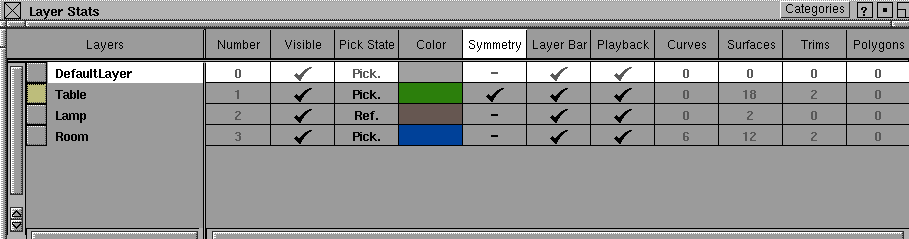
You can specify the following attributes for each of the layers listed in the Layer Stats window:
Creation Layer
-
- The square button at the left of the name shows the creation layer in yellow. Clicking on this button makes the layer the creation layer.
Layer Name
-
- Shows the name of the layer. You can change the name by double clicking on it and typing a new one.
Number
-
- The layer number is shown, but it cannot be changed.
Visible
-
- There is a tick next to the layer if visible.
Pick State
-
- The cell shows whether the layer is pickable, reference, or inactive. Clicking on the cell brings up a menu from which you can change the pick state.
Color
-
- The user-defined color, reference layer color, and inactive layer color are shown in the cell. However, the color cannot be modified from the cell, only from the layers bar.
|
|
For more information on
symmetry see Setting
Symmetry on Layers on
page 263.
|
Symmetry
-
- There is a tick if the layer has Symmetry turned on (i.e. if mirrored geometry will be drawn).
Layer Bar
-
- There is a tick if the layer is shown in the layers bar.
Playback
-
- There is a tick if the objects can be played back in that layer.
Curves
-
- Shows the count of curves in that layer.
Surfaces
-
- Shows the count of surfaces in that layer.
Trims
-
- Shows the count of trim surfaces in that layer.
Polygons
-
- Shows the count of polysets in that layer.
|
|
| |
|
|
|
|
|
|
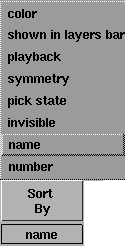
Sort By
Color
-
- The names of the layers displayed in the Layers
area of the window are sorted by the color assigned to them, in the following order:
-
1
-
Pickable layers without assigned colors
-
2
-
Pickable layers with assigned colors
-
3
-
Referenced layers
-
4
-
Inactive layers
Shown in layers bar
-
- The names of the layers displayed in the Layers
area of the window are sorted by those with
Layer Bar
checked, followed by the ones without.
Playback
-
- The names of the layers displayed in the Layers
area of the window are sorted by those with Playback
checked, followed by the ones without.
Symmetry
-
- The names of the layers displayed in the
Layers
area of the window are sorted by those with Symmetry
checked, followed by the ones without.
Pick state
-
- The names of the layers displayed in the Layers area of the window are sorted by those with Pick State
checked, followed by the ones without.
Invisible
-
- The names of the layers displayed in the
Layers area of the window are sorted by those with Visible checked, followed by the ones without (i.e. invisible).
Name
-
- The names of the layers displayed in the Layers area of the window are sorted with the DefaultLayer coming first, followed by the other layer names listed in alphabetical order.
Number
-
- The names of the layers displayed in the Layers
area of the window are sorted by the number assigned to them during creation, with the DefaultLayer listed as 0 and coming first.
|
|
|
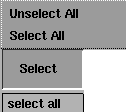
Select
Select all
-
- This option saves time by allowing you to select all the layers at once.
Unselect All
-
- This option saves time by allowing you to unselect all the layers at once.
Layer Categories
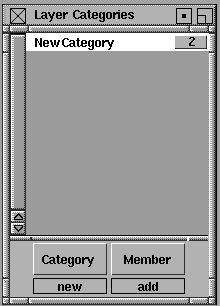
Layer Categories allow you to group several layers together so that you can easily select them as a set later when using any tool that acts on selected layers (e.g. Symmetry Planes, Shading, Saving, etc.).
To create a Layer Category:
|
|
|
-
1
-
Click the Categories button in the title bar of the Layer Stats window to open the Layer Categories lister.
-
2
-
Click the Category button at the bottom of the lister and select New from the pull-up menu. An entry called New Category is created. You can change its name by double clicking on it.
-
3
-
Select the layers you want to place in the currently selected Category. (Hold down the Shift key to select more than one.)
-
4
-
Click the Member button at the bottom of the lister and select Add from the pull-up menu. A small number indicating the total number of layers in the category appears in the lister. Clicking this number selects the corresponding layers.
To delete a Layer Category
-
Select the category you want to remove in the lister, then
click the Category button and select Delete.
To remove a layer from a category
-
1
-
Select the category from which you want to remove a layer.
-
2
-
Select the layer you want to remove.
-
3
-
In the lister, click the Member button and select Remove from the pull-up menu.
|


