 | Return to Home |
 | Games and Utilities |
 | Text Reader |
 | Numerical Fill-In Generator |
 | Yahtzee! |
 | Explorers Post 725 |
 | Memory |
 | Hangman |
 | Color Dialog |
 | Paint |
 | Quadratic Formula |
 | Dice Roller |
Paint
OVERVIEW:
This meeting consisted of creating a Paint program similar to Microsoft's Paint program. The program dynamically loads the colors in a 8x2 array. The user can then draw pictures using the selected color as shown in the separated color box with one of the seven methods on the left. The picture can be saved, reloaded, or cleared using the file options on the right. This program gives many examples of the drawing methods used in Visual Basic 5 and 6.
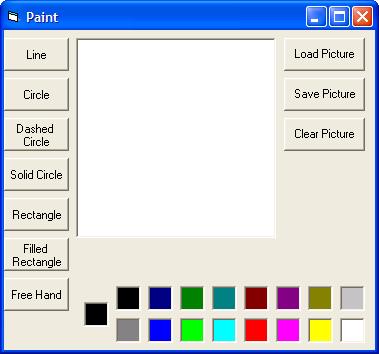
In this example, I have included the code to create the Paint program below. Follow the instructions below to duplicate this program using Visual Basic 5.0 CCE. The code has numerous comments to aid in understanding how the program works. This game can also be made as outlined in other versions of Visual Basic 5.0 and Visual Basic 6.0. This code will not work in Visual Basic .NET or Visual Basic 2005 due to the differences in drawing methods.
CONTROLS:
Open
Visual Basic and select Standard EXE. Name the form
frmPaint. Set the ScaleMode to 3 - Pixel. Set its Caption to Paint.
Create the following controls:
optDraw - Command Button - set the default properties of the button (mine are Width of 65 and Height of 33). Copy the button to make 7 buttons altogether (select Yes to create a control array). Set the buttons as shown in the following table.
| Index | Caption |
|---|---|
| 0 | Line |
| 1 | Circle |
| 2 | Dashed Circle |
| 3 | Solid Circle |
| 4 | Rectangle |
| 5 | Filled Rectangle |
| 6 | Free Hand |
cmdPicture
- Command Button - set the default propertiees of the button (mine are
Width of 81 and Height of 33). Copy the button to make 3 buttons
altogether (select Yes to create a control array). Set the buttons as
shown in the following table.
| Index | Caption |
|---|---|
| 0 | Load Picture |
| 1 | Save Picture |
| 2 | Clear Picture |
picColor - Picture Box - set the Width to 25 and Heigght to 25. Copy the button to make a total of 16 picture boxes, the top row should have the first 8 boxes, and the second row should have the last 8 boxes.
picCurrent - Picture Box - set the Width to 25 and Heigght to 25. Move the picture box to the left of the picColor boxes and center between the two rows.
CODE:
Dim NowDrawing As BooleanDim CurrentMethod As Integer
Dim StartX As Single
Dim StartY As Single
Dim StopX As Single
Dim StopY As Single
Private Sub cmdPicture_Click(Index As Integer)
Dim MyPath As String
MyPath = App.Path
If Right(MyPath, 1) <> "\" Then MyPath = MyPath & "\"
Select Case Index
Case 0 'Load Picture
If Dir(MyPath & "MyPicture.bmp") <> "" Then
picDrawing.Picture = LoadPicture(MyPath & "MyPicture.bmp")
End If
Case 1 'Save Picture
If Dir(MyPath & "MyPicture.bmp") <> "" Then Kill MyPath & "MyPicture.bmp"
Call SavePicture(picDrawing.Image, MyPath & "MyPicture.bmp")
Case 2 'Clear Picture
picDrawing.Picture = LoadPicture()
picDrawing.Cls
End Select
End Sub
Private Sub Form_Load()
Dim tmpI As Integer
For tmpI = 0 To 15
picColor(tmpI).BackColor = QBColor(tmpI)
Next tmpI
picCurrent.BackColor = QBColor(0) 'initially black
End Sub
Private Sub optDraw_Click(Index As Integer)
If Not NowDrawing Then 'don't let the drawing method change during drawing
CurrentMethod = Index
End If
End Sub
Private Sub picColor_Click(Index As Integer)
picCurrent.BackColor = picColor(Index).BackColor
End Sub
Private Sub picDrawing_MouseDown(Button As Integer, Shift As Integer, X As Single, Y As Single)
NowDrawing = True
StartX = X
StartY = Y
End Sub
Private Sub picDrawing_MouseMove(Button As Integer, Shift As Integer, X As Single, Y As Single)
Dim tmpSing As Single
Dim tmpLeft As Single
Dim tmpTop As Single
If NowDrawing Then
StopX = X
StopY = Y
'now shade the line and shape controls with the selected color
Line1.BorderColor = picCurrent.BackColor
Shape1.BorderColor = picCurrent.BackColor
Select Case CurrentMethod
Case 0 'Line
Line1.X1 = StartX
Line1.Y1 = StartY
Line1.X2 = StopX
Line1.Y2 = StopY
Line1.Visible = True
Case 1, 2, 3 'Circle
Shape1.Shape = 3 'Circle
'if the end point is to the left or above the start point, set the shape control according
If StartX > StopX Then
tmpLeft = StopX
Else
tmpLeft = StartX
End If
If StartY > StopY Then
tmpTop = StopY
Else
tmpTop = StartY
End If
Shape1.Left = tmpLeft
Shape1.Top = tmpTop
Shape1.Width = Abs(StopX - StartX)
Shape1.Height = Abs(StopY - StartY)
Shape1.Visible = True
Case 4, 5 'Rectangle
Shape1.Shape = 0 'Rectangle
'if the end point is to the left or above the start point, set the shape control according
If StartX > StopX Then
tmpLeft = StopX
Else
tmpLeft = StartX
End If
If StartY > StopY Then
tmpTop = StopY
Else
tmpTop = StartY
End If
Shape1.Left = tmpLeft
Shape1.Top = tmpTop
Shape1.Width = Abs(StopX - StartX)
Shape1.Height = Abs(StopY - StartY)
Shape1.Visible = True
Case 6 'Free Hand
picDrawing.PSet (StopX, StopY), picCurrent.BackColor
End Select
End If
End Sub
'now draw the rectangle or circle or line
Private Sub picDrawing_MouseUp(Button As Integer, Shift As Integer, X As Single, Y As Single)
Dim DrawRadius As Single
Dim tmpI As Single
Dim PI As Single
Dim CenterX As Single
Dim CenterY As Single
Dim tmpLeft As Single
Dim tmpTop As Single
If Not NowDrawing Then Exit Sub 'cancelled the draw by moving to the upper left
NowDrawing = False
'the Start and Stop X/Y values are updated correctly from MouseMove
DrawRadius = Abs(StopX - StartX) / 2
If DrawRadius < Abs(StopY - StartY) / 2 Then DrawRadius = Abs(StopY - StartY) / 2
picDrawing.ForeColor = picCurrent.BackColor
'if the end point is to the left or above the start point, set the shape control according
If StartX > StopX Then
tmpLeft = StopX
Else
tmpLeft = StartX
End If
If StartY > StopY Then
tmpTop = StopY
Else
tmpTop = StartY
End If
CenterX = Abs(StopX - StartX) / 2 + tmpLeft 'places the center of the circle at the center of the circle shape
CenterY = Abs(StopY - StartY) / 2 + tmpTop
picDrawing.FillStyle = 1 'transparent for all but the filled drawings
Select Case CurrentMethod
Case 0 'Line
Line1.Visible = False
picDrawing.Line (StartX, StartY)-(StopX, StopY), picCurrent.BackColor
Case 1 'Circle
Shape1.Visible = False
picDrawing.Circle (CenterX, CenterY), DrawRadius
Case 2 'Dashed Circle
Shape1.Visible = False
PI = 4 * Atn(1) 'Atn(1 Radian) = PI/4
For tmpI = 0 To 15 Step 2 '8 arcs, 0-22.5, 45-67.5, 90-112.5, 135-157.5, 180-202.5, 225-247.5, 270-292.5, 315-327.5
picDrawing.Circle (CenterX, CenterY), DrawRadius, picCurrent.BackColor, tmpI * PI / 8, (tmpI + 1) * PI / 8
Next tmpI
Case 3 'Filled Circle
Shape1.Visible = False
picDrawing.FillColor = picCurrent.BackColor 'set to fill the circle
picDrawing.FillStyle = 0 'Solid will shade the drawing
picDrawing.Circle (CenterX, CenterY), DrawRadius, picCurrent.BackColor
picDrawing.FillColor = picDrawing.BackColor 'reset for the next drawing
picDrawing.FillStyle = 1 'Transparent by default so new circles, etc. don't hide other objects
Case 4 'Rectangle
Shape1.Visible = False
picDrawing.Line (StartX, StartY)-(StopX, StopY), picCurrent.BackColor, B
Case 5 'Filled Rectangle
Shape1.Visible = False
picDrawing.FillStyle = 0 'Solid to shade the rectangle
picDrawing.Line (StartX, StartY)-(StopX, StopY), picCurrent.BackColor, BF
picDrawing.FillStyle = 1 'Transparent by default so new circles, etc. don't hide other objects
End Select
End Sub