Tutorials
Weight Maps
Alternative Methods
of using Bones and WMaps
Advanced IK Setup
Set Driven Key Basics
Assigning Motion Capture
Customizing Lightwave
Lightwave Basics

Gallery

Links
Flay
VisualFX Pro
The Lightwave Mailing List
Lightwave Tutorials on the Web
About me
I see alot of people asking how to add shortcuts and menu buttons so I'll go over it quickly. The Edit Menu and Edit Keyboard options are in different places in Layout and Modeler.
In Layout you can find them as buttons under Extras > Preferences. In Modeler you will find them under the Objects > Preferences pulldown menu. However, they work exactly the same way in both programs.
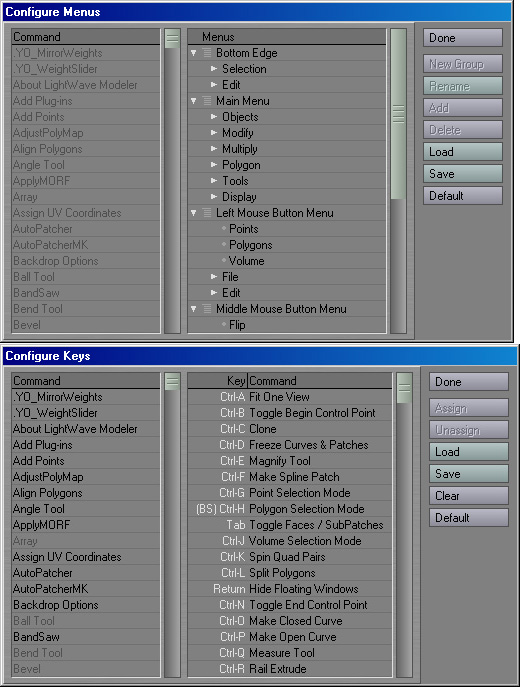
Adding buttons is easy once you understand how the tree structure works. The various parts of the interface are grouped under Headings. For example, Bottom Edge means the bottom part of Modeler where you find the Cut, Copy, Paste, and Selection Modes. If you expand Bottom Edge by clicking on the triangle, you'll see Selection and Edit Sub-headings. Expanding these even further will show you the individual buttons. In addition to adding buttons to the interface you can make your own Sub-Headings and rename or remove existing ones. Some Sub-Headings won't have a name. If you look closely at say, the Objects tab in Modeler, you'll see the Sub-heading names, Primitives, Polygons, etc. and then a small space before you the Numeric button and the Options button. That small space that separates those 2 buttons from the Polygon group is an unnamed Sub-Heading.
Adding or moving around buttons is easy. All you have to do is scroll down the left hand list until you find the function you want and drag it over to the interface tree. You'll see a line that indicates where the button will go (it goes right underneath the line). The length of the line shows you who it will appear under. For example, if you are trying to add a function to the Main Menu > Object Sub-Heading, make sure the line starts at Objects and not Main Menu. If a feature is grayed out, that only means it has already been assigned a button, you can still edit them.
Keyboard shortcuts are even easier. The one thing to keep in mind is an uppercase character means SHIFT+that character. So, if you wanted assign Rename Current Item to R, that really means SHIFT+r. Otherwise all you need to do is drag over features from the left onto a shortcut on the right (When the line appears in the right side while dragging over, position the line OVER the shortcut you want).