Helpful Hints Instructions For Yahoo and Clients

Setting up Ytunnel


Webcam
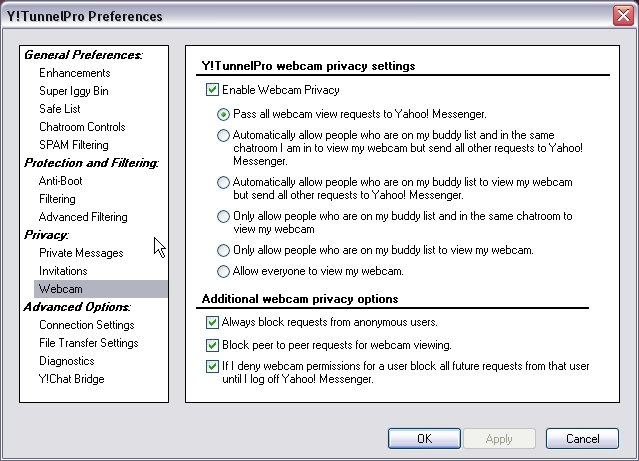
Enable webcam privacy.
Pass all webcam view request to Yahoo Messenger.
Always block requests from anonymous users.
Block peer to peer requests for webcam viewing.
A lot of boots are sent as webcam invites or
requests to view your webcam if you have one.
A hacker can also obtain your ip number from a
peer to peer webcam invite.
I previously covered the dangers of using a webcam
in the yahoo pages.


Connection Settings
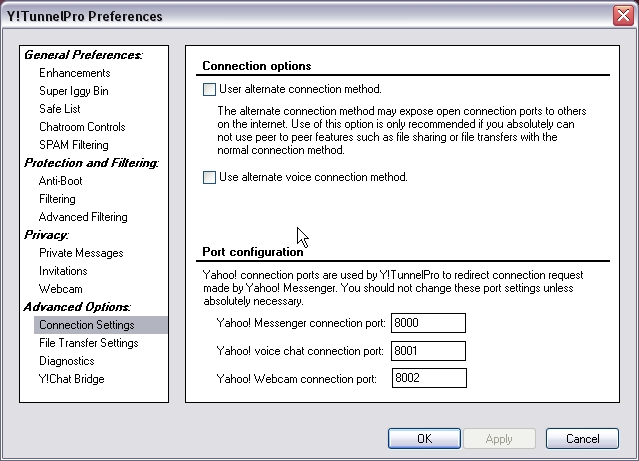
Don't use the alternate connection settings.
Using these will open ports on your computer that
are usually closed and make you more vunarable
to a hacker's attack.
Leave the port configuration as set in the default and
shown here.
I have used the alternate voice connection method
when having trouble with voice breaking up this
does help occasionally with sound problems.
I have also found using this option if you are booted
from the room and go back with another name
both the name you are now using and the previous
name you were using in the room will both have
voice enabled. Not much fun when you try talking
or playing music over voice afterwards unless you
can come back with the other name as well and
turn the voice off.
Diagnostics
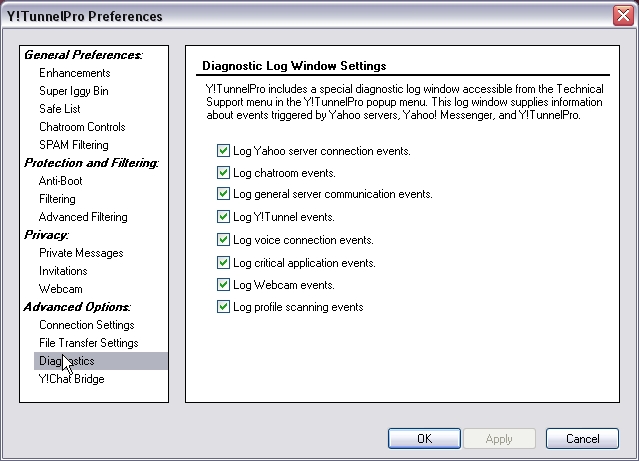
I log all Ytunnel events as these can be of help
sometimes in determining what was the cause of the
trouble or conflict error message.
Not much use to the inexperienced though.
This is the default setting in Ytunnel and can be
changed to your preferences.


Y!Chat Bridge
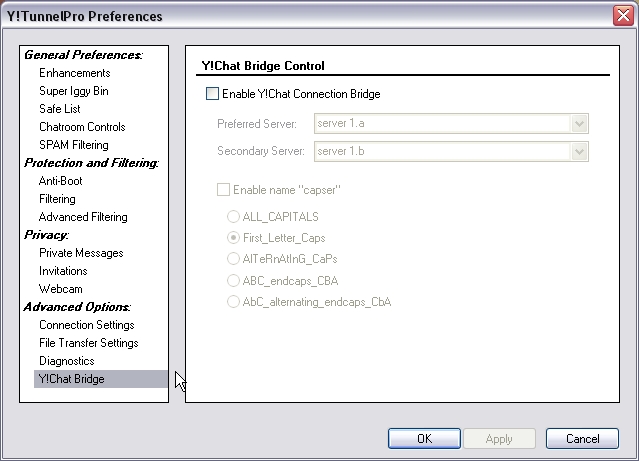
This option allows you to connect to yahoo using
the Ychat server.
The name you connect with is the only name you
will be able to enter the chat room using and you
will not be able to login as invisible.
I personally do not use this option and rather use
a yahoo client instead if I find I am being booted
from messenger.
This option does help with some boots but will not
prevent you from being disconnected or being
voice booted.
Use it if you are having trouble and have no other
alternative chat client.


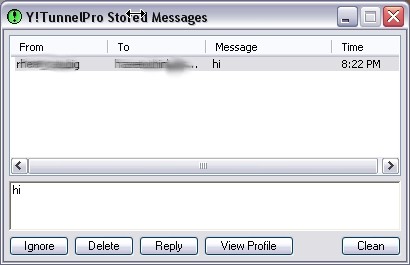
Ytunnel Stored Messages
You can open your stored message when you
recieve them from the right hand corner of the task
bar this is a green icon as seen here in the left corner
of the image clicking the icon will open the veiwer.
To place the sender into your iggy bin click Ignore.
To delete the message click Delete.
To reply to the message click Reply this will open
a private message box.
To view the profile of the sender click View Profile.
Click Clean to remove all messages in the stored
message viewer.

This is the last page for setting up of Ytunnel hope you have found the information contained here useful and not to hard to follow. On the following page's I have included some helpful hints that you may or may not find of use but is handy knowledge. Also I have added some information of how boot programs work and how the booters use them.

If you use the Ymlite chat client I have included some instructions for its use here.

Next: Hints and Tips 1

Back To: Ytunnel 3


Counter 


Hosted by www.Geocities.ws

1