Main Page / An overview of MT / File Menu / Bank Account View / Bill Tracking View / Auto Entries View / Plan Ahead View / Search Bank Account View
This section of the help file will talk about Plan Ahead view.
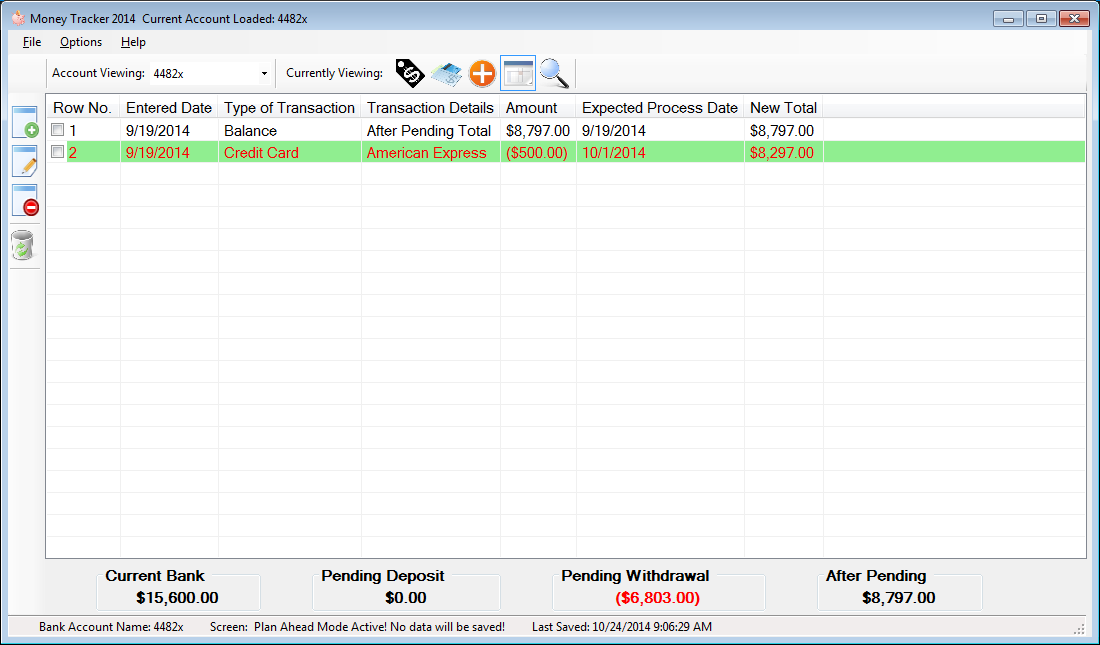
The following icons will appear when Plan Ahead view is selected.
 (Add Row): allows a user to add a plan ahead row to the select account viewing.
 (Edit Row(s)): allows a user to edit a plan ahead row.
 (Delete Row(s)): allows a user to delete a plan ahead from select account viewing.
 (Restart Planning): This allows you to restart your planning, if your wanting to restart over this is a quick way to restart your planning over.
*Please Note: This screen was designed to help decide what types of funds you will have available for you in the future, maybe it can help you decide if you'll have enough cash for an up coming trip or something.*
The first row found in this plan ahead session will always be current after pending balance in your account, it will auto update with your bank accounts new after pending amount. The *Running Total* column is for you
see what your new after pending will be if these rows were to be entered into the bank account section. The final entry will contain your new after pending if all these rows were to be added.
When clicking one of these three icons (Add Row) (Edit Row(s)) (Delete Row(s))
Here is a picture of the screen that will pop up:
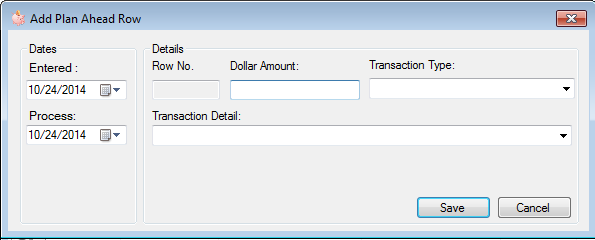
This screen allows you to add or edit the following:
-Entered: This is a date when you think this will be entered into your bank account.
-Process: This is simply the date you believe the payment will process into your bank account.
-Row No.: This is a number generated by the program.
-Dollar Amount: This is the amount you wish to deposit or withdraw from the account.
-Transaction Type: This will indicate what type of transaction this is into your bank account (Credit Card, Loan, Etc etc)
-Transaction Detail: This is the detail of the transaction *Discover, American Express, ect ect*
*Tip* - You may select multiply auto entries rows to Edit