This section of the help file will talk about Money Tracer Overview.
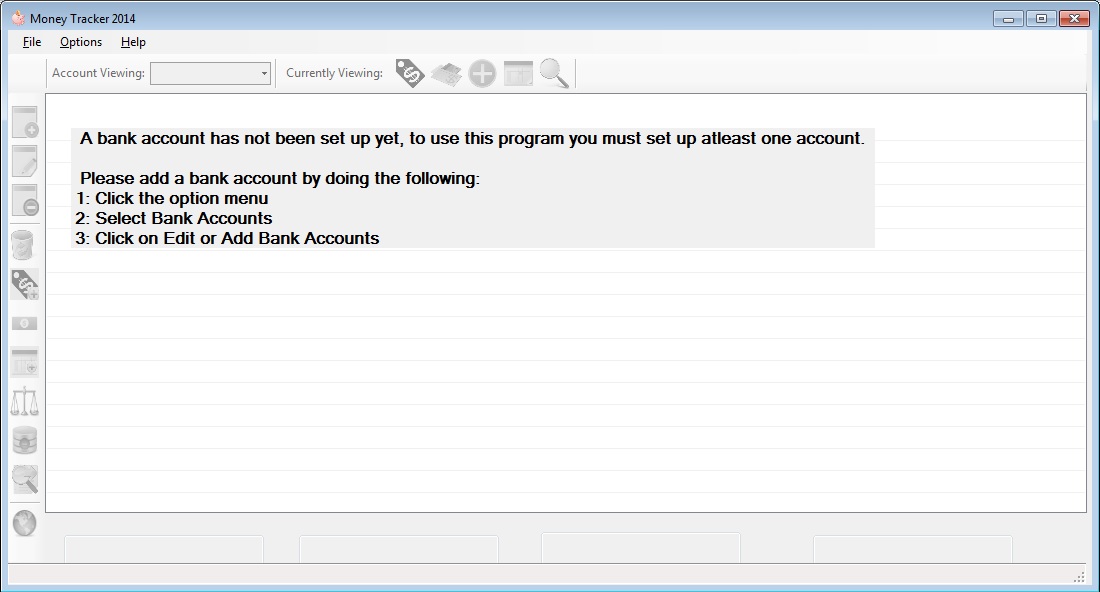
When you first start Money Tracer a message will appear on the screen, telling you before you can begin to use the program you must add an account to begin.
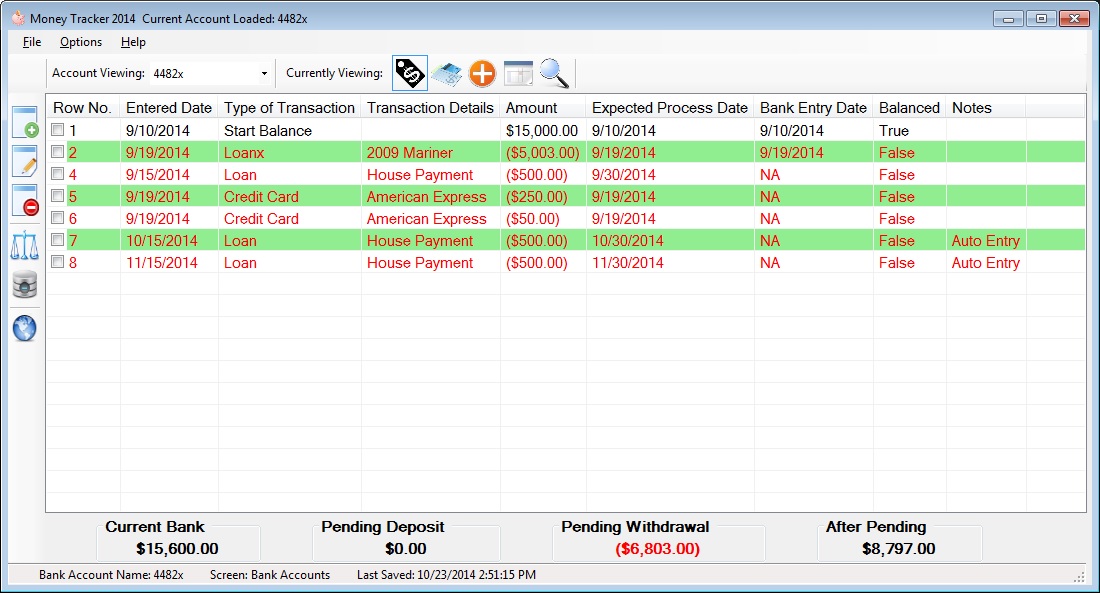
After this is complete, your icons should be active and you can begin adding to the program, your screen should look something like this:
This section of the help file is just a general information about the overall program.
When all said and done Money Tracer has 6 main areas you need to know about, by knowing this you will understand terms talked about later in this help file also.
File Menu This section is further discussed under *File Menu* but this contains options for the program as a whole.
Account Viewing Money Tracer allows you to keep track of multiply bank accounts, you may easily switch between your multiply accounts by selecting from the drop down the account you wish to view.

Currently Viewing This area is were you can switch between the five main tools Money Tracer offers:

They are as follows:
 (Bank Account) - Here is were you keep track of entries into your bank account, this is basically a ledger. (Bank Account) - Here is were you keep track of entries into your bank account, this is basically a ledger.
 (Bill Tracking) - Here is were you can keep track of all yours bills, this will allow you to keep track of totals owed, amounts due, when there due, and the website information. (Bill Tracking) - Here is were you can keep track of all yours bills, this will allow you to keep track of totals owed, amounts due, when there due, and the website information.
 (Auto Entries) - Here is were you can set up auto entries into your Bank Account on the day you specify. Helpful most of the time if you have automatic payments that come out of your Bank Account. (Auto Entries) - Here is were you can set up auto entries into your Bank Account on the day you specify. Helpful most of the time if you have automatic payments that come out of your Bank Account.
 (Plan Ahead) - Here is the place you can go to plan for the future, you can see how much everything is going to cost you. (Plan Ahead) - Here is the place you can go to plan for the future, you can see how much everything is going to cost you.
 (Search Rows from BankAccount) - Allows you to find specific transactions that you have entered into your bank account. (Search Rows from BankAccount) - Allows you to find specific transactions that you have entered into your bank account.
Side Bar
 This area will change, and has uniq buttons associated to the viewing area you are in at the time. Each help section breaks down the buttons found here into what exactly they do. This area will change, and has uniq buttons associated to the viewing area you are in at the time. Each help section breaks down the buttons found here into what exactly they do.
Data Rows

This area is were all the data is displayed through out this document you will see it called bank, bill, auto, plan, and search rows, this all really means data rows that were found for this section.
Account Viewing Totals

This area is visible on all Currently Viewing you select, it updates if you make changes to the account view, its here so you can know how much money is in the current account you are working with,
it also will inform you of pending deposits or withdrawals that have not hit your bank account yet. The final total you will see is what is known as after pending which is once everything clears what you'll expect to have in your account.
|