|
|
4
|
Sega GL
|
|
In This Section:
This section describes how to use the interface of the Sega Saturn-specific Direct Translator.
For information on how to run the translator, see Using the MakeGame Plug-in on page 7 and Using Translators from the Command Line on page 14.
Converting to Sega GL Files
|
|
|
|
|
Availability
The Sega plug-in and its documentation are available to Sega-certified developers only from the Sega Web site.
Sega GL Translator
Special Features
- Allows per-polygon texture pieces
- Optimized format for texture table
- Object melting converts all objects in the scene into one Sega GL object
- Outputs Sega GL source code
Limitations
- Cameras are not converted
- Soft body (vertex) animation is not converted
Installing
To install the Sega GL translator:
-
1
-
Download SE and SE.1 from the Sega Web site to a temporary directory on your computer.
-
2
-
Run InstallGame with the following options:
- -a alias-directory (the directory where Alias is installed. If you do not include this option, InstallGame will look in $ALIAS_LOCATION).
- -
e
(tells InstallGame the files are not encrypted).
- -
t target-dir (the directory where the files will be installed).
- -f source-dir (the source directory where the SE files are located).
Using the Sega GL Translator
|
|
|
|
|
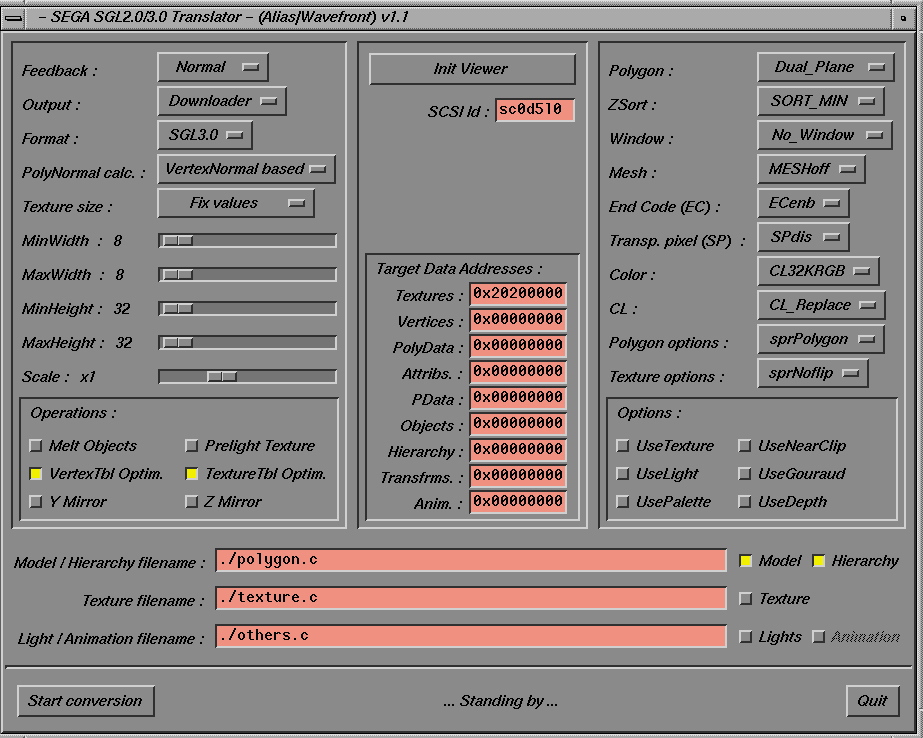
When you run the translator from MakeGame, the Sega GL Translator window appears. Use this window to set the options described in this section, then click Start conversion
to begin.
|
|
|
Translator Related Settings
|
|
This section is located in the
left side of the Sega
Translator window.
|
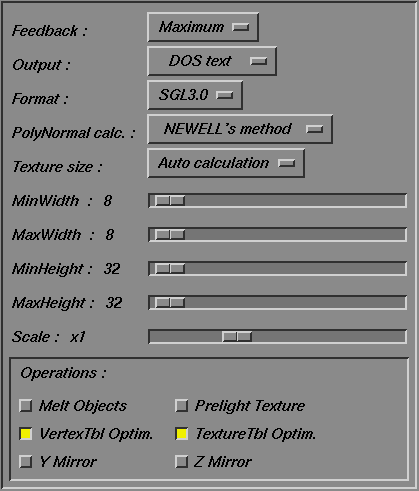
Feedback
-
- Lets you control the amount of information provided during conversion.
Output
- DOS text - outputs Sega GL source code to a file using CR+LF as the line delimiter.
- UNIX text - outputs Sega GL source code to a file using LF as the line delimiter.
- Downloader - downloads the source code directly to a connected Sega Saturn.
>
|
Note:
|
When you choose Downloader from the Output pop-up
menu, a new section containing Downloader-related options
appears.
|
Format
-
- Chooses the version (2.0 or 3.0) of Sega GL source code the translator will generate.
PolyNormal Calc
- VertexNormal based - uses the normals provided by Alias.
- NEWELL's method - calculates new normals using Newell's method. Use this option if you have any problems with polygons seeming "flipped" after conversion.
Texture size
- Fixed - gives all output textures the same size. Choose the width and height using the minimum and maximum sliders located underneath the Texture size menu.
|
|
When Texture size is Fixed,
the minimum and maximum
sliders become locked
together, allowing you to set
a single fixed size.
|
- Auto calculation - scales the output textures to a best fit within minimum and maximum values. Specify these values using the sliders located underneath the Texture size menu.
Scale
-
- The translator scales the whole model by this factor before converting it to Sega GL source code.
Operations
Melt Objects
-
- Flattens the hierarchy of objects into one large Sega GL object.
Texture Tbl Optim.
-
- Optimizes the texture table (do not repeat texture pieces).
Prelight Texture
-
- Applies a simple pre-light operation to the textures. Currently this operation uses only the polygon normals.
Vertex Tbl Optim.
-
- Optimizes the vertex table (do not repeat vertices at the exact same location). This option is only useful if Melt Objects is turned on.
Downloader Related Settings
|
|
This section appears when
you choose Downloader
from the Output pop-up
menu.
|
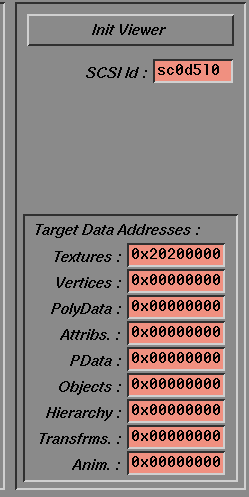
Init Viewer
-
- Click this button to reset the SCSI connection and download the monitor program to the connected Saturn CartDev.
|
|
|
-
- Click this button when you turn on the Saturn, and want to reset the viewer.
SCSI Id
-
- The SCSI identifier on the SGI side of the connection to the Saturn CartDev.
Start Frame and End Frame
-
- Start and end frames of the animation to convert.
Target Data Addresses
-
- These text boxes allow you to enter exact memory locations when downloading data to the Saturn.
-
- Enter 0x00000000 for continuous memory allocation. Refer to the Saturn programming manuals for more information.
SGL Related Settings
|
|
This section is located at the
top right of the Sega
Translator window.
|
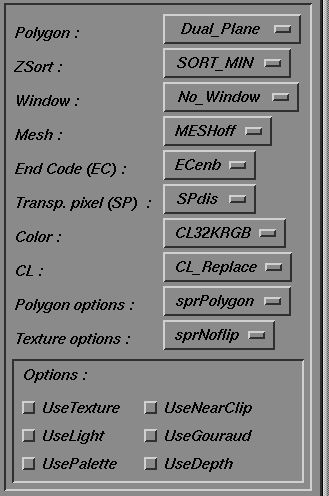
These options control standard Sega GL settings and modes. Refer to the Sega GL specifications for information.
File-Specific Settings
|
|
This section is located at the
bottom of the Sega
Translator window.
|
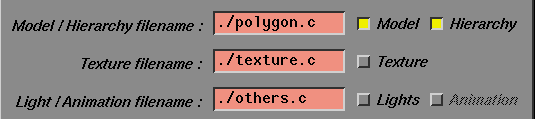
Use this section to enter filenames when you choose DOS text or
UNIX
text
from the Output pop-up menu.
Model/Hierarchy filename
-
- Filename for the file containing model and hierarchy information.
-
- Use the Model and Hierarchy checkboxes to choose which information to include in the file (usually you will leave both options on).
Texture filename
-
- Filename for the file containing texture information.
-
- Use the Texture checkbox to choose whether to output texture information.
Light/Animation filename
-
- Filename for the file containing lights and animation information.
-
- Use the Lights and Animation checkboxes to choose which information to include in the file.
>
|
Note:
|
Lights are not converted in this release.
|
GetSegaGL Command Line Options
-v
|
(verbose) Print progress updates during the conversion.
|
-fs n |
(frame start) Set n as the first frame of animation to output.
|
-fe n |
(frame end) Set n as the last frame of animation to output.
|
-s factor |
Scale the model by factor before converting.
|
-a |
Do not output animation.
|
-n |
Do not output MetaCycle information.
|
Alias Environment Variables
DT_EXPORT_DIR
-
- The directory where exported files are created. This is the same as the Export directory field of the MakeGame window.
- Parameters - a valid path to a directory
- Default - '.' (the current working directory)
Output
The Sega translator's Sega GL source code output is flexible. The translator can output up to three files:
- A file containing the model and/or hierarchy. If you turn both the Model and Hierarchy checkboxes off, this file is not created.
- A file containing the textures. If you turn the Texture checkbox off, this file is not created.
- A file containing the lights and/or animation. If you turn both the Lights and Animation checkboxes off, this file is not created.
>
|
Note:
|
Lights are not converted in this release.
|
Testing the Output
|
|
|
|
|
Before you Begin
-
1
-
Set up the development Saturn and CartDev according to their instructions.
-
2
-
Make sure the SCSI ID dial on the back of the CartDev matches the SCSI ID text box (in the Downloader related settings).
If you have problems with SCSI communications:
- Make sure the SGI SCSI ID's device (in the /dev/scsi directory) has write permission. Since only the root user can change the permissions, you may need to contact your system administrator.
- Change the CartDev SCSI ID dial and enter the new number in the SCSI ID text box (in the Downloader related settings).
- Shut down your workstation and restart it (contact your system administrator). When the workstation boots up again, it should find the CartDev as one of its SCSI devices.
Downloading to a Development Machine
-
1
-
Choose Downloader from the Output pop-up menu.
-
2
-
Click Init Viewer if you just switched on the Saturn, or if you want to reset the viewer.
-
3
-
Click Start conversion to convert the model to Sega GL and download it to the Saturn.
The following screen appears after the CartDev is initialized:
The following screen appears after the monitor program is downloaded:
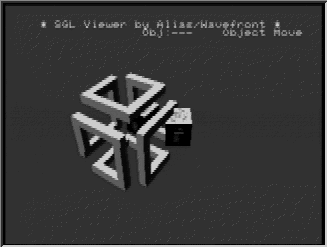
The following screen appears after the Alias|Wavefront viewer program is downloaded:
Using the Sega GL Demo Viewer
|
Standard mode
|
|
|---|
|
Left/Right Top buttons
|
Change mode.
|
|
A+B
|
Toggle information display.
|
|
A+B+C
|
Clear screen.
|
|
Object Move, Object Rotate, Object Scale modes
|
|
|---|
|
X
|
Show previous object.
|
|
Y
|
Show next object.
|
|
B
|
Show current object.
|
|
C
|
Reset transformations.
|
|
Left, Right
|
Move/Rotate/Scale in X
|
|
Up, Down
|
Move/Rotate/Scale in Y
|
|
Z+Up, Z+Down
|
Move/Rotate/Scale in Z
|
|
Camera Move mode
|
|
|---|
|
B
|
Show current object.
|
|
C
|
Reset moves.
|
|
Left, Right
|
Move camera in X.
|
|
Up, Down
|
Move camera in Y.
|
|
Z+Up, Z+Down
|
Move camera in Z.
|
|
Camera Rotate mode
|
|
|---|
|
Start
|
Switch between Look at (LAT) and Direct (NLM) modes.
|
|
B
|
Show current object.
|
|
C
|
Reset rotations.
|
|
Camera Rotate/Look At mode
|
|
|---|
|
X
|
Look at previous object.
|
|
Y
|
Look at next object. (When there is no current object, look at the origin).
|
|
Left, Right
|
Change longitude.
|
|
Up, Down
|
Change longitude.
|
|
Z+Up, Z+Right
|
Rotate camera around the Z-axis.
|
|
Z+Up, Z+Down
|
Move camera away from/toward the current object.
|
|
A+Up, A+Down
|
Increase/decrease Y offset.
|
|
Camera Rotate/Direct mode
|
|
|---|
|
Left, Right
|
Rotate camera around the Y-axis.
|
|
Up, Down
|
Rotate camera around the X-axis.
|
|
Z+Up, Z+Right
|
Rotate camera around the Z-axis.
|
|


