|
|
3
|
Sony PlayStation
|
|
In This Section:
This section describes how to use the interface of the Sony PlayStation-specific Direct Translator.
For information on how to run the translator, see Using the MakeGame Plug-in on page 7 and Using Translators from the Command Line on page 14.
Converting to PlayStation Files
|
|
|
|
|
Availability
Download the PlayStation translator and documentation from the Sony web site or the Sony developer CD.
Sony distributes the PlayStation translator as a non-encrypted tar file containing the translator, TIM image module, source code and Makefile.
GetPlayStation Translator
GetPlayStation converts Alias wire models to PlayStation file formats.
Special Features
- Hierarchical animation is converted.
- Per-polygon shaders and textures.
- Separate output of animation and modelling data.
- Optimized output of TOD data (removes "identity" TRS components).
- MetaCycle preview on PlayStation.
- VDF/NDF output for MIME animation.
- Output of sequences of TMD files.
- Control of STP bit in TIM files.
Limitations
- Solid textures are not converted.
- TOD format has a maximum scaling factor of 8.0. You must model in Alias so that you will not have to scale by more than 8.
- The RSD files generated by the PlayStation translator will not create the same TMD file when used with the RSDLink.exe program.
Installing
The translator archive is a non-encrypted, compressed tar file.
To install the PlayStation translator:
-
1
-
Note the path to the tar archive, whether you downloaded it to a directory if it is on the CD-ROM. You will need to tell InstallGame where it is.
|
|
See Installing Platform Specific
Libraries on page 5.
|
-
2
-
Run the InstallGame script to install the PlayStation-specific libraries:
-
InstallGame -e -f <path to tar file>
Using the PlayStation Translator
|
|
|
|
|
When you run the translator from MakeGame, the Sony PlayStation Export
window appears. Use this window to set the options described below, then click OK to start converting.
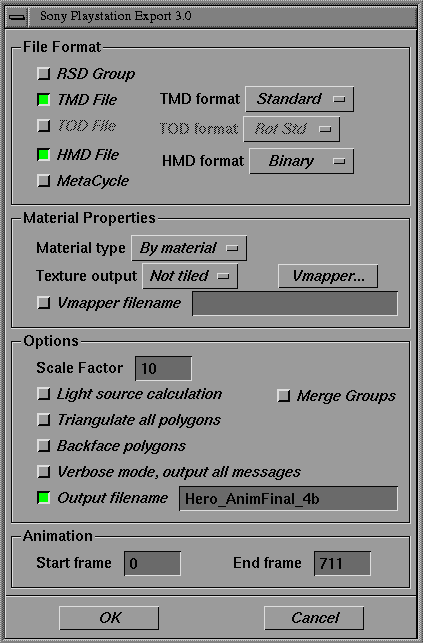
File Format Section
RSD Group
-
- Outputs the RSD group (PLY, MAT, GRP, and RSD files) for all geometry in the scene.
TMD file
-
- Outputs the TMD file for all geometry in the scene. Choose the type of TMD file format from the adjacent pop-up menu:
- Standard - outputs a TMD file for the specified frames of animation.
- Difference - outputs a VDF and NDF file for the specified animation frames for MIME animation.
- Sequence - outputs a sequence of TMD files for the specified frames.
TOD file
-
- Outputs a TOD file for animation (only available if the scene contains animation). Choose the type of TOD file format from the adjacent pop-up menu:
- Rot Std - transfers Alias rotation matrices directly (the most accurate).
- Rot Opt - is the same as Rot Std, but optimized (does not output data for objects that have "identity" matrices or TRS components).
- TRS Std - decomposes Alias rotation matrices into TRS values.
- TRS Opt - is the same as TRS Std, but is optimized so that it does not output data for objects that have "identity" matrices or TRS components.
HMD file
-
- Enables HMD output.
-
- This option outputs geometry only, in an ASCII-format LAB file. To produce a binary file, run this LAB file through the psx_endscript preprocessor script file
-
- This option does not output animation, colors, or textures. To output texture files, enable the TMD option (described above).
MetaCycle
- ON - outputs a NET file containing MetaCycle information.
- OFF - outputs the specified range of animation frames.
Material Properties Section
Texture output
- Off - does not output textures.
- Tiled - tiles the texture if the UV coordinates for the texture are outside the range from 0.0 - 1.0. Texture size is maintained. (If HMD output is enabled, this setting will allow HMD tiled output if possible.)
- Not Tiled - does not tile the texture if the UV coordinates are outside the 0.0 - 1.0 range. The UV coordinates are clipped.
Material type
- By material - outputs the texture according to the materials assigned in Alias.
- Flat - converts all materials to flat shading.
- Gouraud - converts all materials to Gouraud shading.
Vmapper
|
|
See Video RAM Mapper on
page 39.
|
-
- Click to open the Video RAM Mapper window. This window lets you load textures into the video RAM of the PlayStation.
Vmapper filename
-
- The Vmapper file name to use for video texture mapping.
Options Section
Scale Factor
-
- The translator will scale the whole model by this factor before conversion.
Light source calculation
-
- Replaces lights with a material that simulates the light source.
Triangulate all polygons
-
- Triangulates all polygons in the scene.
Backface polygons
-
- Turns on backfacing in the MAT file.
Verbose mode
-
- Writes all messages to STDERR (the shell or the console window) during the conversion.
Output filename
-
- Lets you specify a filename for HMD, TMD and TOD files.
Merge Groups
-
- This option is not implemented in this version. The option is included for use with a custom-written translator.
Animation Section
Start Frame/ End Frame
-
- Start and end frames of animation to convert.
Video RAM Mapper
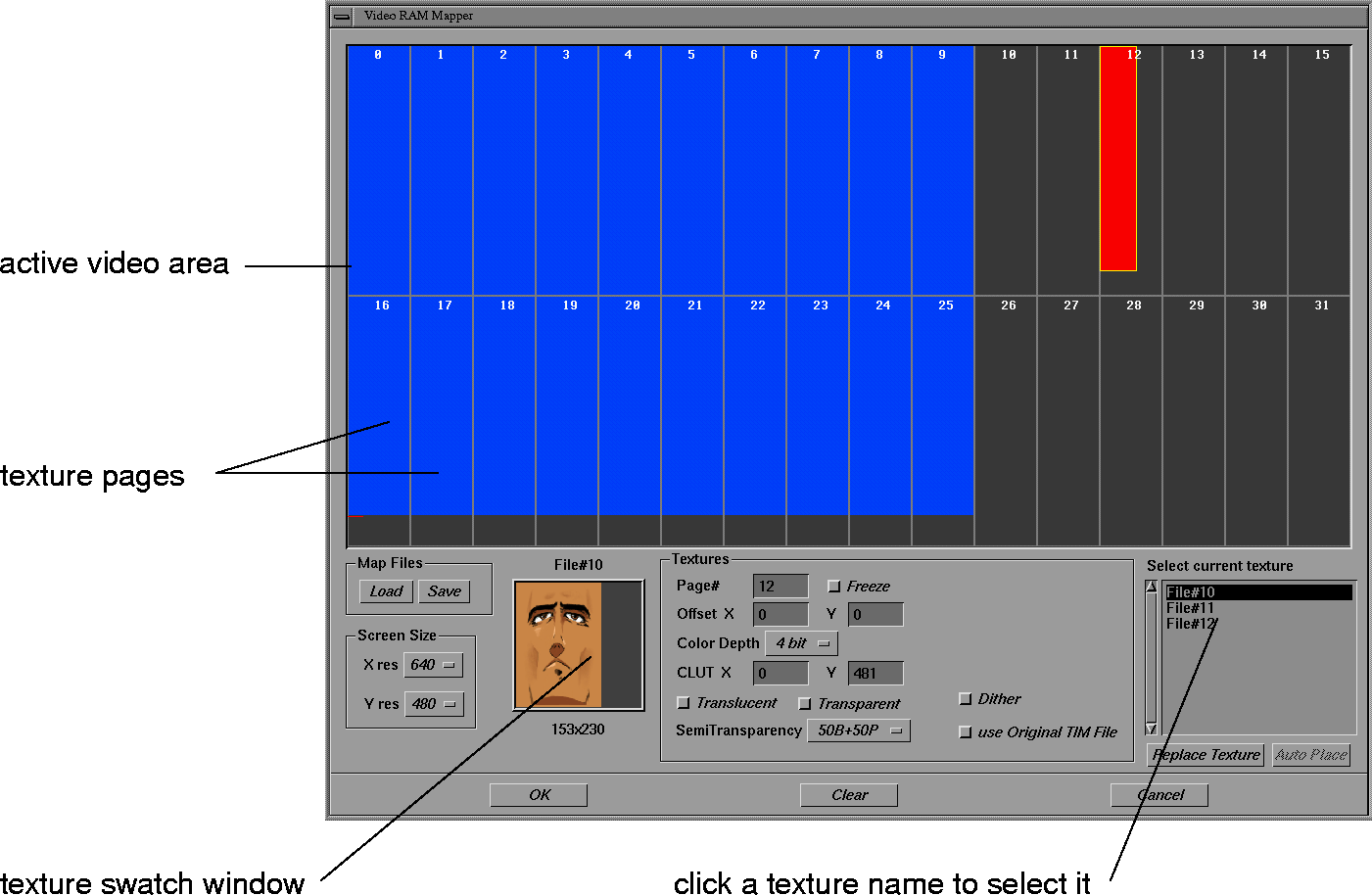
The Video RAM Mapper, also called the VMapper, allows you to place the textures used in the scene into the video RAM of the PlayStation development system. PlayStation video RAM is made up of 32 pages (numbered 0 to 31), represented in the VMapper by two rows of vertical bars.
To load a texture into video RAM:
-
1
-
Click a name in the Select current texture list. The Select current texture list shows all the textures in the scene.
-
The texture appears in the texture swatch area.
-
2
-
Click a page in the texture page area.
-
A rectangle appears. This rectangle represents the
memory size used by the texture.
-
3
-
Drag the texture rectangle to fit it. (Large rectangles will have to overlap pages.)
-
4
-
Use the controls at the bottom of the window to set up the texture (see below).
-
5
-
When you have set up all the textures in video RAM, click OK. To start over, click Clear. To cancel any changes and go back to the main window, click Cancel.
>
|
Note:
|
The light blue rectangles represent the active video area (the
part of memory reserved for the visible display). You cannot
place textures in this area. The amount of space taken by the
active video area reflects the screen size.
|
|
|
|
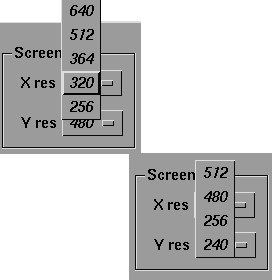
Screen Size Section
|
|
|
X Res
-
- The horizontal resolution of the PlayStation video screen.
Y Res
-
- The vertical resolution of the PlayStation video screen.
-
- Changing these options changes the size of the active video area (the part of memory reserved for the visible display). You cannot place textures in this area.
Map Files Section
Load
-
- Click to load a saved video RAM configuration.
-
- Textures that were saved in a previous session but are not available now will appear as unmovable black rectangles.
-
- If the Reload option (in the MakeGame window) was turned off, the texture swatch may not update. However, the textures will output correctly.
Save
-
- Click to save a video RAM configuration to disk.
Textures section
The Textures section displays the PlayStation video RAM information for the selected texture.
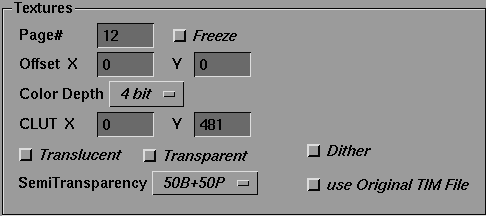
Page#
-
- The page of video RAM in which the texture resides.
Freeze
-
- Locks the position of the texture in video RAM.
Offset X,Y
-
- The horizontal and vertical offset of the texture in the page.
Color Depth
-
- The color depth of the converted texture.
-
- Changing the color depth affects the size of the texture in memory.
-
- Four-bit (16-color) textures have a yellow outline. Eight-bit (256-color) textures have a green outline. Sixteen-bit (65536-color) textures have a blue outline.
CLUT X,Y
-
- The horizontal and vertical location of the color look-up table, in Video RAM.
Translucent
-
- Turns on the transparency (STP) bit for color (non-black) pixels.
Transparent
-
- Turns on the transparency (STP) bit for black pixels.
Dither
-
- Dithers when generating a palette-mapped image.
Use Original TIM File
-
- Tries to use the original TIM file from the Alias shader as the texture. The original TIM file is copied to the output directory and the VRAM display is updated.
SemiTransparency
-
- A pop-up menu that lets you control semi-transparency. (See your PlayStation documentation for more information.)
GetPlayStation Command Line Options
|
|
See Output on page 46 for a
description of the GUI
interface.
|
Most of the command line options duplicate controls in the GUI window.
If you turn the GUI checkbox off in the MakeGame window, enter these options in the Option
field to control the conversion:
|
GetPlayStation options
|
Descriptions
|
|---|
|
-v
|
(verbose) Output progress updates during conversion.
|
|
-rsd
|
Output RSD group.
|
|
-tmd option
|
Output TMD file. For option, use:
standard = output a TMD file for the specified frames of animation.
difference = output a VDF and NDF file for the specified animation frames for MIME animation.
sequence = output a sequence of TMD files for the specified frames.
|
|
-tod option
|
Output TOD file. For option, use:
r = transfer Alias rotation matrices directly (the most accurate).
R = same as above, but do not output data for objects that have "identity" matrices or TRS components.
t = decompose Alias rotation matrices into TRS values.
T = same as above, but do not output data for objects that have "identity" matrices or TRS components.
|
|
-net
|
Output MetaCycle file.
|
|
-flat
|
Convert all material to flat shading (cannot be used with -gouraud).
|
|
-gouraud
|
Convert all material to gouraud shading (cannot be used with -flat).
|
|
-s factor
|
Scale model by factor before converting.
|
|
-lightSource
|
Turn pre-light sourcing ON.
|
|
-b
|
Turn backface polygons ON.
|
|
-t
|
Triangulate all polygons.
|
|
-x scriptname
|
Run shell script scriptname after conversion.
|
|
-tile
|
Set texture tiled mode.
|
|
-hmd
|
Output an HMD file.
|
|
-help
|
Output a list of options
|
|
-VRM filename
|
Load in the specified texture Vmapper file.
|
>
|
Note:
|
If you do not use the GUI (and the video RAM mapper tool),
the translator will not output texture information.
|
Alias Environment Variables
DT_EXPORT_DIR
-
- The directory where exported files are created. This is the same as the Export directory field of the MakeGame window.
- Parameters - a valid path to a directory
- Default - '.' (the current working directory)
DT_PCNAMES
-
- Enables the translator to output files with DOS-compatible filenames of the form DTF#dddd (where dddd is a 4-digit number) whenever filenames exceed the 8- and 3- character DOS name and type limits. There is no easy way to match these numbers to the original filenames.
DT_PSX_BEGSCRIPT
-
- Lets you specify a shell script to run before conversion.
- Parameters - a valid path to a directory (for example, /usr/aw/alias/ODS/Games/bin psx_begscript).
DT_PSX_ENDSCRIPT
-
- A shell script to run after conversion.
- Parameters - a valid path to a directory (for example, /usr/aw/alias/ODS/Games/bin/psx_endscript).
DT_PSX_H1500_LOADER
-
- The pathname of the DTL-H1500 loader program. If this variable is set, the psx_endscript script will use this DTL-H1500 program to view the converted model.
- Parameters - a valid path to a directory
DT_TIM_DIR
-
- The default directory for the Replace Texture button.
- Parameters - a valid path to a directory
DT_VRM_DIR
-
- The directory for loading and saving vrm files.
- Parameters - a valid path to a directory
PLAY_DEGEN_FACTOR
-
- Sets the limit of tolerance for determining if a polygon is degenerate. (If set < 0.0, then polygons will never be found to be degenerate, even if they actually are.)
- Parameters - a floating point value (units = degrees)
PLAY_DIFF_MATRIX
-
- Sets a flag to enable output of difference matrix/TRS components rather than absolute matrices. This output is not fully implemented in the current translator.
- Default - outputs absolute matrix/TRS values
PSX_BLINDDATA_TAG
-
- Lets you specify a blind data ID tag.
PSX_NOHMDTILED
-
- Will not use the HMD tiling options, as specified in the Sony PlayStation Export window.
-
- If you didn't specify resample by tiling (in the Texture output section of the Sony Playstation Export window), there may be a UV range outside of 0 to 1.0. In this case, the HMD output tool will attempt to use the HMD tiling options (as set by PSX_V_ORIENTATION), which may or may not work depending on the location of the textures in the VRAM setting.
PSX_RSD_SCALE
-
- Adds the texture page offset to the texture UV values (included for backwards compatibility with an older version of the translator).
PSX_V_ORIENTATION
-
- HMD option for tiling the UV range.
>
|
Note:
|
You can type environment variable names in Alias text
boxes (such as the MakeGame Options field). The text box
will replace the variable with its value.
|
Output
|
Filename
|
Contents
|
|---|
<scene>.hmd |
HMD geometry. In binary data file format.
|
<scene>.lab |
HMD geometry. In ASCII LAB format.
|
<scene>.tmd |
Geometry.
|
<scene>.objects |
List of PlayStation objects (TMD) IDs and the corresponding Alias object/
|
<scene>.tod |
Animation information.
|
<scene>.net |
MetaCycle information.
|
<texture name>.tim |
PlayStation texture map files.
|
>
|
Note:
|
The demo Viewer batch file requires that the output files be
named test
(test.tmd, test.tod, test.net, and
*.tim).
|
Testing the Output
|
|
|
|
|
Types of Demo Viewers
Alias|Wavefront supplies demo viewers for three different types of PlayStation developer configuration:
- DTL-2000 (PC PlayStation card)
- DTL-1500 (stand-alone ethernet PlayStation)
- DTL-3050 (serial cable connection to development PlayStation)
The viewers are based on the provided PlayStation demo viewer source code.
Setting Up the Demo Viewer
On a PC with the DTL-2000 PlayStation Card
To test your PlayStation output, you must download the output to a PC on the network running the development environment and the Alias|Wavefront Demo Viewer. This process can be automated with the supplied shell scripts, but first you must install the Demo Viewer on the development PC.
To install the demo viewer on a development PC:
-
1
-
Create a directory structure on your PC:
-
cd <hard drive letter>:\
mkdir awgames
cd awgames
mkdir bin
mkdir psx
-
2
-
Copy the viewer source files from the Alias installation to the PC:
cd psx

xcopy \\<sgimachinename>\usr\aw\alias\ODS\Games\source\PlayStation\tools\PC\*
-
3
-
Edit the rerun.bat file. Make sure the path names point to the correct locations of the PC executables and the PlayStation PC development system.
-
4
-
Copy the PC executable programs to the bin directory:
-
copy chk_bios.com ..\bin
copy netv.bat ..\bin
copy rerun.bat ..\bin
netv.bat
-
- The front-end batch file for netv.cpe (loads the TMD/TIM/TOD/NET files to the expected memory locations and runs netv.cpe).
shownetw.bat
-
- The batch file that watches the user-specified directory, and runs netv.bat when new test files are saved. Use this batch file on the PC to automatically view models on the PlayStation when they are converted.
netv.cpe
-
- The example executable Demo Viewer.
netv.c
-
- The source code for the Demo Viewer.
makefile.mak
-
- The PC makefile for the Demo Viewer.
chk_bios.com
-
- The utility needed by the Demo Viewer (checks the development machine for the presence of the dex BIOS).
rerun.bat
-
- The secondary batch file needed by the Demo Viewer (checks if the dex BIOS is loaded and resets the PlayStation development console if necessary).
On an SGI Workstation with the DTL-H1500 Stand-alone Box
To use the H1500 viewer, set the $DT_PSX_H1500_LOADER variable to the pathname of the H1500 viewer executable on your SGI workstation:
setenv DT_PSX_H1500_LOADER /usr/aw/alias/ODS/Games/bin/PSXloader
When the sample psx_endscript script checks that the variable is set, it will run the demo viewer on the development PlayStation.
When you install the PlayStation translator, the H1500 version of the demo viewer is installed in the Dtplugins directory. It is a CPE executable.
>
|
Note:
|
The H1500 development environment must be set up, with
the utilities (such as psbload and psrun) in your $PATH.
Check the psx_endscript file for the location of the Sony
development environment.
|
On an SGI Workstation with the DTL-H3050 Serial Cable
|
|
sbload and srun are
available from the PSX
development web site.
|
To use the DTL-H3050 serial cable, you must load the files onto the development machine with the sbload program, then run the code with the srun program. The PSXloader program checks for the following environment variables:
|
|
They will download .EXE
files only (not CPE format)
The Alias supplied files are
currently in CPE format and
cannot be downloaded
directly. You must convert
them to .EXE format with
tools supplied by Sony.
|
DT_PSX_3050_LOADER
-
- The path of the SGI executable to use to download a file through the 3050 serial cable (usually sbload).
DT_PSX_3050_RUN
-
- The path of the SGI executable to use to send the run command to the development system through the 3050 serial cable (usually srun).
Downloading to a Development Machine
To download and test from UNIX, use the shell scripts psx_begscript and psx_endscript:
-
1
-
The scripts provided are examples. Use a text editor to modify the scripts to fit your configuration.
-
2
-
Set the environment variables $DT_PSX_BEGSCRIPT and $DT_PSX_ENDSCRIPT to the full pathnames of the modified scripts. For example:
setenv DT_PSX_BEGSCRIPT /usr/aw/alias/ODS/Games/bin/psx_begscript

setenv DT_PSX_ENDSCRIPT /usr/aw/alias/ODS/Games/bin/psx_endscript
-
3
-
The PlayStation translator will run the scripts for each conversion.
Running the Demo Viewer on the PC
- To view results of a conversion on the development PC, type:
-
netv <test_dir>
-
Where test_dir is a directory containing the output files
(for example, h:\GET\download).
- To automatically update the demo viewer when you convert a model, use shownetw instead of netv:
-
shownetw <test_dir>
>
|
Note:
|
The Demo Viewer batch file requires that the output files be
named test
(test.tmd, test.tod, test.net, and
*.tim).
|
|


