|
|
2
|
Nintendo 64
|
|
In This Section:
This section describes how to use the interface of the Nintendo 64-specific Direct Translator.
For information on how to run the translator, see Using the MakeGame Plug-in on page 7 and Using Translators from the Command Line on page 14.
Converting to Nintendo 64 Source
|
|
|
|
|
Availability
The Nintendo 64 plug-in and its documentation are available to Nintendo-certified developers only.
The part number of the Nintendo 64 translator is PA-NU64N. To receive the translator you must request it from Alias|Wavefront and show that you are a certified Nintendo 64 developer.
Nintendo 64 Translator
The Nintendo 64 translator converts Alias wire models to C source code for use with the Nintendo 64.
Special Features
- The Partner 64 development systems are now supported.
- Hierarchy is preserved in the Nintendo 64 display list.
- Textures are converted according to the blind data set in the wire file (or a texture resource if no blind data specifies output).
-
Default texture output is a 32 by 32 pixel 32 bit RGBA
image, but you can change this using the Ultra 64 shading
options
window.
- Polysets are optimized to minimize vertex cache loads, and increase the number of triangles rendered for each cache.
- Animation is translated using a base array of transformations, with new values copied into the array for each frame from a list of positions.
- Instances are converted intelligently.
Limitations
- Cameras are not converted.
- Textures are always wrapped.
- Textures are not checked against hardware texture size limitations.
- Soft body (vertex) animation is not converted.
- Before running the translator, you must open the Nintendo64 Texture Setting box and then close it (no modifications are needed).
Installing the Translator
|
|
See Installing Platform Specific
Libraries on page 5.
|
To install the Nintendo 64 translator, run the InstallGame script to install the Nintendo-specific libraries.
|
|
See Testing the Output on
page 30 for information on
installing the sample viewer
program on your Nintendo
developer system.
|
File Layout
/usr/aw/alias/ODS/Games/

	bin/<shell scripts>

	Dtplugins/<translator>

	source/Nintendo/

		src/<translator source code>

		viewer/<viewer source code>

		f3dex/<new F3DEX viewer source code>
Using the Nintendo 64 Translator
|
|
|
|
|
Options
When you run the translator from MakeGame, the Nintendo 64 Translator window appears. Use this window to set the options described below, then click OK to start converting.
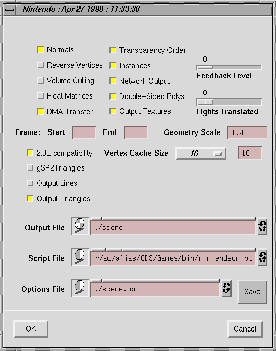
Normals
- ON - stores normals on the vertices
- OFF - stores color data only
>
|
Note:
|
If you output a model with normals, make sure that it's lit,
and that the Lights Translated slider is greater than zero.
|
Reverse Vertices
-
- Reverse the order of vertices in every triangle in the model.
Volume Culling
-
- Generates volume culling code for each group in the model. (This option is not currently available.)
Float Matrices
-
- Includes the floating point representations of the transformation matrices as comments.
DMA Transfer
-
- Generates code to do DMA transfers of animation transformations into the display list.
Transparency Order
-
- Sorts the groups so transparent groups are rendered after opaque groups. This is necessary for correct Z-buffering for models with both transparent and opaque groups.
Instances
-
- Translates instances in the wire model intelligently (use the display list in the output code to simulate instances).
Network Output
-
- Outputs MetaCycle information and source code.
Double-Sided Polys
- ON - uses the information in the Render Stats window to determine double-sided and single-sided groups
- OFF - translates all polygons as single-sided (with appropriate back-culling code)
Start Frame and End Frame
-
- Starts and ends frames of animation.
>
|
Note:
|
These frame numbers are relative to the start frame you
entered in the MakeGame window. For example, if you
entered frame 65 as the start frame in the MakeGame
window, then frame 0 here will refer to frame 65 of the
original Alias animation.
|
Feedback Level
-
- Numbers from 0 to 9 specifying the level of messages and updates to provide during translation.
-
- Level 0 means the translator will only print error messages. Messages above level 3 are only of interest to developers for troubleshooting.
Lights Translated
-
- specifies the maximum number of lights to translate into model code.
-
- If you are outputting normals, set this number higher than zero. If you are using surface colors instead of normals, set this number to 0.
-
- If you output normals, but set this number to 0, the model will appear brightly lit in a rainbow of colors (because the Nintendo 64 treats the normals as colors).
Geometry Scale
-
- The translator will scale the whole model by this factor before conversion. This is in addition to scaling applied by MakeGame or DtExport.
2.0E compatibility
-
- Turns off other options in the window that don't work with earlier versions of the Nintendo 64 microcode.
gSP2Triangles
-
- Uses a new microcode command to render two triangles with one command.
Output Lines/Triangles
- ON - outputs lines and/or triangles
- OFF - outputs triangles only
-
- The lines are the edges of the triangles that would be output otherwise. the translator does not output NURBS curves.
Vertex Cache Size
-
- Choose from various default values corresponding to F3DEX microcode versions, or enter a custom value.
Files
-
- The path and stub name (without any extension) of output files. You can use standard SGI drag-and-drop into the icon drop pocket on the left.
Script File
-
- A script or executable to run after translation. The translator passes two arguments to the script: the directory containing the output files, and the stem name (see below).
|
|
See Testing the Output on
page 30.
|
-
- Alias|Wavefront supplies a script (nin_endscript) for automatically downloading and testing output code on a Nintendo development system.
Options File
-
- A file containing GetNintendo settings (values for all the settings above). This file is read when the GetNintendo window opens, and saved when you click Save or OK.
Directory Path
-
- The path to the directory where output files will be created. (This is the same as the directory path you specified in the MakeGame window).
Stem
-
- The base name of all output files. Suffixes are added to this name to create the different types of output. (This is the same as the directory path you specified in the MakeGame window).
Output
|
Filename
|
Contents
|
|
<scene>.c
|
Top-level display list.
|
|
<scene>.h
|
External declarations of common data structures.
|
|
<scene>_vertices.c
|
Vertex arrays for model geometry.
|
|
<scene>_polygons.c
|
Displays lists to load and display model geometry as triangles.
|
|
<scene>_tris.c
|
Displays lists to load and display model geometry as lines.
|
|
<scene>_material.c
|
Displays lists to change material data,
Display lists to load textures.
Texture data.
|
|
<scene>_light.c
|
Displays lists to set up RSP lighting data.
|
|
<scene>_xfm.c
|
Array of all matrices in the model.
|
|
<scene>_xfm_static.c
|
Array of animated matrices for use in animation.
|
|
<scene>.raw
|
Binary image of animated matrices for use in animation.
|
|
<scene>_code.c
|
Code for updating animated data and lights.
|
Setting Nintendo 64 Properties in Alias
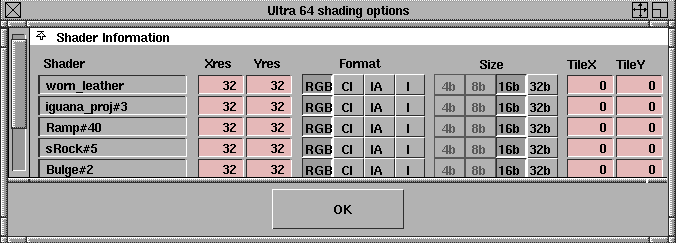
To open the Ultra 64 shading options
window:
-
1
-
Make sure you have assigned shading and textures to your model.
|
|

|
-
In the Tool Palette, select Object Edit > Ultra64 -
 , or click it's
icon. The Ultra 64 shading options window appears. , or click it's
icon. The Ultra 64 shading options window appears.
-
2
-
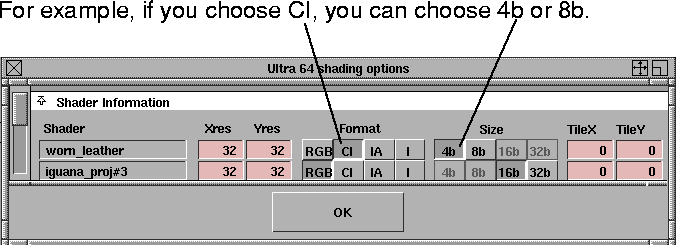
Change the texture attributes using the Xres, Yres, TileX, or TileY
boxes, or choose from the standard Format options.
-
The Size buttons are available according to the Format you
choose.
Testing the Output
|
|
|
|
|
Installing the Demo Viewer
The Nintendo 64 Demo Viewer is in the source tree, in the Games area of the standard Alias installation. You can use the Demo viewer with the Indy development system and the Partner 64 systems.
>
|
Note:
|
This section assumes the Partner 64 system is installed
correctly in /usr/local/partner.
|
|
|
When using the Partner-N64 system, make sure the Partner
hardware and software are properly installed. In particular,
make sure your .cshrc file sets the $PTHOST environment
variable to the correct network name of the development
system (for example: setenv PTHOST n64_dev1).
|
You need to do two things to install the Demo Viewer:
-
1
-
Copy the viewer source files to a working directory.
-
2
-
Customize the shell script the translator uses to start the Viewer.
I. Copying the source
You need to copy the sources from the Alias installation (which is owned by root) to a working directory in your home directory.
-
1
-
Type the following commands into a shell:
cd

mkdir -p n64/demo

cp /usr/aw/alias/ODS/Games/source/Nintendo/f3dex/* n64/demo
-
2
-
Change the MakeGame/Nintendo translator settings to output to ~/n64/demo.
II. Customizing the script
The Alias installation includes the nin_endscript shell script, which automatically compiles and downloads the translator output to the development board you're using. You can modify this script to set the following options:
- Whether you have a Partner 64 or Indy development board.
-
Set usingPartner to 0 for an Indy board; 1 for a Partner 64
system.
- Whether to use a remote development system.
-
Set run_locally to 0 if the development board is on your
local workstation; 1 if the development board is on a
remote machine on the network.
-
If the development board is on your local workstation,
comment out use_host.
-
If the development board is on a remote machine,
uncomment use_host and set it to the network name of
the remote host.
- The make program to use when compiling (such as make or smake).
-
Set MAKE to the path of the make program. The default is
/usr/bin/make.
- The network address of the Partner 64 system (if needed).
-
If the $PTHOST environment variable or default name are
correct, comment out pthost.
-
If the $PTHOST and default names cannot be used, set
pthost to the network name of the Partner development
system.
Remote Installation
To use a Partner 64 system on a remote machine, your system administrator must make the following changes on the remote system:
- You must be able to log on the remote machine without typing a password.
-
This is set in the /etc/hosts.equiv file, or in a local
.rhosts file.
- You must be able to set the DISPLAY environment variable on the remote machine. Set it on the SGI desktop using the Customize: Desktop control panel from the Desktop menu. Turn on the Enable Remote Display option.
- You must have write access to the directory where the translator writes output files.
Development System Types
Alias|Wavefront currently supports the following development systems: Original SGI Indy development board., and Partner-N64 for workstations
Downloading to a Development Machine
nin_endscript and nin_endscriptWrapper build a ROM from the viewer code and download it to a Nintendo 64 development console.
These scripts are run automatically by MakeGame and DtExport when you convert a model.
>
|
Note:
|
If the files are located on a remote machine, the scripts will
use rsh to run the ROM building process. Using this
feature, several users can create and translate models, and
share one development workstation for viewing their
output.
|
If nothing is visible in the demo viewer after the model downloads, press the "L" button on the console's control pad. The on-screen menu appears; check it to make sure the download was successful.
Using the Nintendo 64 Demo Viewer
Use the Nintendo 64 controller to view the model in the Demo Viewer. The following controls will help you navigate around.
|
Center Joystick
|
Rotate/move model.
|
|
Z trigger
|
Change joystick mode (scale, rotate, move).
|
|
L button (left top button)
|
Show/hide on-screen menus.
|
|
Direction pad
|
Use on-screen menus.
|
|
C arrow buttons
|
Show MetaCycle snippets (if MetaCycle information was converted).
|
|


