|
|
1
|
Translating Game Data
|
|
In This Section:
Installing the MakeGame
Plug-in
|
|
|
|
|
Installing MakeGame and the Direct Translators
The direct translators for games are installed as a standard part of the Alias software under ODS/Games/.
>
|
Note:
|
The Alias|Wavefront game platform translators are shipped
on the standard Alias distribution disk. However, some
platform-specific parts of the translators are only available
through the use of encryption strings (after authorization) or
directly from the game platform manufacturers.
|
Directory Structure of Games
The plug-in translators and related files are stored in $ALIAS_LOCATION/ODS/Games in the following directories:
Dtplugins/
-
- Direct translator DSO files.
bin/
-
- Executables and scripts.
lib/
-
- Shared DSO library files.
include/
-
- Include files for the Dt API.
plugins/
-
- Alias games plugins.
pst/
-
- PST files required by some of the older Games utilities (such as RTG).
source/
-
- Source code for the Dt API and translators.
Installing Platform Specific Libraries
To install game platform specific libraries, use the InstallGame script (/usr/aw/alias/ODS/Games/bin/InstallGame):
Options:
|
-h
|
print usage information
|
|
-e
|
assume files are not encrypted
|
|
-d
|
decrypt the library file only
|
|
-a AliasDir
|
look for Alias in AliasDir
|
|
-f Sourcedir
|
install from Sourcedir (must be an absolute path)
|
|
-t Destdir
|
install to Destdir (must be an absolute path)
|
|
-s System
|
install files for System
|
>
|
Note:
|
If you run InstallGame with no options, it uses
$ALIAS_LOCATION/ODS/Games as the source (-f
) and
destination (-t
) directories.
|
To unpack available libraries:
-
1
-
Log in as root and type /usr/aw/alias/ODS/Games/bin/InstallGame
-
2
-
InstallGame asks where Alias is installed:
-
==========================================
Alias | Wavefront Game Export Tool 2.0
library installer
-
==========================================
Enter your ALIAS_LOCATION (press enter to
use /usr/aw/alias)
-
If the default location is correct, press Enter. Otherwise,
type the full path to the Alias directory (for example,
/usr/aw/alias).
-
3
-
InstallGame prints a list of available game libraries (based on your encryption string):
-
The following games libraries are enabled
by this encryption:
-
Code Description
-
---- -------------------------
-
N Game Library for Nintendo
-
...
-
Which game libraries would you like to
install?
-
Enter the codes for the libraries separated
by spaces or enter "none" or "exit" to exit
the installer:
-
4
-
Type the letter for each library you want to install, separated by spaces. Make sure you match the case of the printed code (in the example above, you would have to type an upper-case N to install the Nintendo library).
-
If you don't want to install any libraries, type none.
>
|
Note:
|
If InstallGame does not list any libraries, make sure your
encryption string was installed correctly.
|
Customizing the MakeGame environment
>
|
Note:
|
You do not need to set these variables if you installed
normally. They allow site administrators to customize the
Alias environment for a special site set-up.
|
Set the following environment variables to change where MakeGame, DtExport, and translators look for files:
$GAMES_LOCATION
-
- Directory containing the lib, Dtplugin, and include directories (usually $ALIAS_LOCATION/ODS/Games).
$DT_PLUGIN_LOCATION
-
- List of directories containing Dt translators. Separate each directory with a colon(:).
$DT_EXPORT_DIR
-
- Directory where exported files are saved.
Using the MakeGame Plug-in
|
|
|
|
|
Loading MakeGame in Alias
After you add the games plug-ins to the list of plug-ins in Alias, you still need to load the plug-ins to use them.
-
1
-
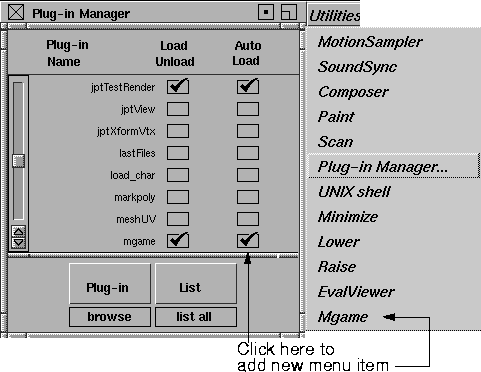
Choose Utilities > Plug-in Manager to display the list of all known plug-ins.
-
2
-
Find the plug-in called mgame.addin.
-
3
-
Click in the box next to the mgame.addin entry to load the plug-in.
-
Alias adds the plug-in to the Utilities menu.
>
|
Note:
|
Click the Load/Unload checkbox again to unload the
MakeGame plug-in. If a translator is loaded, clicking the
checkbox will unload the translator. Click again to unload
the plug-in.
|
Translating Data with MakeGame
-
1
-
Choose Utilities > MakeGame. The MGame Data Translator Manager window appears.
-
2
-
Choose an output translator (based on platform or output format) from the pop-up menu.
-
To use other Direct Translators (for example, custom
written translators), choose Custom and type the name of
the translator in the DSO Name field.
-
3
-
Set the various translation properties in the lower part of the window. (See Translation Properties below). These settings determine what geometry and animation data Alias gives to the translator.
-
4
-
Click Go.
-
MakeGame will run the appropriate translator. See the
following chapters for how to use the individual Direct
Translators.
Options
Translator
|
|
See Adding a Translator on
page 18.
|
-
- Pop-up menu of known translators. If you create a new translator you can add it to this list.
DSO name
-
- The absolute path to the translator program you want to run.
-
- If the translator you want is not in the Translator pop-up menu, choose Custom from the the pop-up menu, then enter the path to the translator in this text field.
Loaded
-
- Check this box on to load the translator into memory. Uncheck this box to unload the translator from memory.
>
|
Note:
|
You can use this control to reset the options of the translator:
unload the translator, then reload it to restore the last saved
options.
|
Translation Properties
General
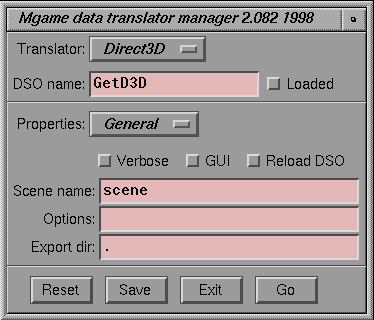
Verbose
-
- Displays information on the construction of the Dt database while translating the Alias model.
GUI
-
- Uses the Direct Translator's graphical user interface.
Reload DSO
- ON - unloads the translator after each use.
- OFF - keeps the translator in memory for multiple runs.
Scene Name
-
- Names the output file.
Options
-
- Translator-specific command line options (usually not necessary when GUI is ON).
Export dir
-
- Path of the output directory.
Geometry
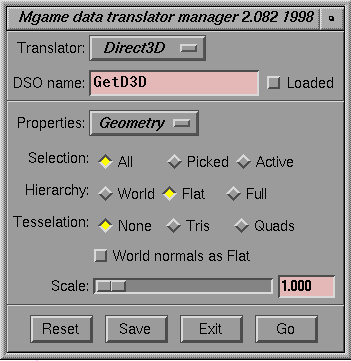
Selection
- All - exports all visible geometry.
- Picked - exports picked objects only (not including geometry below the picked geometry on the node graph).
- Active - exports picked objects only (including geometry below the picked geometry on the node graph).
Hierarchy
- World - does not export hierarchy (all vertices use world space).
- Flat - has one level of hierarchy: transformations use world space, vertices use local space.
- Full - exports the full DAG tree hierarchy: transformations and vertices use local space.
Tessellation
- Tris - the tessellation creates triangles.
- Quads - the tessellation creates four-sided polygons (quads).
- None - the tessellation defaults to four-sided polygons.
World normals as Flat
- ON - always outputs normals in local space (flat hierarchy).
- OFF - outputs normals in world or local coordinates, depending on the Heirarchy
setting.
Scale
-
- Scaling factor for vertex coordinates (use to fit model inside a game box).
Textures
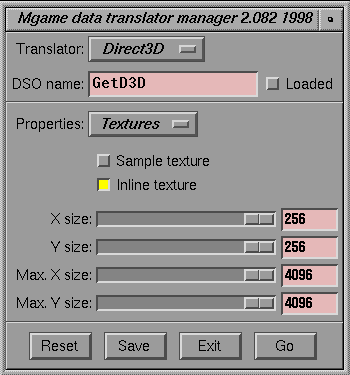
Sample Texture
- ON - allows texture to repeat over surface.
- OFF - does not repeat texture (force UV repeat to 1).
Inline Texture
- ON - evaluates texture to decide output format.
- OFF - uses the file texture as it is. Reads in directly and uses it as a RGBA image.
X Size and Y Size
-
- Width and height of the images that the translator creates to replace procedural textures.
Max X Size and Max Y Size
-
- Maximum width and height of the images the translators will create to replace file textures.
Animation
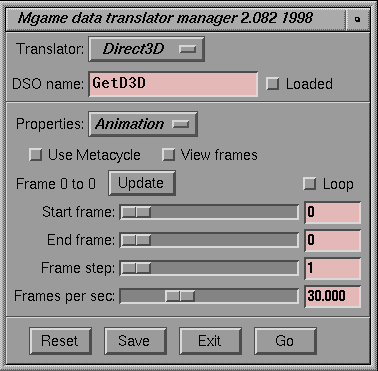
Use MetaCycle
-
- The animation range uses the settings in the MetaCycle window (Animation > MetaCycle).
-
- Use this option with GUI (in General properties) turned off, since animation settings in the translator's interface will override the Metacycle range.
View frames
-
- Controls the update display of Alias when doing a viewFrame API call
Start frame and End frame
-
- The first and last frame of the animation cycle to convert.
Frame step
-
- The next frame that will be output (all frames in between will be skipped).
-
- For example, a Frame step of 2 means that every other frame of the Alias animation will be used to create the output game animation.
Frames per sec
-
- The proper playback speed of the output animation in frames per second.
-
- Adjust this number to compensate when you are skipping frames of the original Alias animation. For example, if the Alias animation was created for playback at 60 fps, and you set Frame step to 2, set this field to 30. The animation will be half as fast, but since it has half as many frames it will appear to play at the same speed as the original.
Using Translators from the Command Line
|
|
|
|
|
DtExport
DtExport reads in an Alias wire file and uses the Direct Translators to output a platform-specific file. DtExport allows you to use the functionality of the MakeGame plug-in from the command-line, allowing batch processing.
>
|
Note:
|
DtExport uses the same translators as the MakeGame plug-
in and GameExport 2.1. These translators do not work with
older versions of GameExport.
|
Usage
DtExport -f <inputfile> -e <translator> [-dyzvhWwpSEFV] [-Tx n] [-Ty n]
|
Required
|
|
-f inputfile
|
file name of a valid Alias wire file for input.
|
|
-e translator
|
file name (with path, if necessary) of translator to use.
|
|
Optional
|
|
-d directory
|
output directory.
|
|
-y
|
output a Y-up world.
|
|
-z
|
output a Z-up world.
|
|
-v
|
verbose (print conversion information).
|
|
-h
|
help (describe command-line options).
|
|
-W
|
world space: no hierarchy, all vertices use world space).
|
|
-w
|
one level of hierarchy: transformations use world space, vertices use local space.
|
|
-p
|
no parent information.
|
|
-t
|
allow texture to repeat over surface.
|
|
-Tx n
|
width of the images the translators create to replace procedural textures.
|
|
-Ty n
|
height of the images the translators create to replace procedural textures
|
|
-Tmx n
|
Maximum width of the images the translators create to replace procedural textures.
|
|
-Tmy n
|
Maximum height of the images the translators create to replace procedural textures.
|
|
-S n
|
start frame of animation.
|
|
-E n
|
end frame of animation.
|
|
-F n
|
view frame of animation.
|
|
-V
|
open GUI interface.
|
Rebuilding/Creating Translators
|
|
|
|
|
To add or change the functionality of a translator, you can recompile the existing translators, or create new translators using the Dt API.
>
|
Note:
|
Alias|Wavefront Assist cannot support custom-written or
custom-compiled translators.
|
Alias|Wavefront provides source code for the translators, including Makefiles you can use to rebuild the translators.
To create or rebuild a translator, you should be familiar with C/C++ programming and Makefiles.
Setting Up Directories
Copy the source files from the Alias installation to your home directory to customize or rebuild the translators. This protects the originals and does not require root permission to modify the files.
-
1
-
In the shell, make sure the corresponding $ALIAS_LOCATION and $GAMES_LOCATION environment variables are set to the correct base (installed) locations.
-
2
-
Create a games subdirectory in your home directory, with a working area and a trial area to test the translator.
-
For example:
-
mkdir -p ~/games/getopenGL
-
mkdir -p ~/games/trial/Dtplugins
-
3
-
Copy the base source files from ODS/Games/source/GetOpenGL to your new working area:
-
cp $ALIAS_LOCATION/ODS/Games/source/
GetOpenGL ~/games/getopenGL
Making and Testing Translators
-
1
-
Use the MakeGame window to unload all translators (uncheck the Loaded checkbox). Do not try rebuild a translator while it is loaded in Alias.
-
2
-
In the Makefile, make sure the ALIAS_LOCATION and GAMES_LOCATION variables (found near the beginning of the Makefile) are set to the correct base (installed) locations.
-
3
-
In the directory containing the Makefile, type make.
-
For example, go to ~/games/getopenGL and type make
to rebuild the GetOpenGL translator and create a new
GetOpenGL DSO in the working directory.
-
4
-
Set the environment variable $DT_PLUGIN_LOCATION to the directory containing the new translator.
-
5
-
Reload the translator in the MakeGame window.
-
If you restart Alias, if the $DT_PLUGIN_LOCATION
variable is set Alias will search that location for plug-ins
before the base (shipped) location.
>
|
Note:
|
You can also use the DtExport command-line tool to test
new translators quickly. It uses the same search paths as
Alias.
|
|
|
See Customizing the
MakeGame Interface on
page 18.
|
Once you have tested a new translator, you can add it to MakeGame's pop-up list of translators, and add translator-specific options to the MakeGame interface.
Customizing the MakeGame Interface
|
|
|
|
|
Adding a Translator
To add a new translator to the pop-up list of common translators in MakeGame:
-
1
-
In Alias, unload the mgame plug-in.
-
2
-
Open the file mgame.c++ in a text editor.
-
3
-
Change the MgNUM_OF_TRANSLATORS constant to the new number of translators that will appear in the pop-up list.
-
4
-
Change the MgCUSTOM_TRANS constant to the index of the new translator.
-
The index is the new translator's position in the list,
starting at 0. The last position in the list is
MgNUM_OF_TRANSLATORS-1.
-
5
-
Add an entry (translator name, DSO name) to the Mg_Translators structure declaration. The DSO name cannot contain spaces.
-
6
-
Recompile mgame.c++.
|
|
See Using the MakeGame
Plug-in on page 7.
|
-
7
-
In Alias, reload the mgame plug-in.
Adding a Setting
If your translator needs a special setting in the MakeGame interface, you can add it by editing the MakeGame source code.
You can add variables of three types:
- Integer (number entry box)
To add a translator-specific setting to MakeGame:
-
1
-
Open the file mgame.c++ in a text editor.
-
2
-
Search for the comment:
-
Initializing per-translator setting
variables
-
After this comment is an array called Mg_Settings
containing Name, Type, and VariableAddress fields for the
settings variables.
-
3
-
Add a new entry in the array. Set the type to EmlSTRING, EmlINT, or EmlBOOLEAN. Set the variable address to a pointer to a memory variable of the appropriate type.
How MakeGame saves settings
When you clicks Save in the MakeGame window, MakeGame saves the settings of the new translator in $ALIAS_WORKENV/mgame.settings. MakeGame saves every variable for each translator, prefixed by the DSO name.
For example, HrcType (hierarchy type) for the Direct3D translator is saved in the settings file as GetD3DHrcType.
|


