|
|
7
|
OpenGL
|
|
In This Section:
This section describes how to use the interface of the OpenGL-specific Direct Translator.
For information on how to run the translator, see Using the MakeGame Plug-in on page 7 and Using Translators from the Command Line on page 14.
Converting to OpenGL
|
|
|
|
|
OpenGL Translator
Special Features
- Materials, specularity and emissive colors are supported.
- Textures are supported with auto-scaling to ensure textures have dimensions that are powers of 2 (as required for OpenGL).
- Animation export is exported with fixed frames at given intervals.
Limitation
- Only two hierarchy types (world, flat) are supported.
Installing
The OpenGL translator does not require any special installation.
Using the OpenGL Translator
|
|
|
|
|
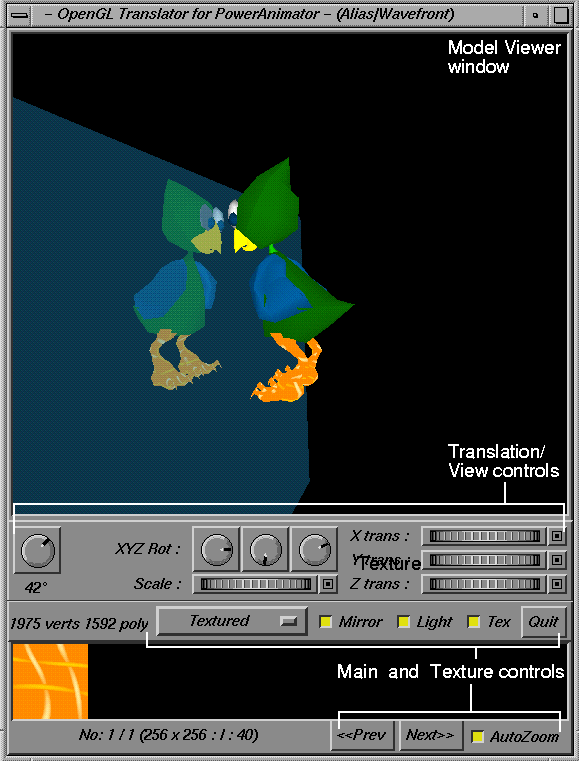
Viewing the Model
Use the mouse in the model view window to view the model. This behavior is similar to the camera controls in Alias:
- Drag with the left mouse button to rotate the model.
- Drag with the middle mouse button to move (translate) the model.
- Drag with the right mouse button to zoom in and out.
When using the mirror option, use the following combinations:
- Drag up and down with the left and right mouse buttons to change the distance between the mirror and the object.
- Drag left and right with the left and right mouse buttons to change the size of the mirror.
- Drag left and right with left and middle mouse buttons to change the reflectivity of the mirror.
You can also use the keyboard to view the model:
|
Keyboard Controls
|
Purpose
|
|---|
|
Number pad 5
|
Reset view
|
|
Number pad 8
|
Scale up
|
|
Number pad 2
|
Scale down
|
|
Number pad 7
Number pad 9
|
X move
|
|
Number pad 4
Number pad 6
|
Y move
|
|
Number pad 1
Number pad 3
|
Z move
|
|
Number pad 0
Number pad .
|
Y Rotation
|
|
d
|
Double the size of movements and rotations
|
|
q
Esc
|
Quit
|
Options
Main and Texture controls
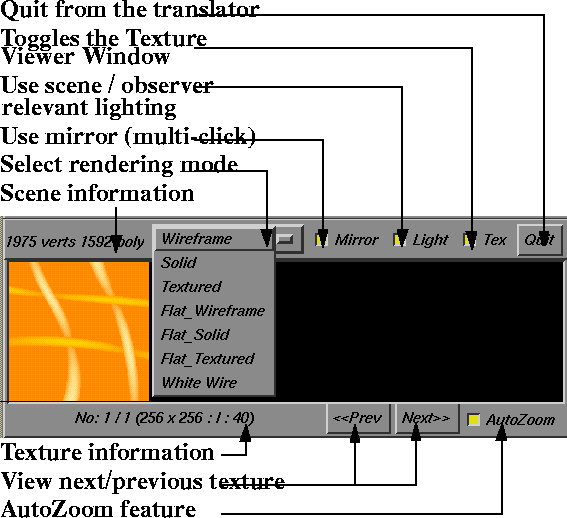
AutoZoom
- ON - resize texture to fit in the texture preview window.
- OFF - show texture at normal size.
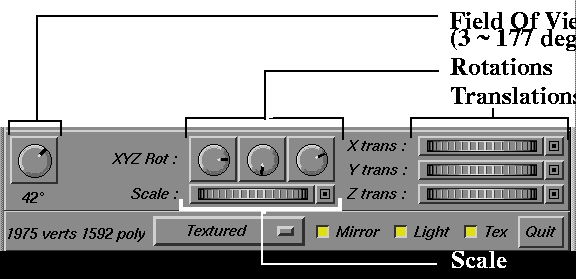
Translation / View Controls
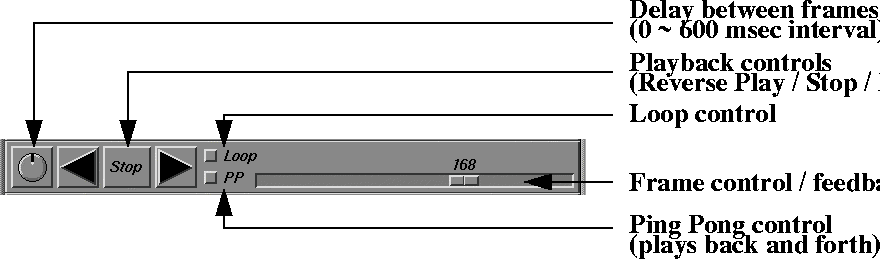
Animation Controls
|
|
|
>
|
Note:
|
The viewer only displays the animation controls if you
converted animation information.
|
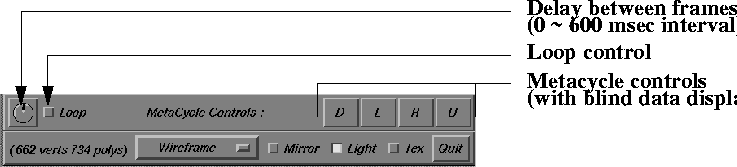
MetaCycle Controls
|
|
|
>
|
Note:
|
The viewer only displays the MetaCycle controls if you
converted MetaCycle information.
|
GetOpenGL Command Line Options
If you turn the GUI checkbox off in the MakeGame window, enter these options in the Option field to control the conversion:
-n
|
Output MetaCycle information.
|
-A |
Do not output animation information.
|
-L |
Do not output lights.
|
-C |
Color/Vertex mode (process colors by vertex instead of by polygon).
|
-8 |
Version 8 compatibility mode (for use with Alias Version 8.0 or previous).
|
-H |
Give continuous feedback in model view while using controls (High-end mode).
|
-TMx |
GL texture-mapping method. Choose one of the following:
0 = GL_REPLACE_EXT (same as GL_DECAL on Indy/O2, does not work on Impact/Octane)
1 = GL_BLEND (inverts textures on Indy/O2, maps improperly on Impact/Octane)
2 = GL_ADD (does not map textures)
3 = GL_DECAL (maps textures, overrides original material color)
4 = GL_MODULATE (blend texture with original material color)
|
-h |
Print help.
|
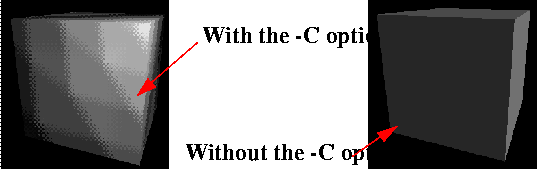
Color/Vertex Mode
In Color/Vertex mode (-C), the translator processes the color information for all the vertices in the scene. With this option, polygons can change color from one side to the other.
Here is an example showing a cube with and without the -C option.
|


