8 |
The RTG Utilities and File Format |
In This Section:
Introducing the RTG File Format |
|||||||||||||||
|
| |||||||||||||||||
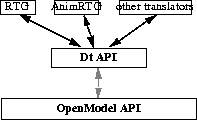
RTG File FormatsRTG and AnimRTG are portable (ASCII) file formats for 3D models and animation, suitable for game authoring. These formats enable the different game platforms and non-standardized PC development environments to share 3D data. Although the RTG formats are not standards (governed by a committee), then are designed to be very easy to parse and translate, allowing easy creation of new translators on any platform. Alias|Wavefront now supplies RTG 2.0, based on the Direct Translator (Dt) API (it's creation was based on the OpenModel API). RTG 2.0 gives you the following benefits:
Changes in RTG 2.0
UpdatesAlias|Wavefront plans to update the RTG applications periodically. All future development of RTG will be based on RTG 2.0, which is supplied as a converter for OpenModel. The source code for the Dt API and translators is included in /usr/aw/alias/ODS/Games/source/. Converting to RTG 2.0 | |||||||||||||||||
|
| |||||||||||||||||
This section describes how to use the interface of the RTG 2.0-specific Direct Translator. | |||||||||||||||||
|
For information on how to run the translator, see Using the MakeGame Plug-in on page 7 and Using Translators from the Command Line on page 14. |
RTG 2.0 TranslatorSpecial Features
InstallingThe Direct3D translator doesn't require special installation. Options | ||||||||||||||||
|
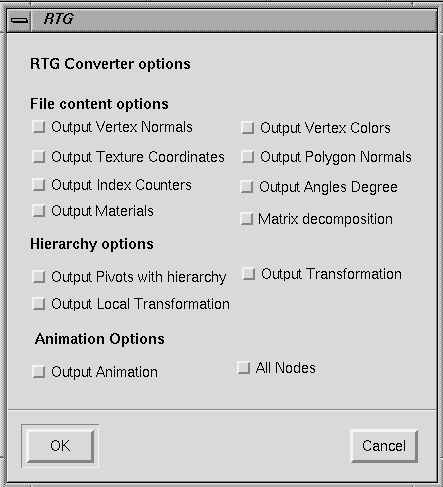
When you run the translator from MakeGame, the RTG window appears. Use this window to set the options described below, then click OK to start converting. |
File Content SectionUse these options to control which parts of the scene are converted. Hierarchy SectionOutput Pivots w/hierarchy
Output Transformation
Output Local Transformation
Animation SectionOutput Animation
Exporting Geometry to RTG 1.8 | ||||||||||||||||
|
| |||||||||||||||||
InstallingTo convert scenes to RTG 2.0, use the MakeGame and the RTG 2.0 Direct Translator. | |||||||||||||||||
|
See Installing the MakeGame Plug-in on page 4 and RTG 2.0 Translator on page 106. |
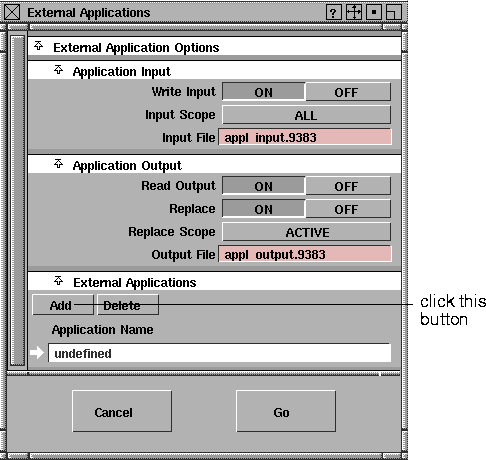
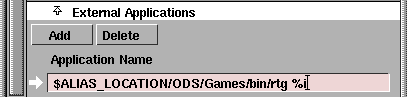
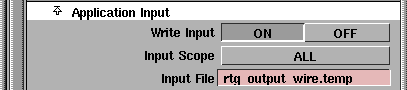
To install the RTG 1.8 converter as an external application in Alias:
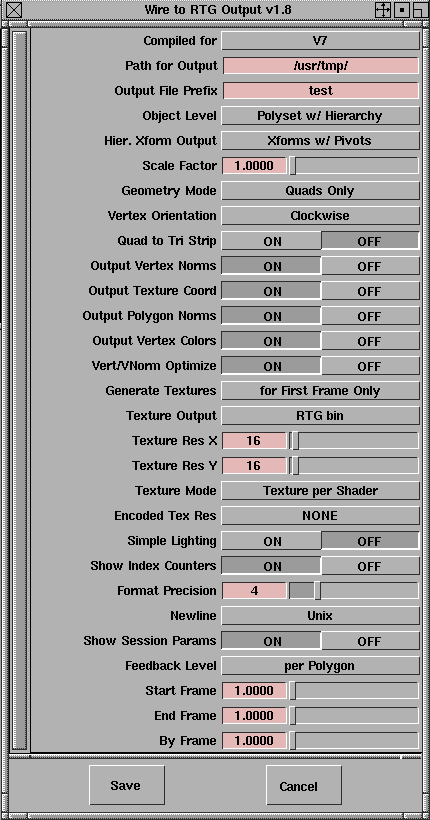
Using the RTG ConverterTo convert a scene to a RTG 1.8 format file:
Options
Path for Output
Output File Prefix
Object Level
Hier.Xform Output
| ||||||||||||||||
|
Scaling is only applied when no hierarchy is being output, since scaling would disrupt transformations applied to vertices in object space. |
Scale Factor
Geometry Mode
Vertex Orientation
Quad to Tri Strip
Output Vertex Norms
Output Texture Coord
Output Polygon Norms
Output Vertex Colors
Vert/VNorm Optimize
Generate Textures
Texture Output
Texture Res X and Texture Res Y
Texture Mode
Encoded Tex Res
| ||||||||||||||||
Simple Lighting
Show Index Counters
Format Precision
Newline
Show Session Params
Feedback Level
Start Frame and End Frame
Encoding Texture ResolutionsRTG uses a hack to include the resolution of textures in the file:
To encode a texture resolution in a shader name:
| |||||||||||||||||
|
For output details on the .rtg and .bin file formats, see RTG File Format Details on page 118. |
| ||||||||||||||||
|
There is no explicit control for outputting hierarchy. To output hierarchy information, you must choose Polyset w/hierarchy from the Object Level pop- up menu. |
To encode a texture resolution in a polyset name: | ||||||||||||||||
|
The Polyset w/hierarchy option in the Object Level pop-up menu outputs object space coordinates. All other options use world space coordinates. |
Exporting Animation to RTG 1.8 | ||||||||||||||||
|
| |||||||||||||||||
To convert scenes to RTG 2.0 (which integrates animation information into the main format), use MakeGame and the RTG2.0 Direct Translator. | |||||||||||||||||
|
See Installing the MakeGame Plug-in on page 4 and RTG 2.0 Translator on page 106. |
Using the rtgAnim UtilityThe rtgAnim utility and file format were created to supplement the RTG 1.8 format with animation information. rtgAnim outputs an ASCII representation of the animation for each animated transformation, vertex group, and polyset. The utility outputs the following information:
rtgAnim is in $ALIAS_LOCATION/ODS/Games/bin/. It supports the following command line options: rtgAnim -i <inputfile> -o <outputfile> [-l] [-s <startframe>] [-e <endframe>] [-b <byframe>] [-y] [-z]
Output
Node FilesThese files contain the animation data for objects in the scene:
The contents of an rtgAnim node file look like this: 0001.0: X_Rotate 1.58 Y_Rotate 0.928 Z_Rotate 0.972 This is a sample of frames 1 through 9, by two. Only the rotations were animated in the model, so they are the only transformations output. >
Vertex FilesThe contents of an rtgAnim vertex file might like this:
This is a sample of frames 1 through 3. >
RTG File Format Details | ||||||||||||||||
|
| |||||||||||||||||
The following describes the Alias|Wavefront Real Time Games Format (v1.0). Running the wire2rtg converter generates an ASCII text .rtg file, and possibly a .bin file (if textures have been assigned to polygonal geometry in PowerAnimator). The .rtg file contains polygonal data with possible hierarchy information and possible texture table data. The .bin file contains a byte oriented RGBA pixel dump of all textures generated for its corresponding .rtg file. The .rtg file contains various tags including title tags, to denote sections of data, and descriptor tags, which are used for visual reference and can be ignored when parsing the file. Polygonal Data File (.rtg)Header InfoThe polygonal data (hereafter referred to as P-data) file begins with a number of header lines (currently there are 3 header lines). These header lines contain general information for the file. So far, only the title, version, and date information header lines are generated. All header lines begin with tags starting with HEADER_. The following is an example of these lines: | |||||||||||||||||
|
This example is RTG 1.8 only |
HEADER_TITLE Alias|Wavefront Real Time Games Output Counter InfoCounters for the P-data file appear after the header lines. Currently there is only one counter. This is for the number of objects that exist in the file. All counter info lines will begin with tags starting with NUMBER_OF_. For example: NUMBER_OF_OBJECTS 4 Flags InfoIf there are any flags for the P-data file, they appear after the counter information. These indicate which particular items will be included in the file. For example, the flag info line OUTPUT_HIERARCHY on indicates that a hierarchy tree will be included in the file. This version provides the following flags:
This is an example of a Flags info section: OUTPUT_VERT_NORMS on Selections Info (RTG 1.8 only)The Selections Info section follows the Flag info section. It contains the various modes that had been selected when this file was generated. Currently there is only one selection line: TEXTURE_MODE. Modes that are currently supported are color, per_shader, or per_polygon. If color mode is indicated, only RGB color assignments are made to polygons and no textures are generated for this file. If per_shader is indicated, a texture for each used shader is assigned to polygons, with texture coordinates needed for proper texture mapping. If per_polygon is indicated, a correctly pre-distorted texture swatch is generated for each polygon, (texture coordinates are mostly meaningless, as these textures effectively map directly to the corners of each polygon.) The Material List (RTG 2.0 only)The material list contains a list of all materials used in the model. The MATERIAL_LIST line contains a count of the number of materials. Each material is named and has an index which is used in the OBJECTS section to reference the materials. The following is an example: MATERIAL_LIST 2>
The Hierarchy ListA Hierarchy list only exists in the file if the OUTPUT_HIERARCHY flag is set ON. Otherwise, parsing should continue with OBJECT Data as described in the following sections. List TagsThe first line of a hierarchy list begins with the tag HIERARCHY_LIST. There are three tags that follow this on the first line. The first of these is the Info Level Tag. This tag can be H (Hierarchy only), HX (Hierarchy with Xforms), or HXP (Hierarchy with Xforms and Pivots). A count for the number of top level DAG nodes in the hierarchy list, and a descriptor tag top_level that can be read and ignored, follows the Info Level Tag. After the first line, the hierarchy is output with node lines, and possibly transform lines and pivot lines. Node lines are of the format: [level] [node_type] [node_name] where level is an integer number indicating hierarchy level. A top DAG node is at level 0. The node_type is either G (Group) or P (Polygonal) data. The node_name is a string name used to individually identify a node. Using the Hierarchy ListIf Hierarchy List is selected, transforms with or without pivots can be output for each node line of the hierarchy. Transform lines are (x,y,z) triplets, one for each of translate, rotate and scale. Pivot lines are (x,y,z) triplets, one for each of scale and rotate. The following is an example of hierarchy list output without transforms or pivots: HIERARCHY_LIST H 2 top_level The following is the same example of hierarchy list output, but with transforms (and still no pivots): HIERARCHY_LIST HX 2 top_level The following is the same example of hierarchy list output, but with both transforms and pivots: HIERARCHY_LIST HXP 2 top_level The hierarchy list ends with the tag END_HIERARCHY_LIST to indicate the end of hierarchy processing. Object DataThere are a number of Object sections, one for each object in the file, as indicated by the NUMBER_OF_OBJECTS info line. An Object section begins with an object start line. This line starts with an OBJECT_START tag and is followed by the name of the object and counter tags. Each counter tag has a letter prefix (to denote what the counter is for), with a number appended to it (to indicate how many items of that type there are) appended to it. The letter v is for vertices, n for vertex normals, t for texture coordinates, and p for polygons. These counters are put in the following order (regardless of whether or not some the counters are omitted): For example: OBJECT_START sphere v26 n45 t45 p32 indicates that the object sphere contains a VERTEX list of 26 vertex positions, a NORMAL list of 45 vertex normal values, a TEXCOORD list of 45 texture (u,v) coordinate values, and a POLYGON list of 32 polygon data entries. >
USES_MATERIAL tagThe USES_MATERIAL tag indicates which material (if materials are being output) is used for this object. It is followed by the index of the material and the name: USES_MATERIAL 0 Shader VERTEX listThe VERTEX list follows the OBJECT_START line. It begins with a line containing the VERTEX tag along with a coordinate space tag. This second tag is either local or world to indicate whether the position of the vertex is output in local (object) space or in world space. A list of vertex positions specified in X Y Z order (one vertex position per line) follows. If the SHOW_INDEX_COUNTERS flag is on, each vertex line is prefixed with an index number starting at 0 and incrementing by one for each vertex line in the list. COLORS listThe vertex COLOR list follows the VERTEX list. It begins with a line containing the COLOR tag. A list of the vertex color values then follows. NORMAL listThe vertex NORMAL list follows the VERTEX list. It begins with a line containing the NORMAL tag. A list of vertex normal values specified in X Y Z order (one vertex normal per line) then follows. If the SHOW_INDEX_COUNTERS flag is on, each vertex normal line is prefixed with an index number starting at 0 and incrementing by one for each vertex normal in the list. >
TEXCOORD listThe following list is the texture coordinate (TEXCOORD) list. It begins with a line containing the TEXCOORD tag. A list of vertex texture coordinate (u,v) values specified in U V order (one texture coordinate pair per line) then follows. If the SHOW_INDEX_COUNTERS flag is on, each line is prefixed with an index number starting at 0 and incrementing by one for each line in the list. >
POLYGON listThe next list within an object section is the polygon list for that object. It begins with a line containing only the POLYGON list tag. A list of polygon data lines (one line/entry for each polygon in the object) then follows containing data in the following order: [index] The following table describes the variables:
The object data ends with a line containing the OBJECT_END and the name of the object as it appeared on the object start line. Texture Table (RTG 1.8 only)The texture table starts with a line containing the TEXTURE_TABLE tag, along with the name of the associated texture file (.bin), an entry count, the entries descriptor tag, the header descriptor tag, the number of bytes in the header of the .bin file, and finally the bytes descriptor tag. Following the first line are the texture entries. Each texture entry line is of the format: [index] [pixel_format] [X_res] [Y_res] [source_shader] [byte_size]
The texture table ends with a line containing the END_TEXTURE_TABLE and the name of the associated texture file (.bin) as it appeared on the texture table start line. >
The following is an example of the TEXTURE_TABLE format: TEXTURE_TABLE wackyB1.bin 3 entries (header: 82 bytes) 0 RGBA 32 32 Shader#2 4096 1 RGBA 32 32 Shader 4096 2 RGBA 32 32 Shader#4 4096 END_TEXTURE_TABLE wackyB1.bin The following is an example of the TEXTURE_TABLE format using the encoded texture resolutions option on shader names: TEXTURE_TABLE wackyB1.bin 3 entries (header: 82 bytes) Texture Data File (.bin) (RTG 1.8 only)HeaderThe header of the texture file contains a text title, a version tag, and time and date creation information. This header string is not null terminated. | ||||||||||||||||
|
The header should be parsed to get the version tag and the date in order to verify the texture file against the P- data file. |
Use the header byte count found in the texture table start line to determine how many bytes to read to clear the header. The version tag is preceded by a ver descriptor tag and the time and date information is preceded by a date descriptor tag. DataAfter the header, any textures generated for the corresponding polygonal data file is dumped pixel by pixel into this file. Each pixel is separated into 4 bytes, one for each of R, G, B and A, and written out to this file in that order. Values for each of RGB and A range from 0 to 255. Pixel values are output starting from the bottom-left (texture coord 0,0) and are output moving left to right and bottom to top. Animation Data (RTG 2.0 only)RTG 2.0 differs from previous versions of RTG in that it is capable of creating a single file that contains both model and animation data. The RTG 2.0 animation data starts with the tag ANIMATION_LIST, and ends with END_ANIMATION_LIST. Between these two tags are a sequence of FRAME records and within each frame record is a list of all of the objects that are animated and what their transforms are. The format of the transformation data is as per the hierarchy section. The following is an example of a three-frame animation of two objects. ANIMATION_LIST |
| Copyright © 1998, Alias|Wavefront, a division of Silicon Graphics Limited. All rights reserved. | Please send questions or comments regarding the documentation to: [email protected] |