|
For additional information
on rotational pivot points,
see Setting Pivots on
page 313.
|
The effect of a rotation on an object is based on the current location of the object's rotational pivot point at the time the function is invoked.
>
|
Note:
|
You cannot rotate a curve-on-surface or an image plane.
|
How to Use
-
1
-
Select the DAG node or geometry that you want to rotate before you invoke the function. (All active items are affected when the Rotate function is invoked.)
-
2
-
Select Xform > Rotate in the Tool Palette, or click its icon.The system prompts:
-
Enter ROTATION amounts (x,y,z) (ABS):
|
|
See Introduction to the Alias
Interface on page 5 for details
on using the mouse and the
keyboard to rotate.
|
-
3
-
You can rotate the selected items interactively using the mouse or by direct keyboard input.
>
|
Note:
|
When a primitive is placed, or a curve or a surface is
constructed, the geometry's object space coordinates (X, Y,
Z) are aligned with the world space coordinates on their
respective X-, Y-, and Z- axes.
|
|
|
When you rotate an object, this alignment changes and the
object space coordinates are no longer aligned with the
world space coordinates. Subsequent rotations and non-
proportional scaling operations may seem to produce
incorrect results, because you are affecting the world space
axes, to which the object coordinates are no longer aligned.
|
|
|
For information on
grouping, see Grouping
Objects on page 221.
|
|
|
To realign the object to the world space coordinate system,
group the object to itself. You may then want to ungroup the
object using the Collapse node option in the Ungroup
Options window to delete the resulting group node from the
SBD DAG node structure.
|
|
Tip:
|
Toggling out of a construction plane, rotating a grouped
object in construction plane space, and rotating it to zero
will align the grouped object with world space the way it
was aligned in construction plane space.
|
Select Rotate
- to display the Rotate Options box. to display the Rotate Options box.
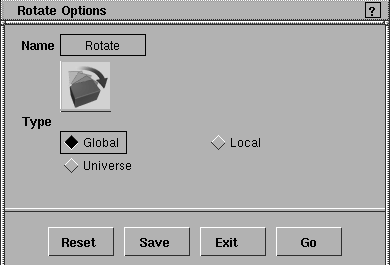
Global
-
- Rotates objects by incrementing their Euler rotation angles. What this means is that the rotation is done in an order: first Z, then Y, then X. The X rotational axis will depend on the Y and Z rotations already done. Also, rotations on DAG nodes above the current node will affect the rotational axis.
Local
-
- Rotates each picked object about its local X-, Y- and Z- axes, which are displayed at the object's pivot point.
Universe
-
- Objects are rotated about the world X-, Y-, and Z- axes (displayed in the lower left corner of the window).
For the Local and Universe modes:
- To rotate about the X-axis, use the left mouse button.
- To rotate about the Y-axis, use the middle mouse button.
- To rotate about the Z-axis, use the right mouse button.
The default local axes for an object are the same as the global axes. To change the orientation of an object's local axes, use Xform > Set local axes.
>
|
Note:
|
To permanently display the local axes of all picked objects,
select DisplayTgls > Pivots- and toggle Local Axes Display
ON in the Toggle Pivots Options window.
|
Important Note
If the object being transformed has construction history, the construction history cannot be maintained. A confirmation box is displayed asking if you want to proceed with the operation, thereby deleting the construction history.If you select YES, the construction history is deleted and you can proceed with the operation. If you select NO, the operation is cancelled.
For more information on construction history, see the NURBS Modeling book.
|


