|
ObjectDisplay > Template |
Templating Objects | ||
|
| |||
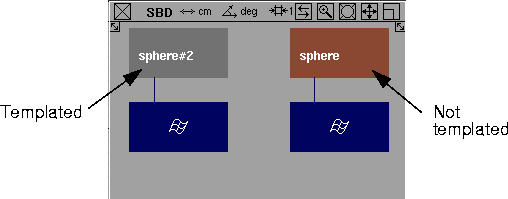
PurposePuts active objects into the background plane by turning them into templates. Select this tool again to return templated objects back to normal. This tool is useful when you have a complex scene that contains many objects. You can alternately manipulate all objects, or only one at a time. Objects that are templated are still visible but will not be pickable using the standard pick operations. How to UsePick the objects and select Template from the ObjectDisplay menu. CVs and edit points disappear (if they were displayed) and the objects are turned into templates. When you template an object:
| |||
|
See Editing Alias Preferences on page 532 for more information on Preferences settings. |
Two operating methods are possible when using Template. The method is determined by the setting of the Allow components option in the Modeling Options > Template Options section of the Alias Preferences window (Preferences > User Options > Alias preferences).
When you select a non-object node (not at the top level of the SBD), it causes everything below it in the hierarchy to be templated. When the Allow components option is set to ON, if you pick a component below a DAG node that has been templated and then select ObjectDisplay > Template, a confirmation box asks if you want to toggle the entire template. Click OK to reverse the entire templated branch back to the normal state. Notes
See also |
| Copyright © 1998, Alias|Wavefront, a division of Silicon Graphics Limited. All rights reserved. | Please send questions or comments regarding the documentation to: [email protected] |