|
|
ObjectDisplay > Line
style
|
Specifying Line Style
|
|
|
|
|
Changes the way lines are displayed, or the style of bones used. This tool is particularly useful when you want to identify specific curves or surfaces.
How to Use
-
1
-
Pick an object (for example, a curve, curve-on-surface, surface, or a skeleton joint node).
-
2
-
To change the display of the object to current settings, select ObjectDisplay > Line style.
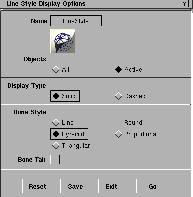
Line Style Display Options
Select Object Display > Line style- to display the Line Style Display Options box. to display the Line Style Display Options box.
Objects
-
- Click All to affect all objects, or Active to affect only active objects.
|
|
|
Display Type
-
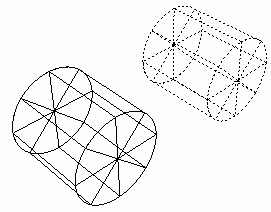
- Click Solid for solid lines, or Dashed for dashed lines. This setting applies to curves (including curves-on-surface), and surfaces.
-
- The diagram in the margin shows two primitive cylinders, one constructed with solid lines and the other with dashed lines.
>
|
Note:
|
When a bone is displayed with dashed lines, its lower joint
is picked.
|
|
|
Bone Styl
e is available in
Alias PowerAnimator and
AutoStudio, and is a
purchasable Advanced
Animation for Studio option.
See Draw skeleton in the
Animating in Alias
manual
for information on how to
create bones.
|
Bone Style
-
- Line-draws bones with connecting lines between joints.
-
- Round-draws bones with rounded shapes.
-
- Pyramid-draws bones with symmetric triangular shapes. The bones have a fixed width, so the longer the bones are, the more slender they appear. (This style becomes Proportional when the bone length is less than 1.5 units.)
-
- Proportional-draws bones in symmetric triangular shapes, with their width proportional to their length.
-
- Triangular-draws asymmetric triangular shaped bones. This style makes it easier to detect 90 or 180 degree rotation or flipping along the bone axis.
Bone Tab
-
- Toggle this option ON to attach a tab bar to the bone axis. It also helps you to detect if the bone is flipped.
Hints and Tips
|
|
For information on
trimming, see NURBS
Modeling.
|
- You can use the line style of curve-on-surface elements to control which will be used in a trim operation.
- When you perform a trim operation, you can ensure that all of the curves-on-surface will be used in the trim operation no matter what line style they have: edit your Alias preferences (Preferences > User Options > Alias preferences) so that the Trim dashed CoS option (under the Modeling Options > Trim Options heading) is set ON. (If the Trim dashed COS option is set OFF, then only the curves-on-surface displayed with the Solid line style are used in trim operations. If you change some of the curves-on-surface to the Dashed line style, they will not be used in the trim operation.)
|


