|
This tool speeds up the refresh of your screen. The visual representation of the model changes; its geometry stays the same, but you cannot edit it.
When you use this tool on an object:
- All of its CVs and edit points disappear (if they were displayed).
- All curve-on-surface elements disappear.
- You cannot move CVs, hulls or edit points, nor can you pick isoparms on surfaces for the Object Edit, Curve Edit, and Surfaces
functions.
How to Use
-
1
-
Pick a surface or curve.
-
2
-
Select
ObjectDisplay > Quick wire, or, if you want to change the default scope or quality of the quick wire tool, select ObjectDisplay > Quick wire-
 . .
-
When you invoke this tool, the surface or curve is
displayed in a lighter color. (When you pick the object, it
turns an even lighter color to indicate it is selected.)
-
3
-
To return the surface or curve to its normal state, pick the object and select Quick wire again.
Quick Wire Options
Select
ObjectDisplay > Quick wire- to display the Quick Wire Options window. to display the Quick Wire Options window.
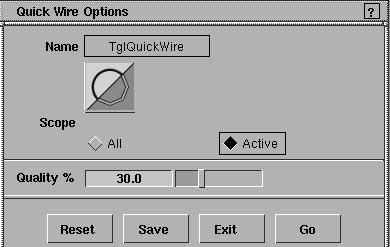
Scope
-
- Click All to affect all objects, or Active to affect only active objects.
Quality %
-
- Lets you control the quality of the quick wire representation of objects. Lower settings produce a cruder but faster representation.
-
- For example, if you set Quality % to 1.0 on a circle primitive, the circle resembles an octagon.
-
- The quality is relative to the curve precision for the object. For example, if curve precision is 10 and Quality % is set at 20%, the object shows as many line segments as curve precision at 2 and Quality % at 100 (in this case, 2 segments per curve span).
|


