|
Purpose
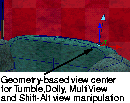
The Point of Interest Manipulator sets and changes the point of interest interactively when tumbling, and controls the range of movement when dollying into a view.
For tumble, the point of interest becomes the tumble center. For dolly, it controls the range of movement, that is, it adjusts the perspective gain so that the dollying speed decreases as the camera gets closer to the point of interest.
How to
To enable point of interest viewing:
- Choose Preferences > Interface > Interface options-
 from the menus, and turn on the Point of Interest Viewing option. from the menus, and turn on the Point of Interest Viewing option.
To tumble around a point of interest:
-
1
-
Select the Tumble or Dolly tool, either from the Cameras >
World Move Camera menu in the palette, the window icons, or by holding down the Shift and Alt keys to enter "camera move" mode.
|
|
|
-
2
-
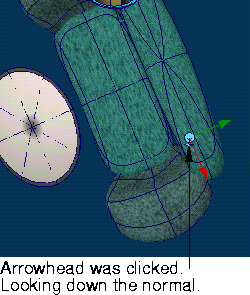
Click down on some geometry. The point of interest manipulator appears at the point on the model where you clicked.
-
3
-
Click in the window and drag the mouse to tumble around the point of interest or dolly toward or away from it.
To use the point of interest manipulator:
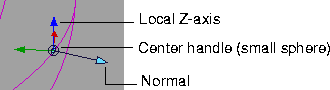
The manipulator appears as a small sphere with an arrow pointing in the direction of the normal, and a set of local axes, as shown in the figure below.
|
|
If the View Panel is
closed, click its title to
open it.
|
-
1
-
Hold down Shift and Alt to show the View Panel.
-
2
-
Open the Pnt of Interest section of the view panel.
-
3
-
Turn off the Visible option.
-
The point of interest is now invisible, but still in effect.
To lock the point of interest:
-
1
-
Hold down Shift and Alt to show the View Panel.
-
2
-
Open the Pnt of Interest section of the view panel.
-
3
-
Turn on the Locked option.
-
The current point of interest is now locked. You cannot
change the point of interest by dragging the manipulator
or clicking geometry until you turn off the Locked option.
See Also
|