|
Purpose
To revolve the camera by varying the azimuth and elevation angles in the perspective window.
>
|
Note:
|
Tumble can only be used in a Perspective window. It does
not apply to orthographic views (Top, Front, Right).
|
To use the Tumble
tool, select
Cameras > World move camera > Tumble in the Tool Palette, or click its icon.
Example
To see how Tumble works, tumble the view with a primitive sphere in the perspective window. The perspective view displays the sphere from all angles.
-
1
-
Select Layouts > All windows > User windows to display all default windows.
-
2
-
Select Cameras > Reset view, position the cursor in each window one at a time, and click.
-
3
-
Select
Objects > Primitives > Sphere then click in the Top window. A sphere is displayed in all windows.
-
4
-
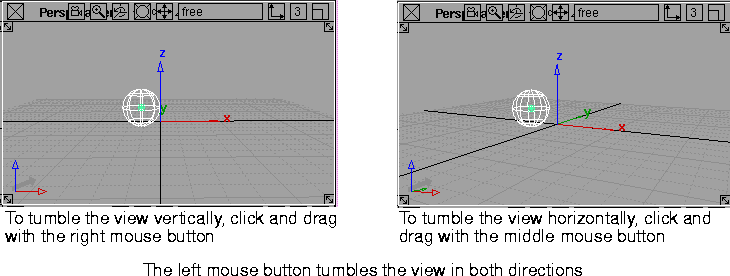
Select Layouts > Perspective. The following shows how to use the mouse to tumble the view in the Perspective window.
|
|
When you achieve the desired angle, release the mouse button. To return the view to what it was before you started tumbling, select Cameras > Reset view.
>
|
Note:
|
When working with a large model, the speed at which the
screen is redrawn during a Tumble operation can be
increased by decreasing the Motion Precision in the
Preferences > Performance options window. See Setting
Performance Options on page 519 for details.
|
If you prefer, type the azimuth and elevation angle values at the keyboard when the system prompts:
Enter azimuth and elevation angles (REL):
Type the angles and press Enter. If you type a positive value for azimuth angle, the camera turns to the left (in the Perspective window). If you type a positive value for elevation angle, the camera turns downwards. Tumble is always a relative operation.
You can use the four cursor keys (the keys showing arrows pointing up, down, left, and right) to tumble incrementally. The amount the camera moves depends on the arrow size set in the Interface Options box (Preferences > Interface > Interface options- ). ).
The default value of 1 means that if you press a cursor key once, the camera moves one pixel in the corresponding direction.
- The left arrow key rotates the view to the left (i.e. turns the camera to the right).
- The right arrow rotates the view to the right (i.e. turns the camera to the left).
- The up arrow points the camera up.
- The down arrow points the camera and viewpoint down.
Be careful to keep the red cursor positioned within the window when you use the cursor keys.
Select
Tumble- to display the Tumble
Options box. Tumble Center
-
- These options rotate the camera about the viewpoint of the perspective camera, or any given world point.
-
- View Center
- to rotate the perspective camera about its viewpoint.
-
- To position the camera's viewpoint, select DisplayTgls > Object Toggles > Camera to display the perspective window's camera. When you can see the camera, its viewpoint icon can be picked using Pick > Component and positioned using Xform > Move. The eye and up icons can be moved in a similar way. Using Pick > Object enables you to pick the whole camera as a unit.
>
|
Note:
|
To identify a particular point in the 3D model as the center
of interest, move the camera's view icon so that it's at the
point of interest. Subsequent manipulation of the camera
using Tumble now keeps that point in the center of the view.
You can also use Cameras > Look at. For more information,
see Looking at a Specific Object on page 455.
|
-
- World Point
- causes the view to rotate about the point in world space specified in the World Point
sliders (for example, 0, 0, 0).
Eye/View/Up
-
- These sliders let you define a view by positioning the camera. The view is determined by the eye position, view point position and up vector end point. These nine fields contain floating-point values. They represent, from left to right, the X, Y, and Z coordinates for each of the three camera parameters. To see the camera as you modify it, use DisplayTgls > Object Toggles > Camera.
>
|
Note:
|
For windows other than the perspective window, two of the
three Eye and View values must be the same, and two of the
three Eye and Up values must be the same. If they are all
different, or are all the same, the results are unpredictable.
This is because viewing operations on orthographic
windows are performed on the window rather than the
camera of the window.
|
Zoom
-
- The Zoom
slider also takes a floating-point value which defines the extent of the camera's field of view. Values must be positive in the range of 0.2 to 179.
World Point
-
- These sliders specify the position of the tumble center in world space.
|