|
|
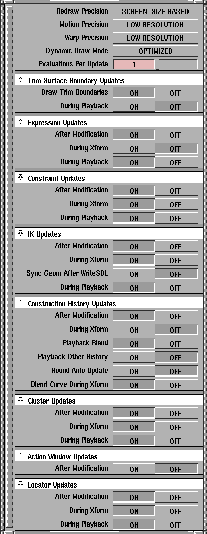
Redraw Precision, Motion Precision, and Warp Precision
options are used to control the automatic drawing precision.
Redraw Precision
Lets you change the precision of the objects being drawn. Click to the right of the heading to display available choices.
SCREEN-SIZE BASED
-
- Reduces the drawing precision of the objects as they become smaller on the screen to decrease redraw time. This is the default.
ACTUAL
-
- Draws all the objects with the precision that is set in the Curve Pr
ecision Options window (Curve Edit > Curve precision-
 ). ).
>
|
Note:
|
These options do not apply during viewing operations (such
as Cameras > World move camera > Tumble or Track) or
during optimized animations.
|
Motion Precision and Warp Precision
Click to the right of the headings to display the Motion Precision and Warp Precision menus.
>
|
Note:
|
Warp Precision does not need the SCREEN-SIZE BASED
option (all other options are identical).
|
These options are used to control the redraw of a dynamic scene, such as during viewing operations (Cameras > World move camera > Tumble or Track, or using the icons in the title bar of the window) or optimized animation.
BOUNDING BOX
-
- Draws the boundary box of the object.
BOUNDARY
-
- Draws the outer boundary of the objects.
>
|
Note:
|
This option is equivalent to the CONNECTED POINTS
option for curves. Both CONNECTED POINTS
and
BOUNDARY
ignore the Object Edit > Patch precision
option.
|
CONNECTED POINTS
-
- Draws the objects by connecting edit points.
LOW RESOLUTION
-
- Reduces the default object precision by a larger factor. This is the default.
MEDIUM RESOLUTION
-
- Reduces the default object precision by a small factor.
SCREEN-SIZE BASED
-
- Reduces the precision of the objects as they become smaller on the screen.
ACTUAL
-
- Draws all the objects with the precision that is set in the Curve Precision Options window (Curve Edit > Curve precision-).
Dynamic Draw Mode
OPTIMIZED
-
- This option speeds up the display of complex models during view updates or transformations. Selecting OPTIMIZED
turns off hulls, CVs, and edit points while updating views or transforming objects. This is the default option.
-
- OPTIMIZED only affects precision settings that would normally show hulls, CVs and edit points. For example, this option has no effect on bounding boxes.
>
|
Note:
|
The Redraw Precision and Motion Precision settings affect
this option.
|
NORMAL
-
- Selecting NORMAL
leaves the display of hulls, CVs, and edit points on even while updating views or transforming objects.
Evaluations Per Update
In some situations you may notice that a model with inter-dependencies among expressions, constraints, and IK seems to lag one frame behind during the evaluation when performing a playback.
If this happens, you may want to force the evaluation of the expressions, constraints, or IK to occur more than once per update.
To do this, you can use the Evaluation Per Update slider or type a number in the field next to it.
This number represents how many times each of these evaluations will occur per update (or during playback, per frame). This number is stored in the wire file when you save your model.
>
|
Note:
|
If your model has a circular dependency, then this number
will not solve the lagging problem.
|
Trim Surface Boundary Updates
When trimmed surfaces are animated in such a manner that their shape changes, the system slows down. This situation can be improved by disabling the display of the trimmed boundaries of the surface.
When trimmed boundaries are disabled, trimmed surfaces only display their interior curves, not their boundary curves. The display of trim boundaries can be disabled in two ways:
Draw Trim Boundaries
-
- If toggled OFF, trim boundaries are not displayed in the system at all. This speeds up operations such as Animation > Set keyframe.
During Playback
-
- If toggled OFF, the trim boundaries will not be displayed during playback and playback will operate faster.
>
|
Note:
|
The benefit of these two options is only apparent when the
trimmed surfaces are being deformed. Animation at the
transformation level does not benefit from this optimization.
|
Update Options
These controls determine when updates occur to various items:
expressions, constraints, IK handles, clusters, construction history and locators.
Each of these item updates share the following toggles (construction history updates only share the first two):
After Modification
-
- When set to OFF, the display of expression, constraint, IK, cluster, construction history and locator updates is suppressed. When set to ON (the default), updates are performed as they happen.
>
|
Note:
|
Updates are stored, so if After Modification is set to OFF for a
long time and then turned ON
, all the stored updates are
immediately done.
|
During Xform
-
- When set to ON, expression, constraint, IK, cluster, construction history and locator updates occur as you drag the mouse in any Xform operation (such as Xform > Scale). When During
Xform
is set to
OFF, updates occur once you release the mouse after an Xform operation. By default, this option is ON
for constraint, IK, cluster and locator updates, and OFF for expressions and construction history updates.
During Playback
-
- When set to ON
(the default), expression, constraint, IK, and cluster updates occur for each frame during playback. When set to OFF, the updates occur at the end of the playback operation.
-
- Note that:
- Even though construction history can update for each frame of a playback, it may not do so for a rendering of a playback because SDL does not support all construction history operations.
- Constraint animation can be updated during playback. However, to render constraint animation, pick the skeletons with animating constraints and select Animation > Run IK to capture the constraint animation of the skeleton with keyframe animation.
Additional IK Settings
In addition to the After Modification, During Xform, and During Playback settings (detailed above), the IK Updates section has the following additional option:
Sync Geom After Write SDL
-
- If there is Single Chain IK in your model, Write SDL steps through your skeleton animation internally, and then does a viewframe at the end to restore the skeleton's state to the current frame.
-
- If the Sync Geom After Write SDL option is OFF, it will assume that your geometry was up to date for the current frame, and will not recompute the deformations (recomputing the deformations could take several minutes for heavily clustered models).
-
- If you're doing a lot of tweaking on the model, and you don't usually do a viewframe/playback immediately before Write SDL, you may wish to turn the Sync Geom After Write SDL option ON, so that the geometry and skeletons will be in sync after Write SDL completes.
Additional Construction History Settings
|


