Cameras palette > World move camera > Dolly

Dollying the Camera


Purpose

Moves the camera forward or backward, which enlarges or shrinks the view.

How to Use

To use the Dolly tool, in the Tool Palette select Dolly from the Cameras > World move camera cascading menu, or click this icon.

Example

1
Select Objects > Primitives > Sphere and click in a window to place a primitive sphere. The sphere is displayed in all windows.
2
Select Cameras > World move camera > Dolly.

You can now use the mouse or the keyboard to dolly the view.

>
Note: When working with a large model, the speed at which the screen is redrawn during a Dolly operation can be increased by decreasing the Motion Precision in the Preferences > Performance options window.

Proportional Scaling

Using the Keyboard

Type a dolly factor at the keyboard when the following prompt appears:


Use mouse to dolly (left button = IN, right button = 
OUT) or enter dolly IN factor:

Type a number (integer or decimal value) and press Enter. A value of 0.5 pulls back (dolly out) by a factor of 2. A value of 2 magnifies (dolly in) by a factor of 2.

Using the Mouse

To move the camera forward (dolly in), click and drag the left mouse button.

To move the camera backward (dolly out), click and drag the right mouse button.

The middle mouse button has no effect.

In orthographic views (front, top, and right), clicking and dragging the left or right mouse button displays a white elastic box with a crosshair through its center. When the left mouse button is released, the part of the view contained in this box will fill the window. If the mouse button is pressed without dragging it, a continuous dolly occurs.

Non Proportional Scaling

When you select the Non Proportional option, objects in the active window can be deformed without being scaled. The portion of visible world space is modified through the window by differing amounts in both directions, while the physical size of the window remains the same.

>
Note: You cannot use non proportional scaling in the Perspective window.

Using the Keyboard

After selecting this option and clicking the Go button, the system prompts:


Enter window SCALES (horiz, vert) (ABS):

Type the horizontal scaling factor, followed by a space or a comma, then the vertical scaling factor.

See Using Absolute and Relative Addressing Modes on page 12 for more information on Relative addressing modes.

Type the letter r before the values (REL mode) to have them interpreted as relative scaling factors.

Invalid entries: If you enter a negative scale value or if the scaling in either direction causes the size of the view to become smaller than 10e-6 (in world coordinates), either horizontally or vertically, you are prompted to re-enter the scale values. The scaling stays in effect until you use Dolly again.

Using the Mouse

As the mouse moves from a given point to the right or top of the screen, the object appears larger and the grid lines appear further apart.

Moving from a given point to the left or bottom of the screen makes the object appear smaller and the grid lines appear closer together.

  • To scale the view horizontally, click and drag the middle mouse button.
  • To scale the view vertically, click and drag the right mouse button.
  • To scale the view in both directions, click and drag the left mouse button.

Dolly Options

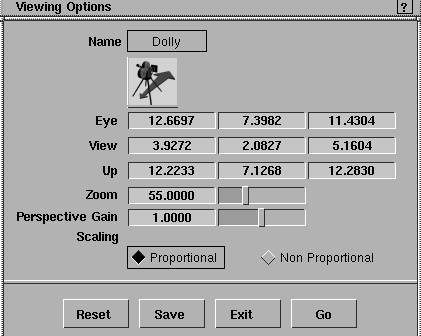
Select Dolly- to display the Viewing Options box.

>
Note: The viewing parameters that are displayed are for the active (most recently used) window.

Eye/View/Up

These sliders let you define a view by positioning the camera. The view is determined by the eye position, view point position, and the up vector end point. These nine fields contain floating-point values. They represent, from left to right, the X, Y, and Z coordinates for each of the three camera parameters. To see the camera as you modify it, use DisplayTgls > Object Toggles > Camera.

Zoom

The Zoom slider takes a floating-point value which defines the extent of the camera's field of view. Values must be positive in the range of 0.2 to 179.
>
Note: For windows other than the Perspective window (orthographic), two of the three Eye and View values must be the same, and two of the three Eye and Up values must be the same. If they are all different, or all the same, the results are unpredictable. This is because viewing operations on orthographic windows are performed on the window rather than the camera of the window.

Perspective Gain

To increase or decrease the rate of dollying or tracking when working with a very large or very small view.
>
Note: Perspective Gain and Zoom values are only used in perspective views. Zoom gives a zoom effect by changing the field of view of the camera.

This option can be useful to help detect curvature variations that are not noticeable at normal scale.

Scaling

Proportional - corresponds to the conventional dolly operations (the default).
Non Proportional - to scale the Top, Front, and Right window views independently along the horizontal and vertical axes.
>
Note: You cannot use non proportional scaling in the Perspective window.


Copyright © 1998, Alias|Wavefront, a division of Silicon Graphics Limited. All rights reserved. Please send questions or comments regarding the documentation to:
[email protected]