File > Import > Anim

Importing Saved Out Animation


File > Import > Anim lets you animate objects in your model by importing animation from an ASCII file in animation SDL format.

How to Use

1
Pick the object you want to assign the animation in the SDL file to.
>
Note: You can retrieve the animation from an SDL file onto any type of animatable item. The list of currently active items is searched for an item of the same type as the first item in the HIERARCHY section of the Animation SDL file.
2
Select File > Import > Anim. The Alias File Requestor is displayed.

If you click the Hide List button, the File Lister with Show List appears. Type in the file name and click Read Anim to retrieve the file.

3
Type the name of the animation SDL file or select the animation SDL file, and click Read Anim.

The animation curves from the DEFINITION section of the SDL file are read into Alias, and the animation channels from its HIERARCHY section, which use the curves from the DEFINITION section, are assigned to the picked object.

>
Note: When an Animation SDL file is retrieved onto an object, the object must be of the same type as specified in the Animation SDL file. If the SDL file defines a hierarchical object in the HIERARCHY section, then the hierarchy of the picked object must match the hierarchy of the SDL file.

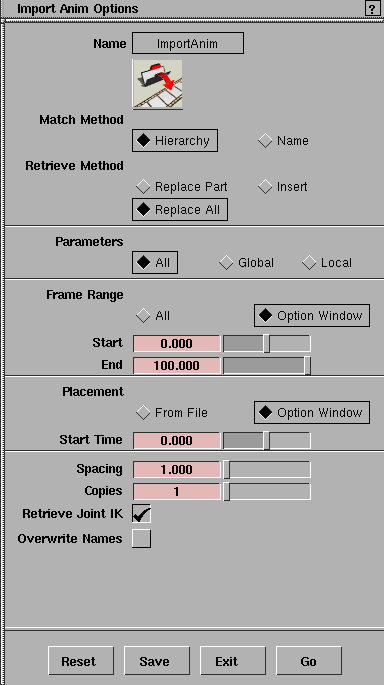
Import Anim Options

You can create Animation SDL files by selecting objects in Alias, and invoking File > Export > Anim. You can also generate your own Animation SDL files by writing your own procedures or gathering data from other sources, and then use this function to retrieve them.

Match Method

Determines how to match up the objects in the SDL file with those in the picked hierarchy.
Hierarchy - all objects in the retrieved animation are matched to their corresponding objects in the picked hierarchy, based on their position within the hierarchy.
Name - DAG node objects in the SDL file are matched to those DAG node objects in the picked hierarchy that have the same name. Non-DAG objects are still matched according to their position relative to their nearest DAG ancestor.

For these methods, see the following section for more information: Handling Transitions Between Retrieved And Existing Animation on page 130, Expressions, Motion Paths and Timewarps on page 131, and References To Parameter Curves And Objects In Expressions on page 131.

Retrieve Method

Determines how the picked objects are affected by the animation being read in from the SDL file:
Replace Part - replaces a portion of the existing animation, if any, on the affected parameters. The portion replaced begins at the point specified by the Placement option, and extends for the number of frames implied by the selection in the Frame Range option.
Replace All - replaces all of the existing animation on the affected parameters, regardless of frame number.
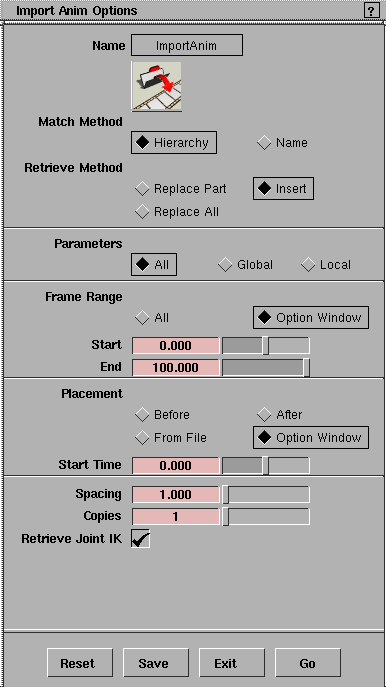
Insert - inserts animation from the SDL file into the existing animation, at the point specified by the Placement option. Any existing animation after this point is moved ahead in time to make room for the inserted animation, unless a placement of Before or After was specified; in which case, existing animation remains where it is.

Parameters

Indicates which parameters should be retrieved from the SDL file:
All - all parameters in the file are retrieved.
Global - retrieves only those parameters that are selected in the Global section of the Animation > Param control window.
Local - retrieves only those parameters that are selected in the Local section of the Animation > Param control window for the currently picked object(s).
>
Note: If the SDL file contains no animation for a parameter in the frame range being retrieved, then that parameter will not be affected, regardless of the setting of the Parameters option.

Frame Range

Specifies which frames are to be retrieved from the SDL file:
All - selects all animation in the file, from the first to the last keyframes for all affected parameters in the file.
Option Window - pops up Start and End sliders that can be used to explicitly specify the range of frames to retrieve from the SDL file.
If the start or end of the frame range does not fall precisely on a keyframe for any of the affected parameters, then a keyframe will be inserted at that point.
If the animation on an affected parameter does not span the full range selected, then it may be extended to the edges of the range using linear tangents. This is only done if the Replace Part or Insert operations have been selected and the retrieved animation joins up with existing animation.

Placement

Specifies where the animation from the SDL file should be placed:

The Before and After options are only available when using the Insert retrieval method. See the example on page 132.

    • Before - causes the SDL animation to be inserted before the first keyframe of animation on the currently picked object(s).
    • After - causes the SDL animation to be inserted after the last keyframe of animation on the currently picked object(s).
    • From File - causes all of the keyframes from the SDL animation to be placed at the same times as they occupy in the SDL file.
    • Option Window - pops up the Start Time slider which you can use to specify the time at which the first keyframe from the SDL file should be placed.

Spacing

Allows you to specify a time gap to be left between the start and end of an inserted segment of animation, and between subsequent copies of an inserted or replaced segment of animation.
If the spacing is set to 0, it is possible (even likely) that the keyframes at either end of the inserted animation will fall on the same time as one of the keyframes in the existing animation. Since only one keyframe is allowed at any given time, the time of the leftmost of the two keyframes is set back by 0.01 frames to distinguish it from the other and the two are joined with linear tangents. An exception to this is if both keyframes also have the same value; in which case, they are merged into a single keyframe.
By explicitly setting Spacing to a value greater than 0, you can avoid the default behavior and better fine-tune the transition between the existing and inserted animations.

Copies

Specifies the number of copies of the retrieved animation to place into the existing animation. The first keyframe of each copy immediately follows the last keyframe of the previous one by the gap specified in the Spacing option.

Retrieve Joint IK

If this option is selected, the IK handle information is retrieved for the corresponding sections of a skeleton. This information is saved with the animation in the SDL file.

Overwrite Names

If this option is selected, the names of the affected existing animation curves will be overwritten by the names of the curves retrieved from the SDL file. If the new name conflicts with that of some other curve in the existing animation, then a default curve name will be created.
If Overwrite Names is not selected, then the names of the existing animation curves will be retained. Note that it is not always be possible to retain curve names, specifically in the case where multiple-instance actions are involved.
If a curve's existing name cannot be retained, then it will be given a new, default name.
The Overwrite Names option is only available for a Replace All operation. Replace Part and Insert always try to retain existing curve names.

Handling Transitions Between Retrieved And Existing Animation

Since the Replace All operation removes all existing animation from the affected parameters, you don't have to worry about transitions between existing and retrieved animation. However, transitions do become an issue for Replace Part, which only does a partial replacement, and Insert.

When the end of one segment of animation must be joined to the start of another, and there is a gap between them, it is bridged with linear tangents on the outbound side of the left segment and the inbound side of the right segment.

If there is no gap between the two segments, the last keyframe of the left segment and the first keyframe of the right segment both occur at the same time. Since a parameter cannot have more than one keyframe at a given time, the left keyframe is moved back by 0.01 frames and the two are joined by linear tangents. An exception to this is when the two keyframes have the same value, as well as time. In this case, they are merged into a single keyframe which has the inbound tangent of the old left keyframe and the outbound tangent of the old right keyframe.

Expressions, Motion Paths and Timewarps

During the Replace Part and Insert operations, if a parameter is animated by an expression, motion path, or timewarp, either in the file or in the existing animation, then it is not retrieved. When this happens, a prompt appears, giving the option to either cancel the retrieval or go ahead with it but without affecting those parameters. Only the Replace All operation retrieves these kinds of animation.

When performing a Replace All operation, Copies is ignored for expressions and motion paths, as it is basically meaningless.

Multiple copies of timewarps may be retrieved during Replace All, but be careful. You may get unexpected results, since the linear tangent transition between the end of one copy and the start of the next may not be what you want.

References To Parameter Curves And Objects In Expressions

When using Replace All, you can retrieve expressions that reference parameter curves in the SDL file. If Overwrite Names is off, or if there is a conflict between existing and retrieved curves, it is possible that the names of some of those curves will change during retrieval. When this happens, the expression is considered invalid and is ignored during retrieval.

Similarly, a retrieved expression may reference an object from the SDL file whose name is different from that in the existing animation. If the expression contains a relative reference to an object in the retrieved hierarchy, it refers to the corresponding object in the existing animation, regardless of any difference in the names of the objects. If the object reference is absolute, the expression remains unchanged and refers to the object in the existing animation having the same name. If there is no such object, the expression will be considered invalid and will be ignored during retrieval.

Multiple-Instance Actions

It is possible for two or more parameters to share the same action, meaning that they share the same parameter curve. When this happens it may not be possible for curve names to be preserved. For example, if two parameters that share a curve named A are being replaced with animation in which the two parameters have completely different curves, then it is not possible to preserve the curve name because that would imply having two completely different parameter curves named A, which is not allowed

Whenever this situation occurs, you are informed that some curve names may not preserved, and have the option to cancel the retrieval. If you choose to continue, some of the parameters will be assigned curves with new names.

Example

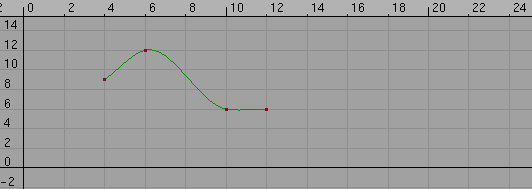
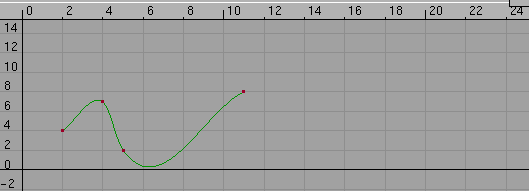
The following example shows what happens when frames 4 through 12 of an Animation SDL file are retrieved and inserted into an existing animation starting at frame 7. For purposes of clarity, only one parameter is shown, but the same process would be followed for each retrieved parameter.

For this example, the option box is set as follows:

When Go is clicked, the insertion process then proceeds in the following manner:

>
Note: As a visual aid, the on-line version of this document shows the retrieved animation in blue and existing animation in red. Were you to actually view them in the Action Window, the retrieved and existing animation for a given parameter would be displayed in the same color.

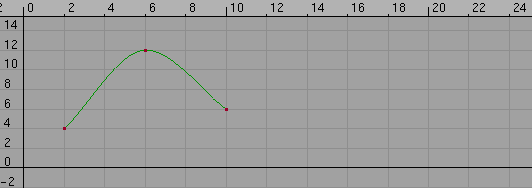
The animation in the SDL file looks like this:

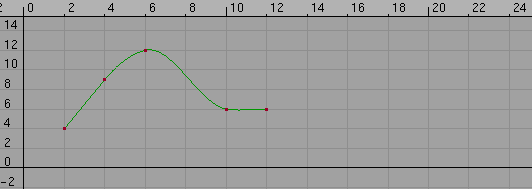
Keyframes are inserted at the start and end points of the range being retrieved. Since the end of the range is beyond the end of the curve, the curve is extended with a linear tangent. The keyframe inserted at the start of the range is given the same inbound tangent type as the keyframe to its right, and the same outbound tangent type as the keyframe to its left:

The segments of the curve outside of the range are deleted:

Next, the existing animation is prepared for the insertion. Initially, it looks like this:

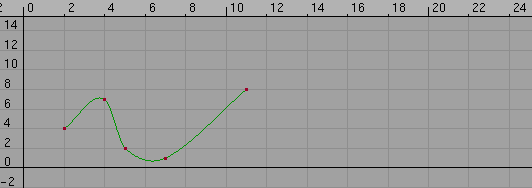
A keyframe is set at the insertion point (frame 7).

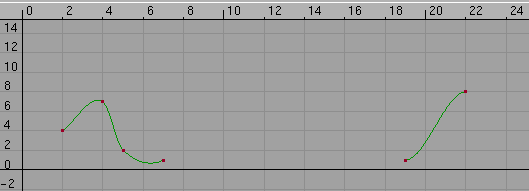
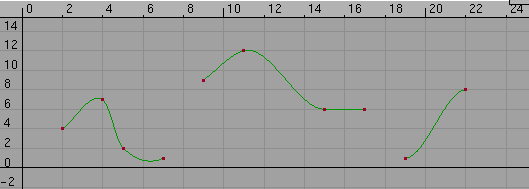
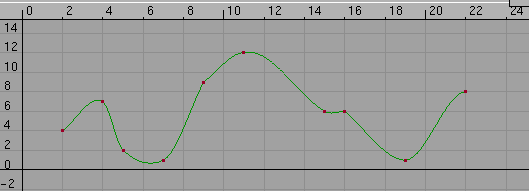
The curve is split into two parts at the insertion point. The rightmost segment of the curve is shifted forward in time by an amount equal to the range of animation being inserted (8 frames) plus the spacing to be left around the inserted segment (2 frames at each end, giving a total gap of 12 frames).

The retrieved animation is inserted into the existing animation at frame 9, which is the starting frame (7) plus spacing (2 frames).

Finally, the three separate segments are joined using linear tangents.

Notes

  • Although you can use File > Anim to write out an Animation SDL file with only a DEFINITION section and no HIERARCHY section, you cannot retrieve an Animation SDL file that only has a DEFINITION section. This is because the animation curves would be inaccessible in Alias unless they are being used by a channel that is animating some object. Use the action window to view animation curves that are being used by an animated object (see Animation > Action window).

For more information on the format of an Animation SDL file, see the File Format section on page 126.

  • If you retrieve an Animation SDL file (which has both a DEFINITION and a HIERARCHY section), and some of the animation curves in the DEFINITION section are not used by channels in the HIERARCHY section, they are not retrieved.


Copyright © 1998, Alias|Wavefront, a division of Silicon Graphics Limited. All rights reserved. Please send questions or comments regarding the documentation to:
[email protected]