|
Export - Anim lets you store channels and their animation for a selected set of items in a file. The file is in ASCII format, which can be edited and read back in to animate other objects.
How to Use
-
1
-
Animate an object, then select File > Export > Anim. The Alias File Requestor is displayed.

-
2
-
Type a name at the prompt line to store the file, then click the
Save Anim button.
-
A file is created in the anim subdirectory of your current
project, and contains the Animation SDL information of
the animated object. One file is created for each animated
object picked. The files are named in the format
<base>.<extension>, where <base> is the name you
provide, and <extension> is the name of the picked
object.
Notes
- You can save the animation in an SDL file for any type of animatable object. One anim SDL file is saved for each item that is currently selected and animated.
- Different objects are picked in different ways. For example, a DAG node, CV, or camera can be picked by using the Pick menu. A shader, texture, or light is picked by selecting it in the Multi-lister. To see a list of all animatable items that are currently active, see the list of items under the LOCAL heading of the Parameter Control window (see Animation > Param control). Note that you must pick the object to save its animation curves. Picking curves in the action window will not save out the animation for those curves.
Export Anim Options
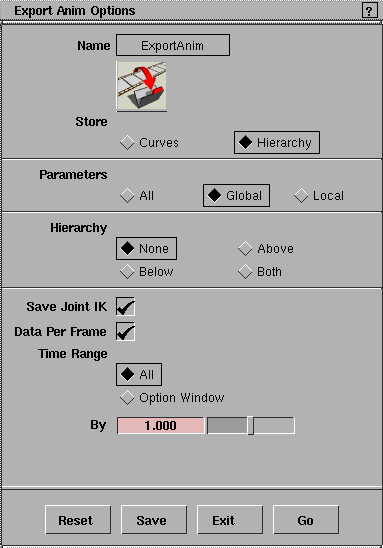
Select File > Export > Anim - to display the Export Anim Options window. to display the Export Anim Options window.
Store
-
- You can choose to store just the Curves (or actions) that are used by the selected items to create animation curve libraries, or the Hierarchy as well, which stores the channels of each selected object and a description of which curves (or actions) they use. If Hierarchy is selected, the Animation
SDL file can be retrieved onto picked objects using File > Import > Anim.
Parameters
-
- You can store curves for All parameters, or just those chosen in the Global or Local parameter control window (see Animation > Param control on page 19l for details).
-
- This option also lets you store parts of a hierarchy. For example, if CV animation is disabled in the param control window, and you select Hierarchy, everything in the hierarchy is stored except CV animations. This option also lets you avoid storing animations for animated shaders.
Hierarchy
-
- You can choose to write out the channels for just the object (None), the object and its ancestors (Above), the object and its descendants (Below), or the object and its ancestors and descendants (Both).
Save Joint IK
-
- If this option is toggled ON when you save an animation for a skeleton, the IK handle information is saved for each joint of the skeleton. Additional hierarchy information associated with the handles of the skeleton is also saved.
Important Note
-
This option is NOT compatible with releases prior to
Version 8.5. If you transfer animation data to an earlier
release, make sure that this option is set to OFF.
Data Per Frame
-
- If toggled ON, each channel is written out as linked to a single parameter curve action that is sampled in frame increments specified by the By option. This is similar to replacing the channel and possibly all its timewarp actions with a single action, as in Curve Tools > Use result
in the Action Window (Animation > Action window).
Time Range
-
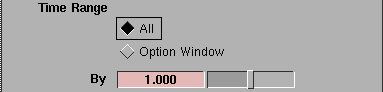
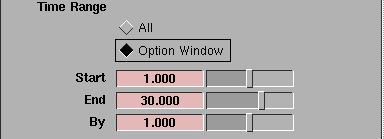
- If Data Per Frame is toggled ON, the following Time Range options are displayed. You can write out the animation on a channel for its complete range, or only within the specified time.
All
-
- Each channel is written out as a parameter curve action defined over the complete range of the channel using the By slider.
Option Window
-
- The channel is sampled only between the specified Start and End values, with an interval determined by the By value.
|


