Using MS Photo Editor
Microsoft Photo Editor
Graphics Programs
There are many graphic manipulation programs around ranging from very simple to quite sophisticated.
If you have a digital camera then you may already have one which came with the camera.
These vary with the brand of camera and I cannot give specific advice on how to use them.
However I can give advice on Microsoft Photo Editor, an image-editing application found in Microsoft Office 97–XP versions for Windows.
The type of file formats that MS Photo Editor can open and save to are: gif, bmp, jpg, jpeg, tif, png, and pcd.
Photo Editor is handy for basic photo and image manipulation tasks such as cropping, resizing, and stylizing.
(Notes: It has now been replaced with Microsoft Office Picture Manager, although some Photo Editor features are not available in Picture Manager.
Early versions of Microsoft Photo Editor, including the version bundled with Office 2000, erased metadata from digital camera JPEG images during saves.)
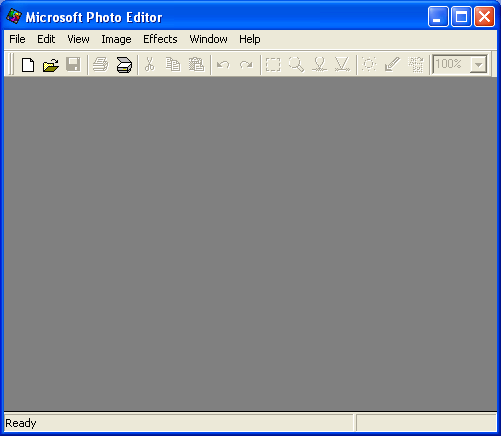
If you have MS Office 97-XP on your computer, Microsoft Photo Editor is usually found under Microsoft Office Tools.
If you can't find it, you may need to install it from the MS Office CD.
The version of Microsoft Editor I am using is from Microsoft Office 2000.
If you have another MS Office version, the screenshots may be different.
Using Microsoft Photo Editor
Start Microsoft Photo Editor on your computer.
To open the photo/graphic you want to work on, click on File on the Menu Bar of Microsoft Photo Editor,
click Open and then navigate to where the photo/graphic is on your computer.
In the rest of the article I will shorten any instructions to the format File | Open.

An alternative way to open a photo/graphic with Photo Editor is by clicking on the the "yellow folder" graphic on the Tool Bar.

To Crop a Photo:
a) Click on the dashed square symbol in the Tool Bar of Microsoft Photo Editor.
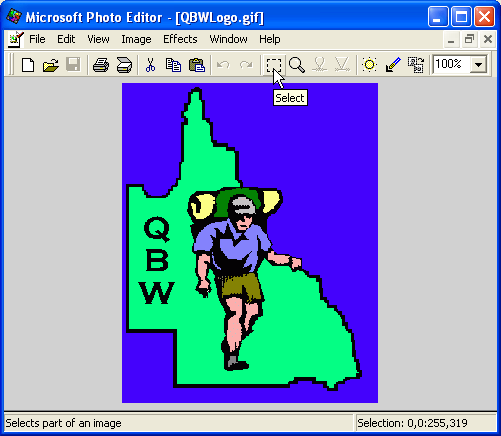
b) Click, hold and drag with the mouse over the photo the section you wish to crop.
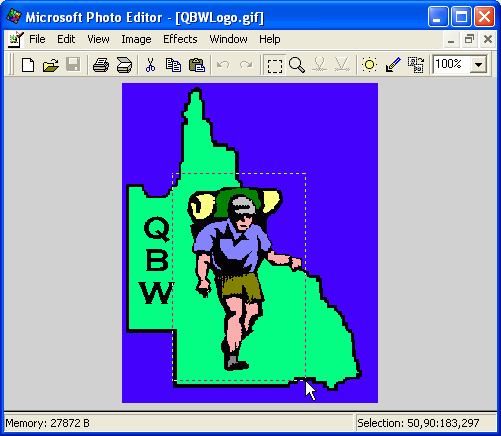
When you release the mouse button, you can further adjust the size you want by dragging on the “handles” at the sides and corners of your selection.
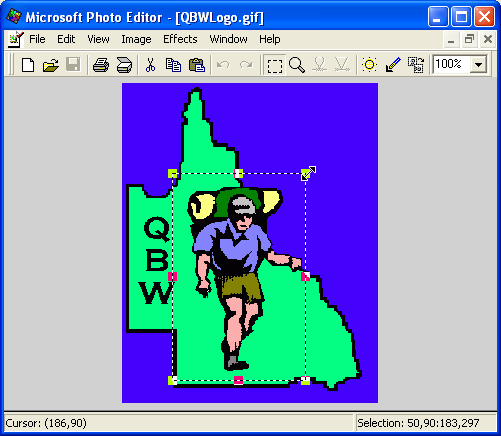
c) Right click over the selection will bring up a popup box. Left click on Crop in the popup.
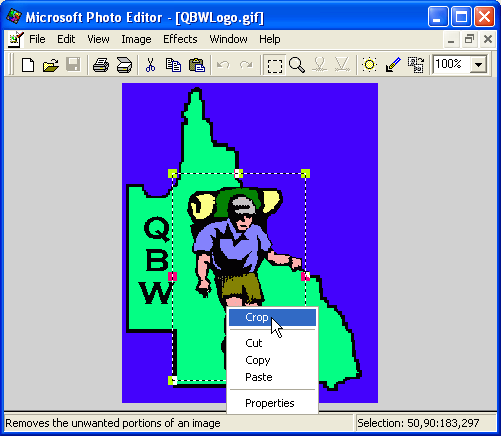
And the cropped photo will appear.
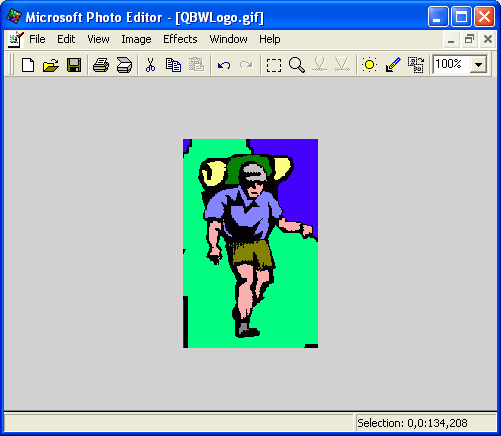
Microsoft Photo Editor also allows some
variations to the cropped image such as white borders (mat margins),
oval or rectangular photos and rounded corners.
If you want any of these, Click on Image | Crop, and the Crop dialogue box will open.

Adjust any parameters in the dialogue box and then click OK.
For information on what the parameters are and what they do,
click on  in the top right hand corner of the dialogue box and then click over the area of the dialogue box you want more information.
To Enhance Colours:
Click on Image | Balance and the Balance dialogue box will open.
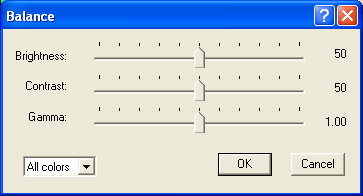
Here you can adjust the Brightness, Contrast and Gamma. More information is available again by clicking on .
An alternative is to Click on Image | AutoBalance and let Microsoft Photo Editor adjust the photo to what it thinks best.
To Change the Resolution:
Click on File | Properties and the Properties dialogue box will open.
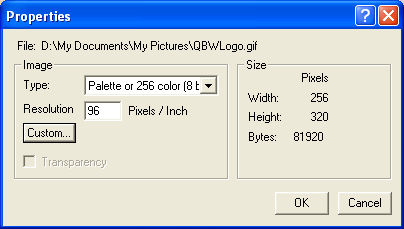
Set the Resolution in Pixels/Inch to your desired level.
A good quality picture to be printed needs at least 150 Pixels/Inch.
A picture for the internet only requires about 75 Pixels/Inch.
Guide for club members: No need to set the resolution if sending photos by email.
Guide for Editors Assistants: If inserting a photo into the Newsletter, set the Resolution to 150 Pixels/Inch.
To Resize a Photo:
Click on Image | Resize and the Resize dialogue box will open.
Resizing is mainly used to decrease a photo size.
You can decrease the number of pixels in an image but you can't always increase pixels without distortion or
pixelation.
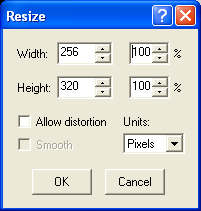
In the dialogue box under Units, click on the  button to select the type of units you wish to use.
You have a choice of cm, inches or pixels.
When resizing, you need to take into consideration whether the photo will be
used on the internet or for printing.
For internet, more commonly the pixel size is adjusted.
For printing, more commonly the cm/inch size is adjusted.
If for printing, adjust the Resolution first, as above, and choose the
desired Pixels/Inch before resizing the photo.
Reduce the photo to the required width and height. You can change the size by either giving exact units or as a percentage.
Guide for club members: If sending photos by email, leave the units in pixels. Anything over 1000 pixels wide is a good size.
The example above at 256 pixels wide would be too small for a normal
photo in the Newsletter.
Guide for Editors Assistants: If inserting a photo into the Newsletter, set the Resolution to 150 Pixels/Inch and the width to 8.5cm for a photo in a half column or 17cm for a full page photo as on Page 1.
To Save a Photo:
Click on File | Save As and a Save As dialogue box will open.
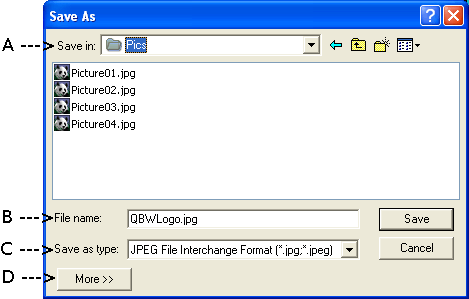
A) Choose the folder you wish to save the photo in. By default, Microsoft Photo Editor opens up the folder where the original photo came from.
B) Choose a File name. If you choose the same folder as the original photo, change the filename. By doing this you
also retain the original photo.
C) In the Save as type drop down menu box, pick a graphics format. A common graphic format used is JPEG.
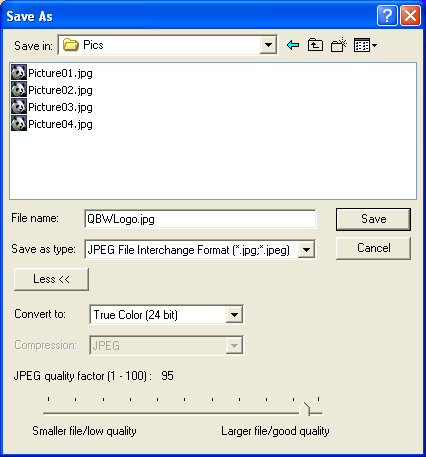
D) If using JPEG you can adjust the quality of the photo by clicking on
More>> and moving the slider of the JPEG quality factor. By
decreasing the quality of a jpg photo you also decrease its size in
KB's.
Guide for club members: If sending photos by email, choose
the JPEG File Interchange Format and adjust the quality to 95%.
Guide for Editors Assistants: If the photo is to be
inserted in the Newsletter, choose the JPEG File Interchange Format and adjust the quality to 55%.
Click on Save.
For any feedback email me at [email protected]